
Record a refund already issued through Chase POS or another payment processor without replacing the original payment. Save the refund's amount, date, reason, processor, and reference, then review the resulting balance and customer documents.
Part of Payments and Receipts.
Return the money through your processor first
Complete the refund through the processor that handled the payment and keep its refund reference. Recording the refund in NotaryCentral documents that activity; it does not send money through Chase or another processor.
Before recording the refund, confirm that the original payment is saved on the appointment. Use the processor's refund date and reference so you can match the two records later.
For the payment fields and receipt defaults, see Carry Saved Payment Details into Receipts.
Record a partial refund
The Payments summary keeps charges, money received, refunds, and the remaining balance in view. Details and history expand when you need them.
- Open the appointment's Payments screen and find External refunds.
- Locate the original payment and choose Record external refund.
- Choose Partial amount and enter the amount returned, such as 35.00.
- Enter the Refund date, Refund reason, Refund processor, and Processor refund reference. For example, use Chase POS as the processor and the refund transaction reference supplied by Chase.
- Choose how the charges should be treated. If you waived the charge, select Waive / reduce charges and add a matching invoice credit or link an existing available credit.
- Select Review refund. Check the refund amount, charge treatment, and resulting balance. Expand Calculation details for cumulative refunds and net retained.
- Select Record refund to save the record. Expand Refund history to review the saved entry.
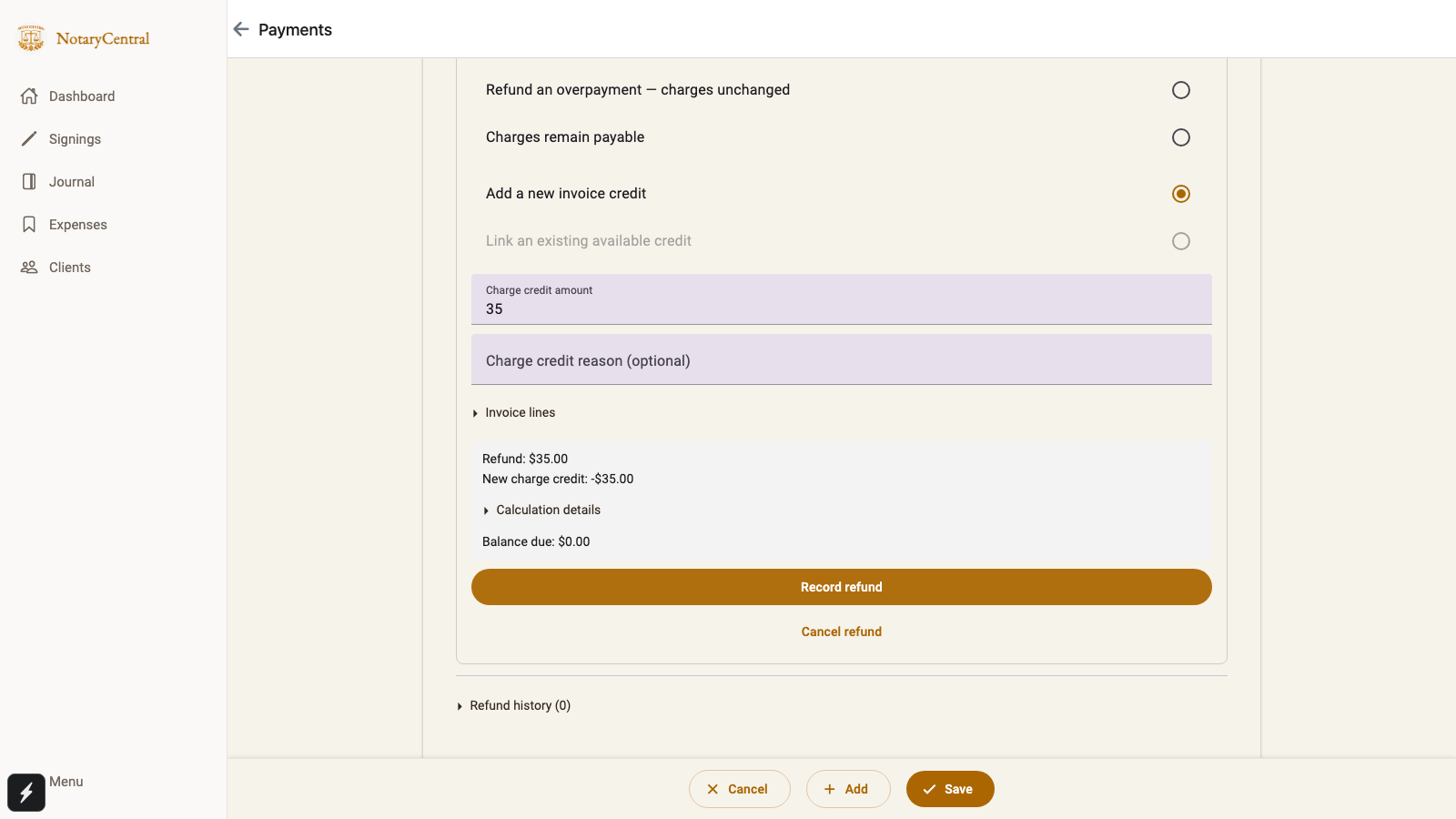
Before choosing Record refund, check Refund: $35.00, New charge credit: -$35.00, and Balance due: $0.00. Expand Calculation details for the breakdown. Screenshots use fictional test data.
The original payment remains in the history. Each additional refund is recorded against that payment, up to the amount still available to refund. The refund date cannot be in the future or precede the original payment date.
Choose how the refund affects the charges
| What happened | Charge treatment | Effect |
|---|---|---|
| You waived or reduced a service charge | Waive / reduce charges | Add a new invoice credit, or link an existing available credit that is already included in the charges. |
| You returned money the customer overpaid | Refund an overpayment — charges unchanged | Keep the invoice charges unchanged and reduce the customer's overpayment. |
| You returned money but the customer still owes the charge | Charges remain payable | Keep the charges unchanged; review any resulting balance due before recording. |
If the charge was already credited on the invoice, select Link an existing available credit. Linking it records which credit relates to the refund without deducting it again. If a new credit differs from the refund amount, enter the required explanation and check the balance shown in the review.
Example: $122 paid, $35 refunded, $87 retained
Suppose a customer paid $122 through Chase POS. You later waive a $35 evening service charge and return $35 through Chase.
Record the $35 refund against the original $122 payment. Choose Waive / reduce charges and apply a $35 charge credit, or link the $35 credit if it already exists.
| Item | Amount |
|---|---|
| Original charges | $122.00 |
| Charge credit for the waived service | −$35.00 |
| Adjusted charges | $87.00 |
| Original payment retained in the history | $122.00 |
| Recorded refund | $35.00 |
| Net payments retained | $87.00 |
| Balance due | $0.00 |
Recording the refund with Charges remain payable would leave the charges at $122 and show $35 due. Use the waiver treatment when the customer no longer owes that charge.
Record a full refund or refund the remaining amount
Choose Full remaining amount to use the original payment's unrefunded balance. For an untouched $122 payment, that is $122. If a $35 refund already exists, the full remaining amount is $87.
Choose the charge treatment and review the balance before recording. To refund and waive the entire appointment in this example, the combined charge credits must also cover the full $122. The result is $0 in adjusted charges, $0 retained, and $0 due.
Generate a refund confirmation or updated receipt
Expand Refund history, then choose Print refund confirmation on web or Share refund confirmation on mobile. The confirmation includes the original payment, the recorded refund and its details, cumulative refunds, net retained, and the appointment totals saved when the refund was recorded.
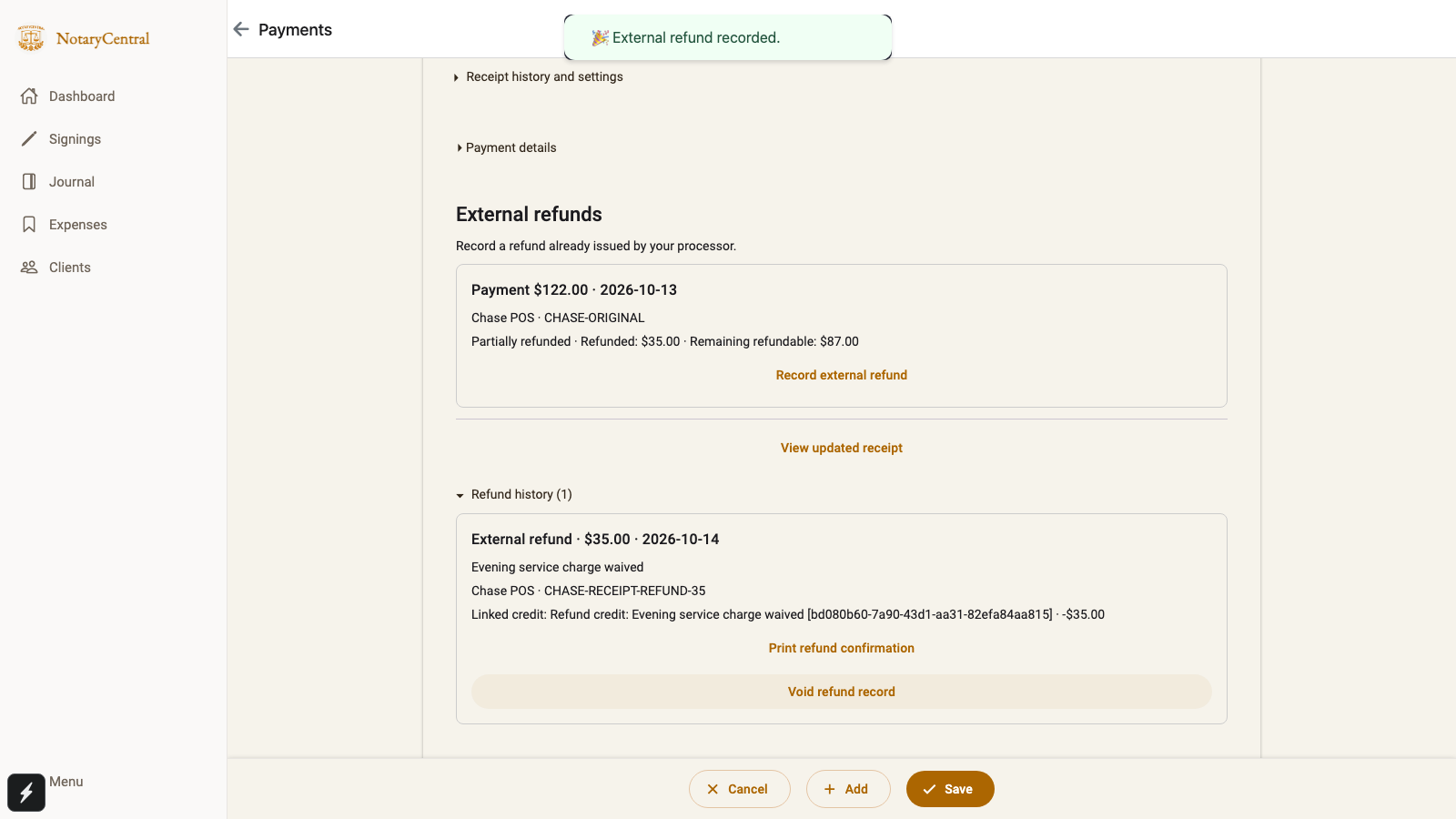
The original payment remains $122. Refund history (1) shows the separate $35 refund, its processor reference, and the actions to print its confirmation or void an incorrect record.
Choose View updated receipt to review the appointment's current charges and payment history. The receipt shows the original payment separately from refunds, along with the net retained and current balance. The receipt is labeled Partially refunded or Fully refunded. On web, choose Print receipt to open the printable document.
To email the current record, choose Send updated receipt on Payments or in the receipt editor. Sending is available after partial or full refunds, whether a balance remains due or the refunded charges have been waived. Save pending payment edits first.
Payments shows Updated receipt ready when the saved record differs from the last successfully emailed version. After sending, it shows Sent with a time and Send again. Expand Receipt history and settings for earlier sends and their recipients. Recording a refund does not automatically send an updated receipt.
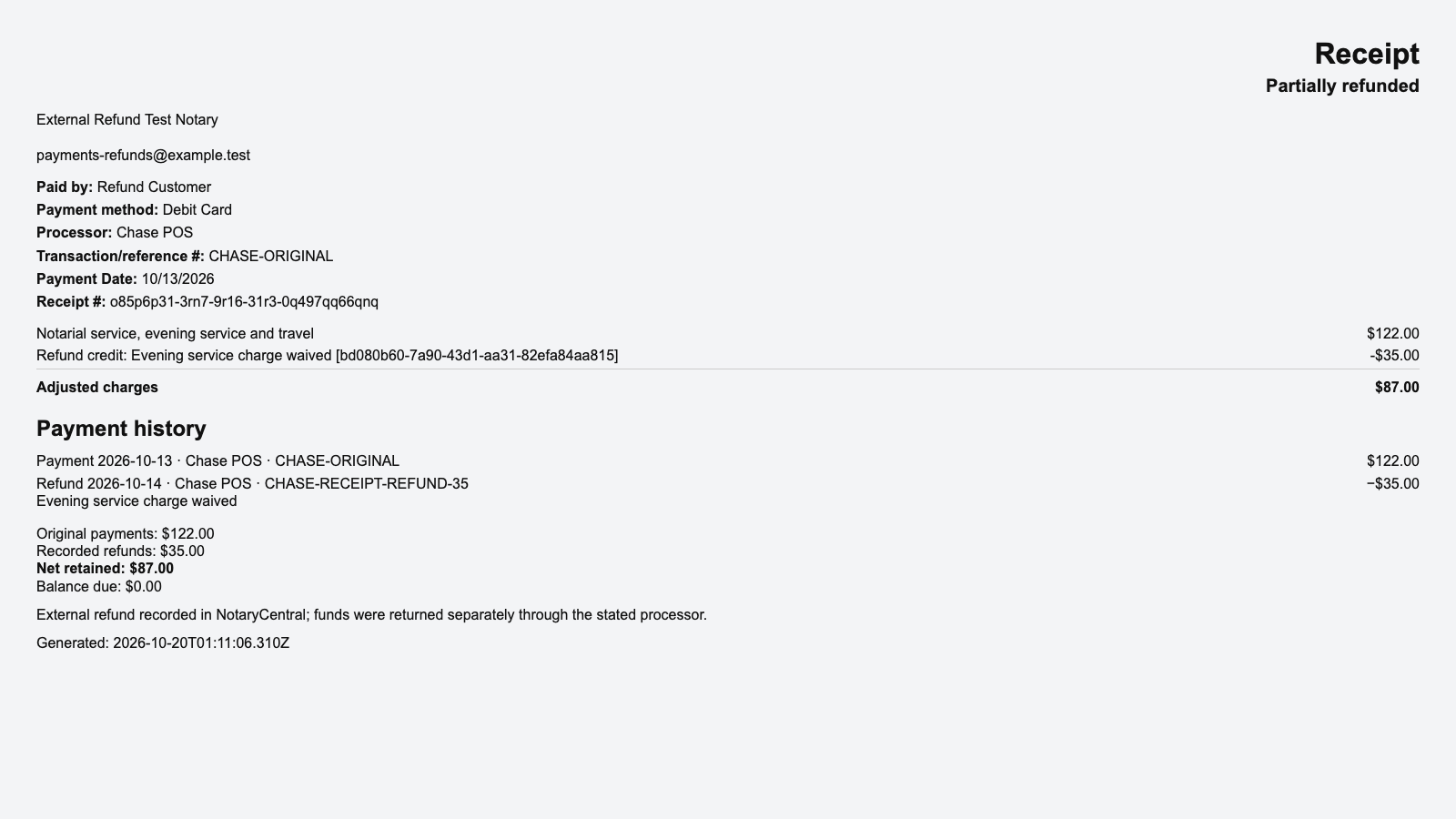
On the printed receipt, look for Partially refunded, the separate payment and refund rows, Net retained: $87.00, and Balance due: $0.00. Open the sample receipt at full size to read the payment history and totals.
Correct an entry without confusing it with a refund
If money was never returned and the payment was entered incorrectly, expand Payment details, choose Correct payment entry, and provide a correction reason. Changing the original payment to its net amount would obscure what actually happened through the processor.
If the refund record itself was entered incorrectly, expand Refund history, choose Void refund record, and provide a reason. When it has a linked charge credit, choose whether to keep or reverse that credit and review the resulting balance. The voided record and its historical confirmation remain available. Voiding a record does not reverse the refund through the processor.
Return to Payments and Receipts for the guide index.