
Use these guides to save payment details once, choose when to email customer receipts, and keep a clear record when money has been returned through an outside payment processor.
Choose a guide
| Guide | What you will learn |
|---|---|
| Carry Saved Payment Details into Receipts | Save the payer, payment method, processor, and transaction reference with the payment; generate a prefilled receipt, preserve receipt-specific edits, and choose which business details appear on the PDF. |
| Correct Payment Entries and Check Paid Status | Correct an amount, reset an erroneous payment to zero, or remove an entry; verify that Billing Overview recalculates the balance and Paid badge. |
| Send Receipt Emails with a PDF Attachment | Email a receipt PDF with editable To/Cc and reusable wording; check send status on Payments and message details in appointment email history. |
| Automatically Email Receipts for Fully Paid Invoices | Enable optional receipt emails, send once when the final payment is recorded, check delivery status, and resend deliberately when needed. |
| Recording Full and Partial Refunds | Record a refund issued through Chase POS or another processor, retain the original payment, adjust waived charges, and produce a refund confirmation or updated receipt. |
Record payment details once
Save the payer, payment date, method, processor, and reference on the appointment's payment record. Those details provide the receipt's defaults, so you can review and print or share it without entering the same information again. Receipt-specific edits are saved separately from the original payment.
Review the balance at a glance
Payments brings Charges, Received, Refunds, and Balance due together in one summary. An overpayment appears as Customer credit. Expand Payment details to review saved entries or make a correction; choosing Add opens the editor for a new payment.
Know when a receipt was emailed
Under Receipt email, see the current status and the action to take. Changed payments, refunds, saved receipt edits, or visible branding show Updated receipt ready with Send updated receipt. After a successful send, it shows Sent with the time and Send again.
Expand Receipt history and settings for earlier attempts, their recipients, the next recipient, and whether automatic receipts are on. Receipts sent through the separate composer are tracked here too. The Payments send confirmation shows the intended recipient; if the address changes before sending, refresh and confirm it again.
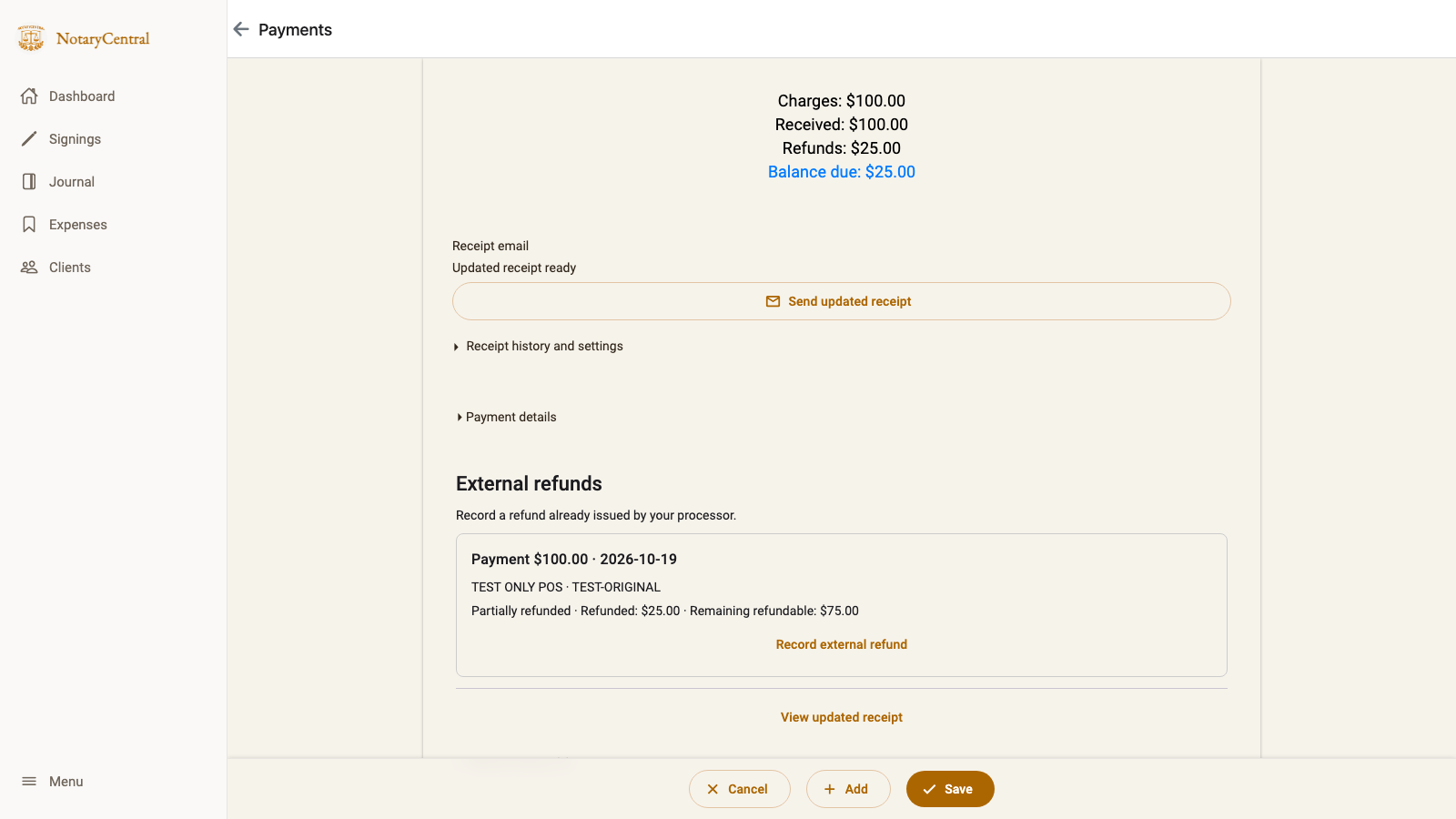
Example with fictional test data: the balance stays visible while history and payment details remain collapsed.
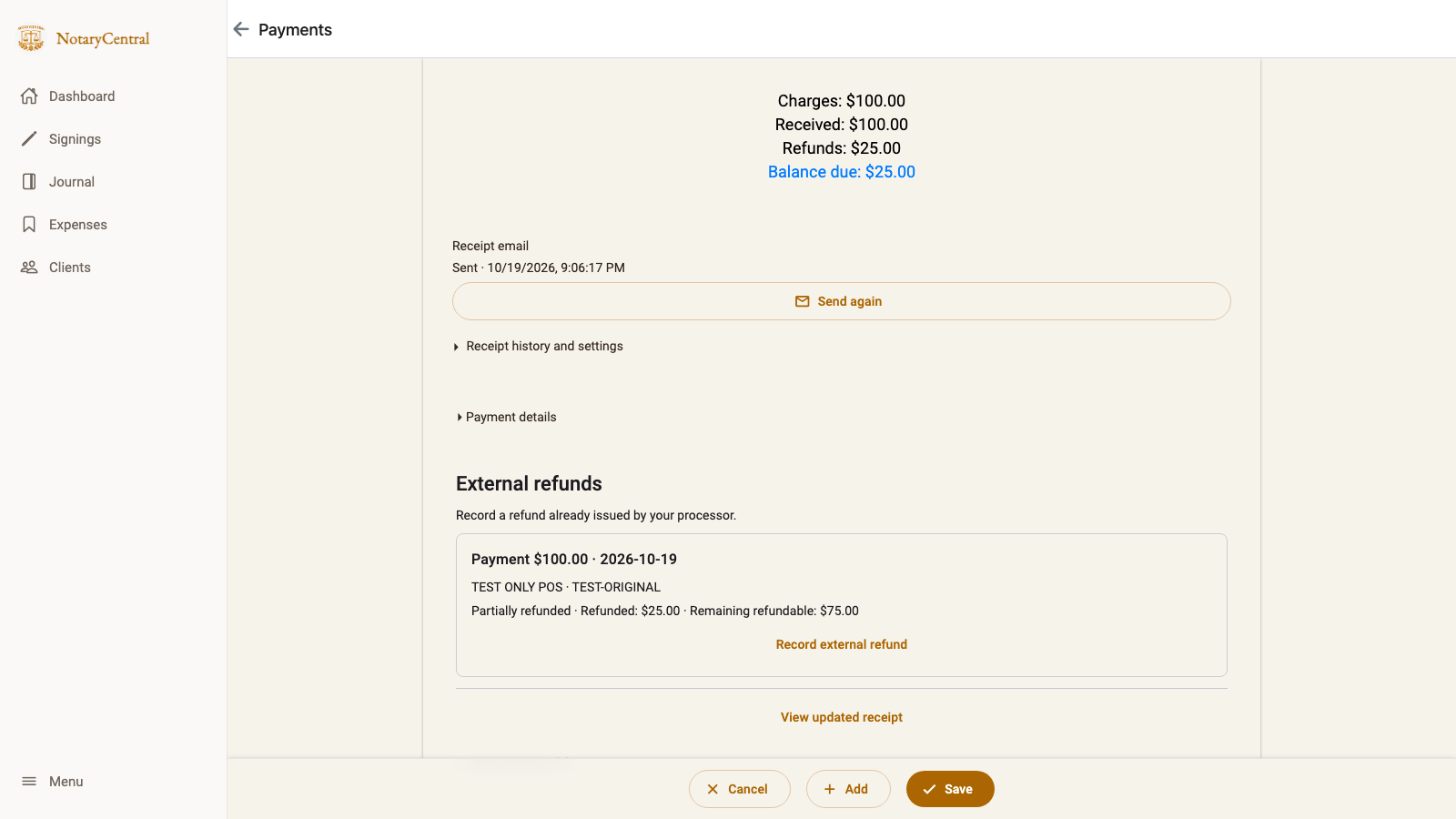
After sending, Updated receipt ready becomes Sent with a time, and the action becomes Send again. The $25 balance remains unchanged.
A failed resend preserves Sent when that document was already emailed; an unsent update stays Updated receipt ready. Retry and the expanded history identify the failed attempt. See receipt status examples.
Sent means the email service accepted the send. Use appointment Email history for individual messages and available delivery details. Printing or sharing through another app does not mark a receipt email as sent.
Keep charges and payments in agreement
Charges describe what the customer owes for the appointment. Payments and refunds describe the money received and returned. A refund reduces the amount retained; a charge credit reduces the amount owed for the service.
When you waive a paid charge and return the money, record both changes so the balance remains accurate. The refund guide walks through a $122 payment, a $35 refund and waiver, and the resulting $87 retained with $0 due.
Start from the appointment
Open the appointment in Signings and review its payment records alongside its invoice. Keep the processor's transaction references available so the original payment and any refund can be reconciled with your processor records.