
Save who paid, how they paid, and the processor's transaction reference alongside the payment amount and date. NotaryCentral carries those details into the appointment receipt so you can review them instead of entering them twice.
Part of Payments and Receipts.
Record the payment details
- Open the appointment in Signings and go to Billing Overview.
- Open the payment editor from the Payments row.
- Choose Add to add a payment entry.
- Enter Date Rec'd, Payer, Payment method, Processor, Transaction/reference #, and Amount. Use Check # when the payment has a check number.
- Choose Save. Reopen the payment editor and expand Payment details to review the saved entry.
For an existing payment, expand Payment details, choose Correct payment entry before editing and enter a Payment correction reason. This keeps an explanation of changes to the saved record.
For amount corrections, zero resets, removal, and the resulting balance, see Correct Payment Entries and Check Paid Status.
Example: a $122 debit card payment through Chase
| Payment field | Example |
|---|---|
| Date Rec'd | October 14, 2026 |
| Payer | Jordan Customer |
| Payment method | Debit Card |
| Processor | Chase POS |
| Transaction/reference # | CHASE-APPROVED-123 |
| Check # | Leave blank for this card payment |
| Amount | $122.00 |
The payment method describes how the customer paid, such as cash, check, or debit card. The processor identifies the service that handled the transaction, such as Chase POS. Enter the approved processor transaction ID in Transaction/reference # so you can reconcile the payment later.
Check # remains a separate field for check payments. It does not replace the general transaction reference or automatically fill the receipt's Transaction/reference #.
Generate the receipt from the saved payment
After saving the payment, return to Billing Overview and choose Generate Receipt. The receipt editor uses the saved payment information as its defaults:
| Saved payment detail | Receipt field |
|---|---|
| Payer | Paid by |
| Date Rec'd | Date paid |
| Payment method | Payment method |
| Processor | Processor |
| Transaction/reference # | Transaction/reference # |
Review these fields and the receipt preview before printing or sharing. Payment dates use the business time zone, so a payment close to midnight is shown on the appropriate local date.
If the appointment has several payments, the receipt combines distinct payers, payment methods, processors, and references. Date paid defaults to the latest saved payment date. Review the combined information and customize the receipt if a different customer-facing description is needed.
Older payment entries may lack a payer, method, processor, or reference. Missing details remain blank; enter the information on the payment record or customize the receipt as appropriate.
Keep receipt-specific edits after reopening
You can change Paid by, Date paid, Payment method, Processor, or Transaction/reference # in the receipt editor. For example, you might use a company's billing name on the receipt while retaining the individual payer's name on the original payment.
Choose Close, Print receipt on web, or Share receipt on mobile to save your changes as part of that action. Send Receipt also saves receipt edits before opening the email composer. After a successful save, reopening or reloading the receipt retains those changes.
Receipt edits are stored separately from the payment record. Fields you have not edited continue to use the saved payment details. A field you deliberately clear stays blank after reopening; clearing it is also a saved receipt edit.
If saving fails, the editor stays open with your changes and an error message. Retry the action after resolving the connection problem before leaving the receipt.
Choose which business details appear
From the receipt preview, choose Edit receipt template, or open Invoice/Receipt template in Settings. Choose More → Show/Hide Fields. Checked fields appear on the document; changes save automatically. Choose Close, then Go back to return to the receipt.
| Control | What it shows or hides |
|---|---|
| Address | Street address, city, state, and ZIP code |
| Address Line 2 | The separate second address line, such as a suite number |
To hide your entire physical address, turn off both Address and Address Line 2. You can also control the business name, email, phone number, website address, logo, and footer message separately.
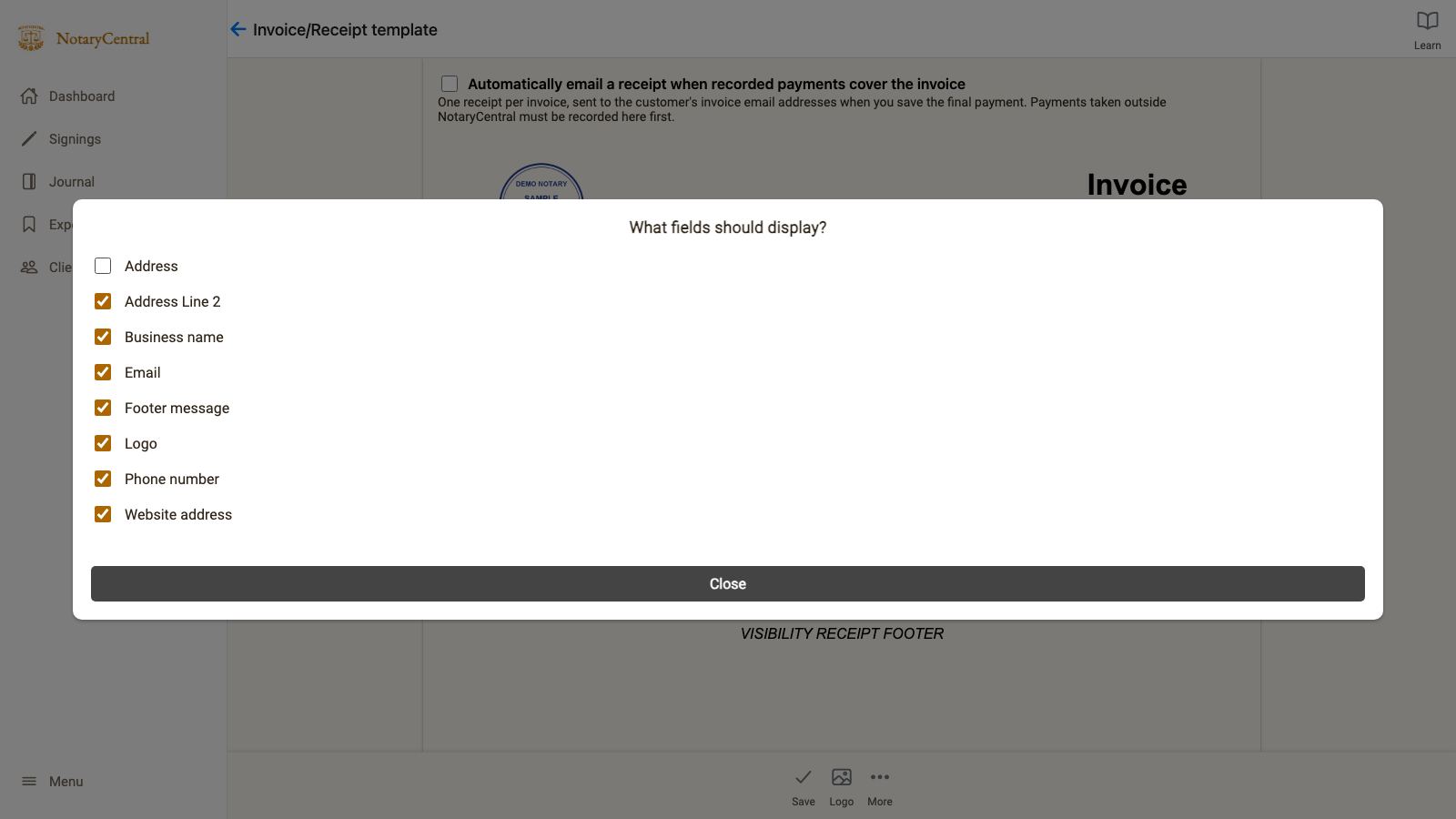
Look at the first two checkboxes: Address is off, while Address Line 2 remains on. This example uses fictional test data.
Saved visibility settings apply to the standalone receipt preview, the email composer's receipt preview, the printed receipt, and PDFs emailed from the composer, Payments, or the automatic receipt workflow. Returning from template settings refreshes the receipt; you can turn fields back on in the same menu.
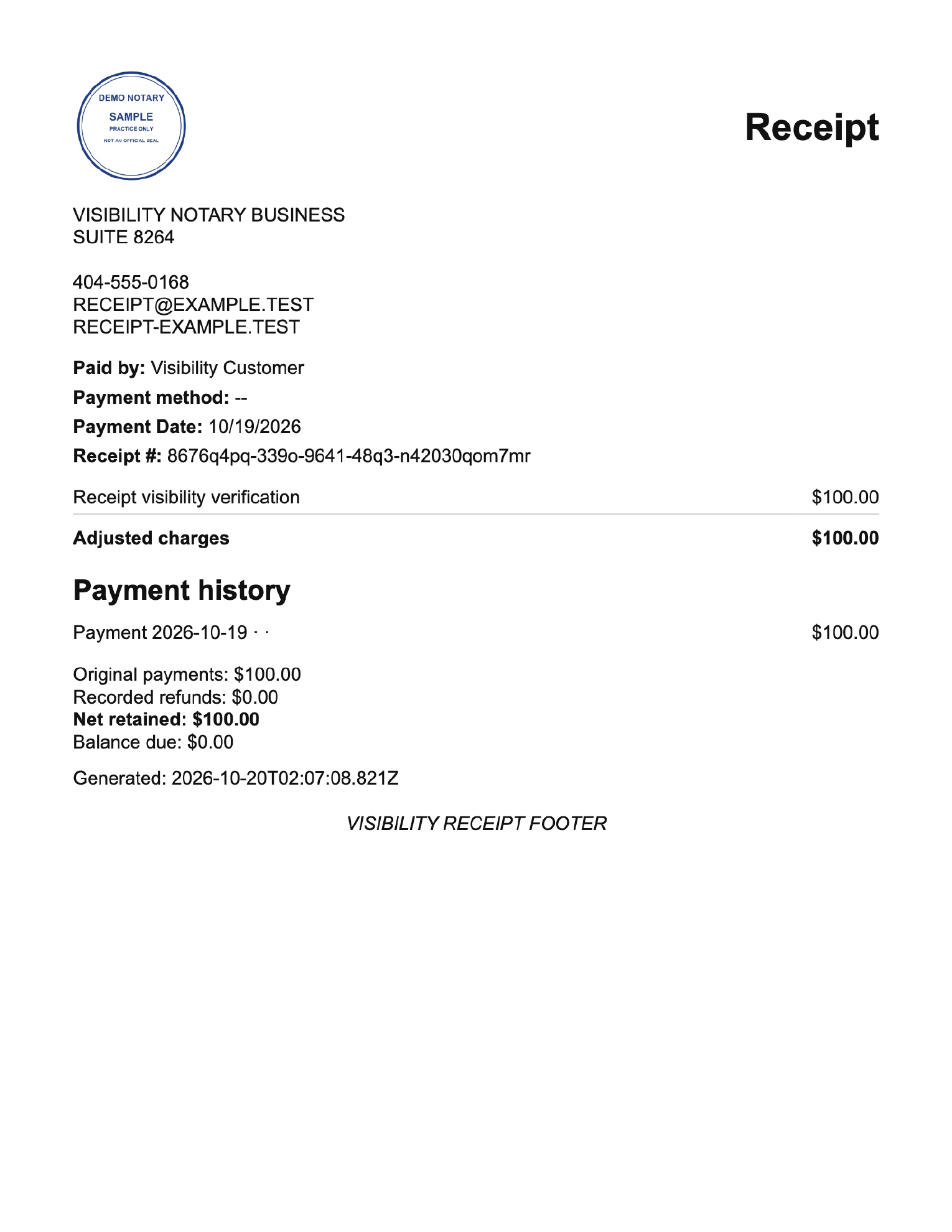
In the emailed PDF, look below the business name: SUITE 8264 remains visible, while the street address and city, state, and ZIP are absent. Turn off Address Line 2 as well to remove the suite.
Check the printed or shared document
Use Print receipt on web or Share receipt on mobile to generate the customer document. The document includes the payer, payment date, method, processor, and transaction reference shown in the editor, along with the appointment charges and totals.
For optional email delivery when the final payment is saved, see Automatically Email Receipts for Fully Paid Invoices.
To review To/Cc recipients, customize the message, and email the receipt PDF directly, follow Send Receipt Emails with a PDF Attachment.
Recording a payment or changing receipt wording does not itself charge a card through Chase POS or another external processor. If money is later returned, keep the original payment and follow Recording Full and Partial Refunds to record the refund separately.
Return to Payments and Receipts for the guide index.