
Create an additional booking link when a referral partner or selected group of customers needs a different service selection or price. Each link has its own address, while your main public booking page keeps its standard settings.
Additional links are unlisted: customers reach them through the address you share. Anyone with that address can use it or forward it to someone else. A private link does not require an invitation or restrict booking to a named customer, and it has no automatic expiry or usage limit.
Before you create a link
Open Manage booking form and check that you have a saved Domain and at least one service under Services I offer. Set up your availability and the delivery locations for those services, too. If you are starting from scratch, follow Getting started with booking forms.
An additional link uses your existing services. You choose which ones to offer and which settings to customize for that link.
Create an additional booking link
- In Manage booking form, open Booking links. You can also open Booking links directly.
- Select Add Booking Link.
- Enter an Internal name that helps you recognize the link, such as Partner referrals. Use a unique name; names that differ only in capitalization still conflict.
- Optionally enter a Heading for clients and Message for clients. Use these fields for the wording you want customers to see on the booking page.
- Under Services on this link, check each service you want to include. You must include at least one. Customers using this address are offered only the selected services.
- Configure the service prices and charges described below, then select Save.
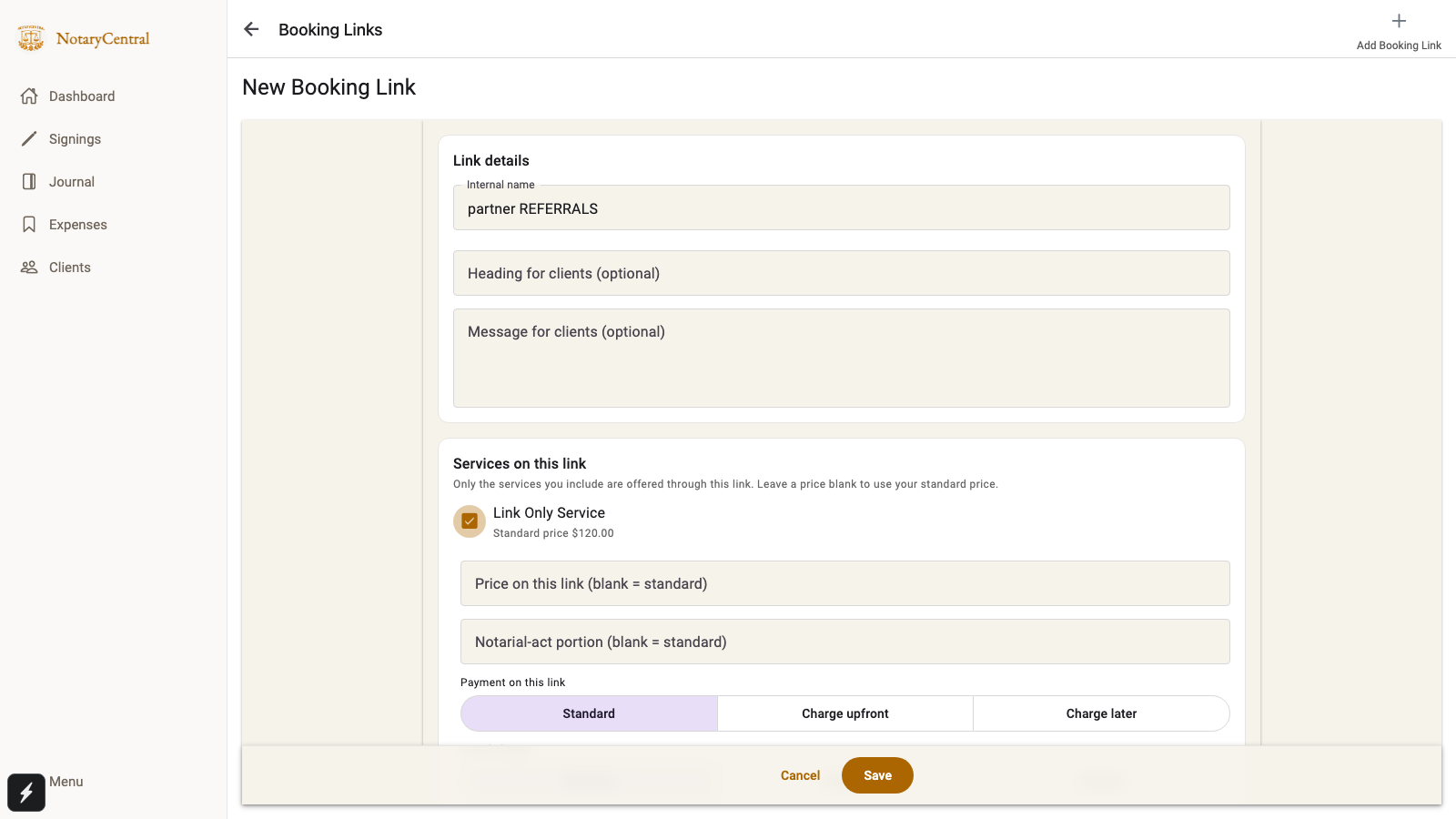
The screenshots in this guide use sample data from browser tests. They illustrate the interface; the displayed prices are examples, and the customer booking responses were simulated.
Choose prices, payment timing, and travel charges
Each included service has its own settings on the link:
| Setting | What to choose |
|---|---|
| Price on this link (blank = standard) | Leave blank to follow the service's current standard price, or enter a price specifically for this link. |
| Notarial-act portion (blank = standard) | Leave blank to use the standard portion, or enter the part of this link's service price that represents notarial acts. This is a portion of the price, not an extra fee. |
| Payment on this link | Choose Standard, Charge upfront, or Charge later for this service. Configure your payment provider separately under Online payment when collecting payment during booking. |
| Travel charge | Choose Standard to use the usual travel settings, Waived for no travel charge, or Custom and enter a flat Travel charge on this link. |
Blank prices and Standard options follow your current standard settings. Explicit custom values stay fixed for that link when you later change the corresponding standard setting. To return a price to standard, clear its field and save; for payment or travel, select Standard and save.
For example, suppose a service's standard base fee is $120. Entering 100 in Price on this link gives customers using this address a $100 base fee for that service. Customers using your main public page still see the standard $120 base fee. Applicable travel and additional charges can change the final total; preview the complete quote before sharing.
Adjust additional charges
Under Additional charges, review the existing charges you want to change for this link:
- Standard keeps the normal charge settings.
- Hidden, where offered for optional add-ons, removes that add-on from this link's customer choices.
- Waived, where offered for automatic charges, waives that charge on this link.
- Custom lets you enter a Custom price for a flat charge or a Custom percentage for a percentage charge.
The available choices depend on the charge. Hiding an optional add-on and waiving an automatic fee serve different purposes. For help creating your standard charges first, see Booking policies and charge rules.
Preview and share the address
After saving, find the link's card in Booking links and select Preview. Check the client heading and message, included services, price summary, travel charges, and payment timing. Walk through date and time selection and review the customer details and any applicable questions or policies before submitting a booking.
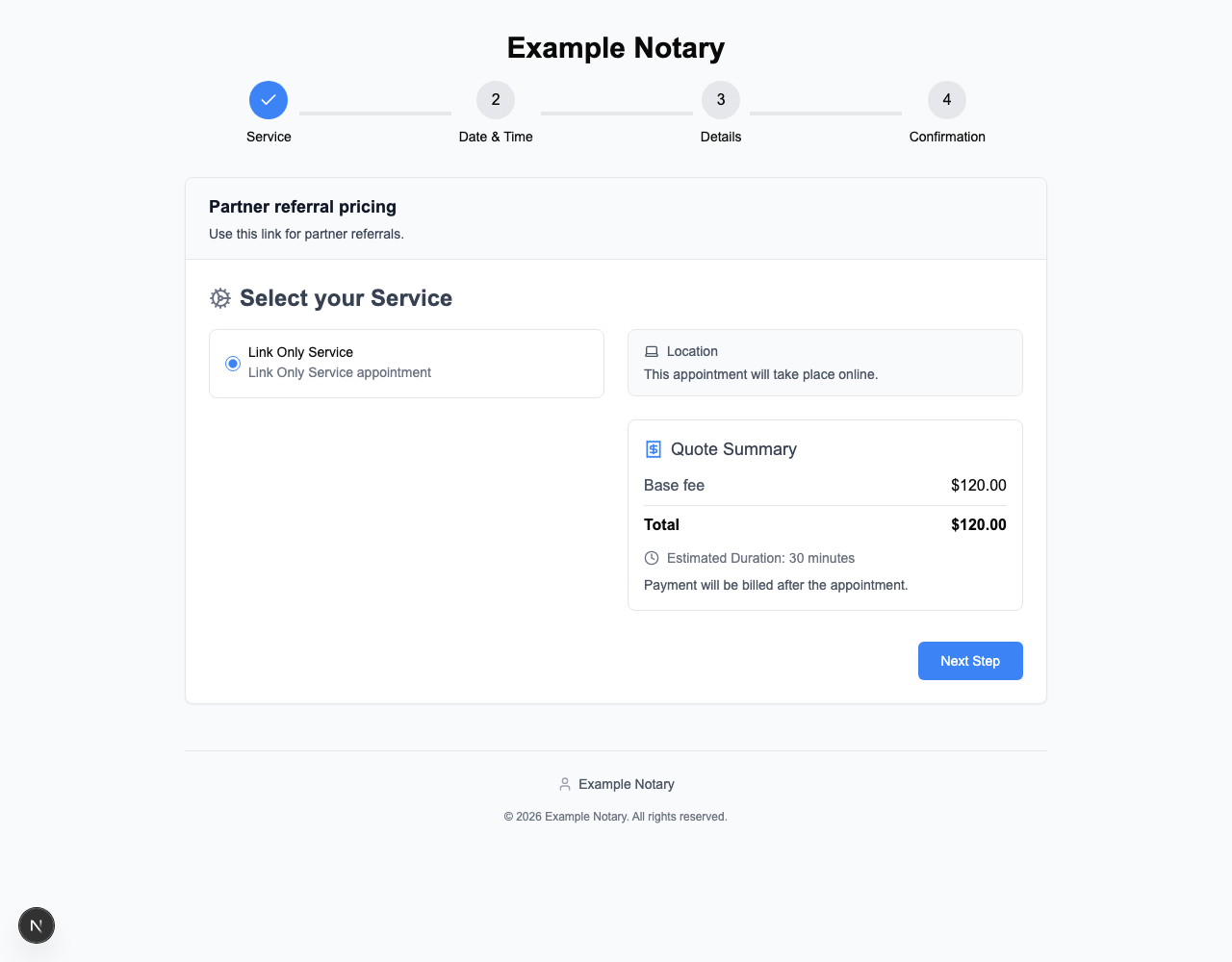
Select Copy to copy the saved address and share it with your intended customers or partner. Its format is https://yourname.cal.notarycentral.org/?link=generated-address. Copy the actual address from the app rather than constructing it from the internal name.
If Copy or Preview is unavailable, return to Manage booking form and save your Domain first.
Update or stop a shared link
Each link's card provides these actions:
| Action | What happens |
|---|---|
| Edit | Change the link's details, included services, or pricing settings, then save. |
| Duplicate | Create a separate copy that you can edit for another group. Copy and share the new link's address. |
| Pause / Resume | Temporarily stop bookings through the address, then make the same address available again. Customers opening a paused link see a paused-link message. |
| New address | Generate a replacement address. The previously shared address stops working, so copy and share the replacement. |
| Delete | Confirm deletion to stop the link immediately. Appointments already booked through it are kept. |
Changing a link does not rewrite the saved link attribution on earlier bookings. Keep your shared addresses up to date whenever you replace or delete a link.
For your main public page, return to Getting started with booking forms. To change a selected appointment's invoice after booking, see Friends-and-family and courtesy discounts.