
Choose the rules your business needs, show customers the applicable terms before they book, and document what happens at the appointment.
Start with a common scenario
For answers to specific pricing questions, visit Common Booking Scenarios. Choose a walkthrough for manual waiting fees hidden from booking, friends-and-family or 100% courtesy discounts, a $40 weekend surcharge with holiday replacement, or evening service starting at 6 PM.
Choose a guide
| Guide | What you will set up |
|---|---|
| Booking policies and customer acceptance | Reusable policies, service assignment, a cancellation cutoff, a no-show grace period, and saved acceptance |
| Percentage additional charges and manual discounts | Eligible fee categories, customer-selected percentages, cancellation/no-show rates, and invoice discounts |
| Same-day, evening, and weekend charges | Automatic date/time charges with holiday replacement for overlapping weekends |
| Federal holiday charges and observance | Actual holiday dates, observed dates, and the holiday schedule |
| Appointment workflow and outcomes | Departure, arrival, lateness, no-show, cancellation, and unable-to-complete records |
| Waiting time and the grace period | Staff-applied waiting from minute 15, the legacy deferred workflow, and no-show exclusions |
Set up rules in this order
- Open Manage booking form and check your business timezone.
- Create the applicable Policies and their timing rules.
- Create Additional Charges, including their fee categories and application rules.
- Edit External Services to assign the policies and charges to the right services. Identify any notarial-act portion of the base fee.
- Walk through your public booking link. Check the itemized quote, policy wording, rates, and required agreement beside the scheduling button.
- Open the resulting appointment in Signings and verify the saved terms before using workflow actions.
Understand when a charge applies
Same-day, evening, weekend, holiday, and customer-selected percentage charges affect the booking quote. Cancellation, no-show, and automatic waiting fees are disclosed at booking and assessed later when the notary records the relevant action. Staff-applied charges stay hidden from public add-ons; staff add them in Edit Invoice. Staff-applied percentage discounts are also configured there. Policy text alone does not create a charge.
Workflow actions update the appointment and invoice. They do not automatically charge a card, issue a refund, or send a customer notification. Review payment and communication separately.
Keep your existing booking experience
You can leave policies and these charges unassigned. Customers then book without a policy checkbox. An appointment with no applicable appointment policies, saved waiting rule, or recorded workflow activity has no Appointment workflow section. Policy acceptance and policy-charge sections also stay hidden when empty.
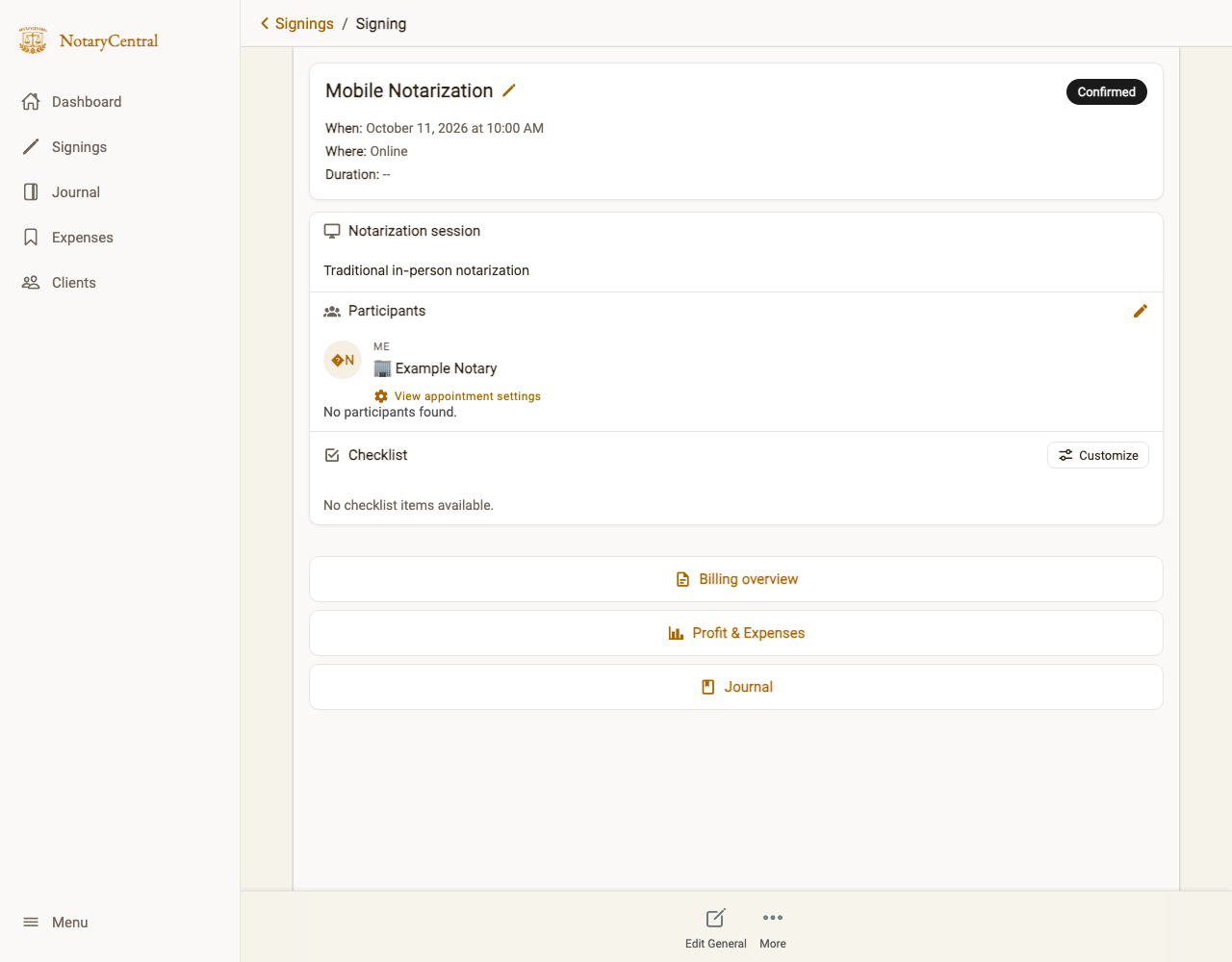
The screenshots in these guides use sample bookings from browser tests. They illustrate the screens; amounts and policy wording are examples.
For general booking setup, see Booking Form via NotaryCentral. For intake questions, see Custom Booking Questions.