
Open an appointment in Signings to document what happened and apply its saved policies and rates. Workflow milestones retain history separately from the appointment's primary status.
Use the actions in order
| Action | What to record |
|---|---|
| Record notary departure | When the assigned notary leaves for this appointment |
| Record arrival | When the notary arrives |
| Customer is late | After arrival, once the appointment has started and the customer is not ready |
| Customer ready — appointment proceeds | When lateness ends and the appointment proceeds |
| Mark no-show and apply policy | A customer absence after arrival and the applicable grace period |
| Unable to complete | A preparation failure or another reason the appointment cannot proceed |
| Cancel and apply policy | A cancellation using the accepted cutoff and recorded departure |
Departure, arrival, and lateness are operational milestones; they do not themselves replace the primary appointment status. No-Show, Unable to Complete, and cancellation are final outcomes. Recorded actions retain timestamps and any reason or note in Appointment history.
The workflow section is hidden for an unconfigured appointment with no applicable appointment policies, saved waiting rule, or recorded operational activity. Existing activity remains visible for review. Payment or Other policy disclosures alone do not enable these operational actions.
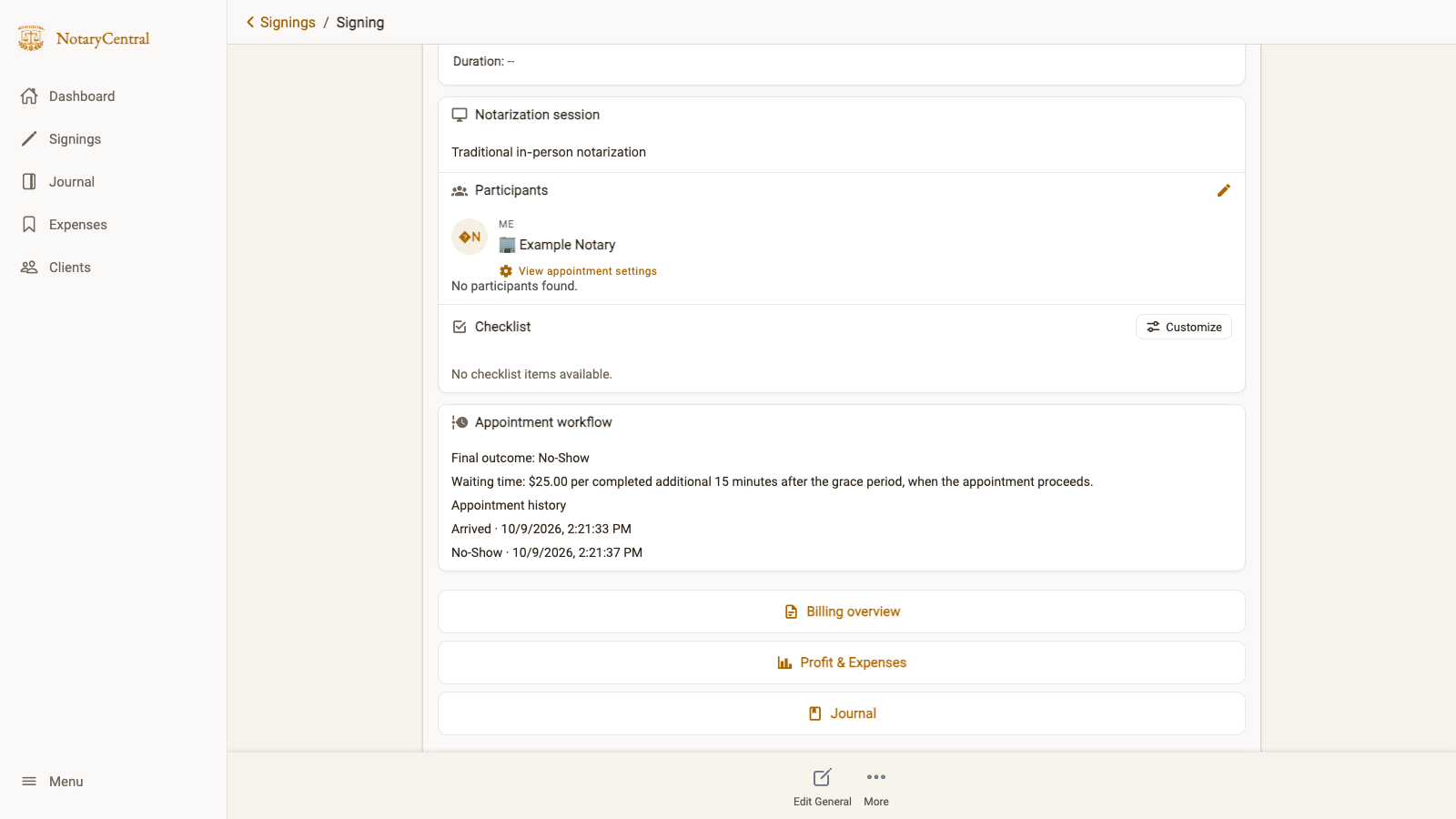
Confirm a no-show
Record arrival first. With a 15-minute grace period and a 10:00 AM appointment, an on-time arrival makes the customer eligible for no-show at 10:15 AM, including exactly that time. If the notary arrives at 10:10 AM, eligibility moves to 10:25 AM. Early arrival does not move it earlier than 10:15 AM.
Select Mark no-show and apply policy, review the confirmation, and select Confirm no-show. Passing the deadline alone does not declare a no-show. If the appointment proceeds, record customer readiness instead.
A no-show uses the saved eligible charges and rate, excludes unperformed notarial acts, and removes waiting time. Any completed notarial act blocks the no-show classification, even if the act's fee is zero.
Cancel an appointment
Use Cancel and apply policy, add a note if helpful, and confirm. With a 24-hour cutoff, cancellation at least 24 hours before the appointment is free, including exactly the cutoff. Inside that window, a configured late-cancellation rate applies before departure; the configured after-departure rate applies at or after recorded departure. The free cutoff takes priority.
Leaving the confirmation with Back does not record the outcome. Policy fee assessments replace eligible scheduled invoice charges rather than adding a duplicate fee. See Percentage Additional Charges.
Record an unable-to-complete appointment
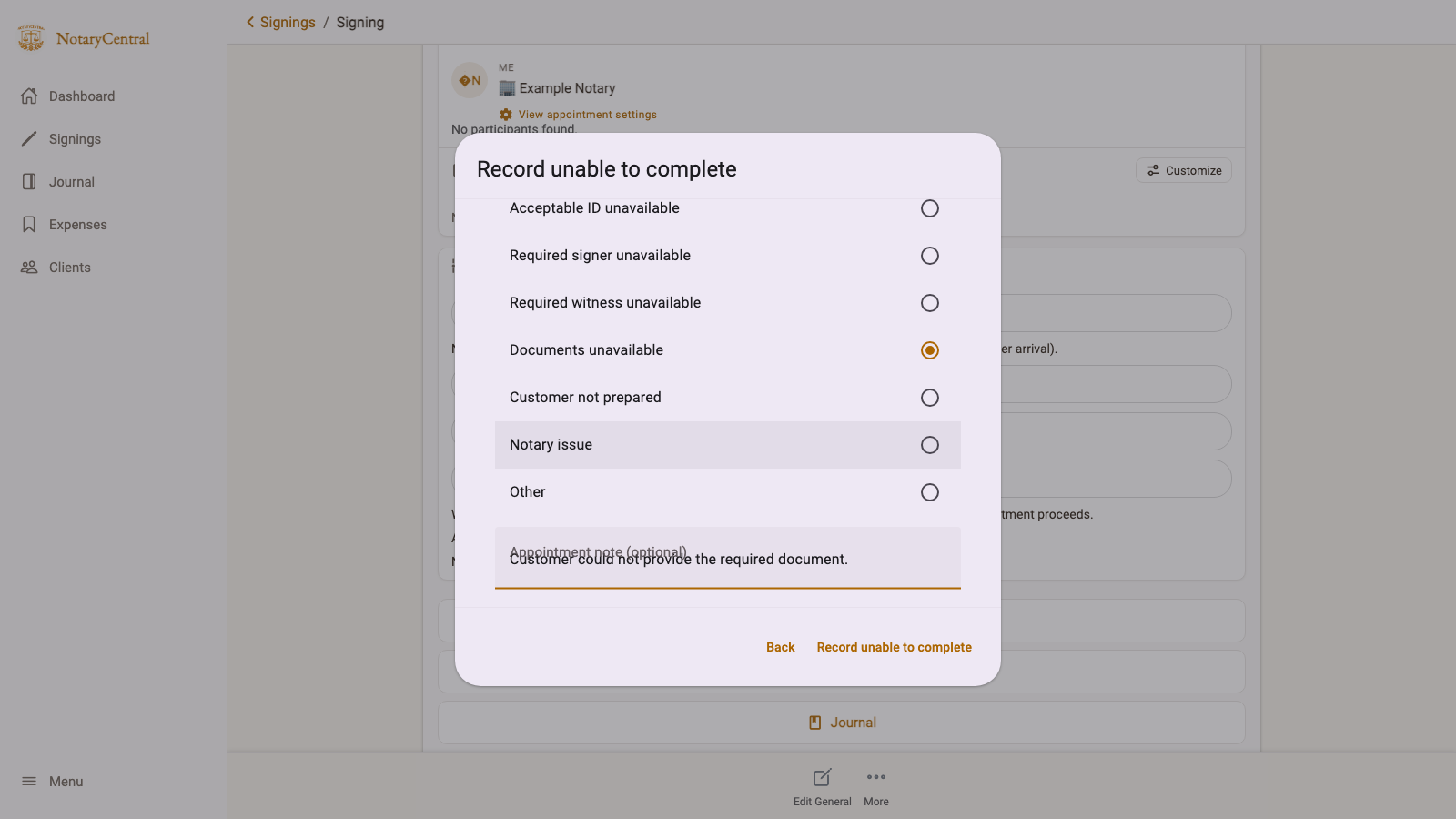
After arrival, select Unable to complete and choose the reason: acceptable ID unavailable, required signer unavailable, required witness unavailable, documents unavailable, customer not prepared, notary issue, or Other. Add an explanatory note; Other requires one. Then select Record unable to complete.
With an accepted Unable to Complete policy and saved pricing, customer-preparation reasons retain eligible scheduled service/travel charges and fees for actually completed acts. Unperformed acts and waiting time are excluded. Notary issues, Other, missing accepted terms/rates, or an unfinished travel quote require manual invoice review.
Review the result
Check Appointment history, Appointment policy charges when configured, and Billing overview. If invoice lines changed after booking, automation may stop and require review. A transport error can be retried without recording the same action twice.
Final policy outcomes cannot be reopened through the ordinary status editor, and checklist completion does not override them. Handle corrections, payment collection, refunds, and customer communication separately; these actions do not automatically send messages or charge cards.
Continue with Waiting Time Charges or return to Booking Policies and Charge Rules.