
Use a percentage for a customer-selected add-on, a date-based surcharge, or a deferred cancellation/no-show charge. Choose the application rule separately from the rate.
For discounts you apply yourself to selected appointments, follow Friends-and-Family and Courtesy Discounts, with worked examples of a service/travel percentage and a 100% whole-invoice courtesy discount.
Configure the eligible base first
Percentage calculations use eligible scheduled service and travel charges. They exclude notarial-act fees, waiting time, and other percentage charges. Multiple percentages use the same eligible base rather than compounding on one another.
In External Services, identify the Notarial-act portion of base fee when the base price contains act fees. For non-percentage additional charges, select the correct Fee category: Service / travel, Notarial act, or Waiting time. A label alone does not establish the fee category.
Create a percentage charge
- Open Additional Charges and add or edit a charge.
- Enter a clear label and select Percentage.
- Enter the Percentage rate: greater than 0 and up to 100, with at most two decimal places. Enter 50 for 50%, not 0.50.
- Choose Customer selects for an optional booking add-on, or Automatically and a rule for automatic application.
- Assign it using Applied Services or the service's additional-charge settings, then save.
Automatic booking-time rules support flat or percentage charges. Appointment-event rules require a percentage. Automatic per-unit date/event charges are not supported; waiting time has its own per-unit workflow.
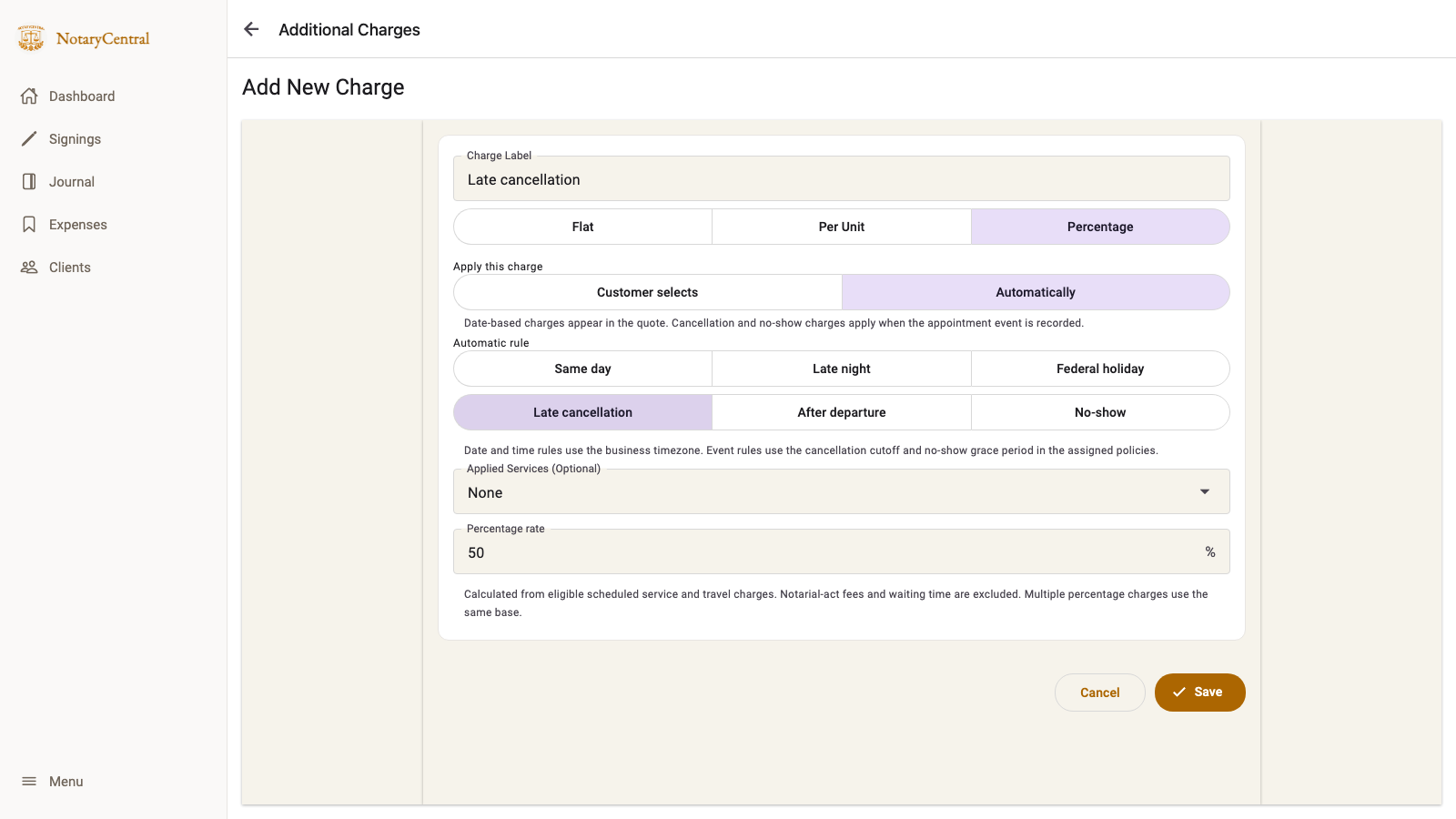
Set up cancellation and no-show rates
Assign exactly one accepted Cancellation policy for cancellation rules and one accepted No-Show policy for the no-show rule. Each event rule can have only one linked automatic charge.
| Automatic rule | Example rate | When it applies |
|---|---|---|
| Late cancellation | 50% | Inside the accepted cutoff, before recorded departure |
| After departure | 100% | Inside the accepted cutoff, at or after recorded departure |
| No-show | 100% | After recorded arrival and the applicable grace period, with explicit confirmation |
These rates are examples for a business using a 24-hour cancellation cutoff and 15-minute no-show grace period. Create the policies and assign both policies and charges to the service. Deferred rates are disclosed during booking; they are not prepaid as extra booking charges.
Work through an example
Suppose eligible service and travel charges total $120, with $10 of separately identified notarial-act fees. A 50% cancellation assessment is $60, calculated from $120. Unperformed notarial-act fees are excluded. Actually completed act fees remain separately payable where applicable.
The policy assessment replaces the eligible scheduled invoice charges. It does not add another $60 on top of the original $120. A 100% no-show assessment is $120, with no waiting-time charge. An appointment with any completed notarial act cannot be classified as a no-show, even if that act had a zero fee.
Amounts round to cents. Booking-time percentages appear as itemized charges in the quote; event percentages are assessed when the notary uses the appointment actions.
Staff-applied discounts are separate from percentage charges
A percentage Additional Charge increases the quote or assesses an appointment-event fee. It is not a discount: 100% here is a full-rate charge, not a courtesy appointment.
To apply a discount yourself, open the appointment's Edit Invoice screen. Select Friends & family, enter the percentage, and keep Service / travel selected to exclude notarial-act portions, waiting time, and percentage surcharges. Choose Whole invoice to include all charges. Courtesy selects 100% of the whole invoice; check the displayed total before saving. Rates must be greater than zero and up to 100, with at most two decimals.
The original prices remain visible and the discount appears as a separate deduction. Reopening an invoice uses those original prices, so saving again does not compound the discount. Removing the discount restores the original amounts. A full courtesy invoice is recorded as zero/no charge. Discounts apply to this appointment only; selecting a preset does not assign a recurring customer discount.
Structured discounts are preserved when waiting or policy fees are assessed. Unrelated invoice edits still require manual review before an automatic policy assessment. Neither applying a discount nor assessing a fee collects payment or refunds money already paid.
Review before applying a fee
Rates and eligible charges are saved with the booking. Later service edits do not rewrite that saved configuration. If invoice lines were manually changed or a custom travel quote is unfinished, resolve the warning and review the invoice before applying automated event fees. Final policy outcomes require deliberate manual correction; they are not reopened through the ordinary status editor.
Assessing a fee does not collect payment or issue a refund. Return to Booking Policies and Charge Rules for the complete setup.