
Document customer lateness, stop the waiting period when the customer is ready, and keep waiting fees separate from no-show assessments.
For the exact $15-per-completed-15-minutes setup, follow Keep Waiting Time Off the Booking Form. It explains why Customer selects remains public and how Staff applies keeps the fee available for manual invoicing.
Manually assess waiting time from the first 15-minute block
- In Additional Charges, create a Per Unit charge named “Waiting time,” with $15 as the fee and Waiting time as the fee category.
- Under Apply this charge, choose Staff applies. It remains available to staff in Edit Invoice and is never a selectable public booking add-on, even without a Waiting Time policy.
- Assign it to the relevant External Services to disclose and save the rate with future bookings. Add a Waiting Time policy explaining when eligible waiting starts and ends. The policy is useful for customer consent; it does not control whether a staff charge is hidden.
- When the appointment proceeds, open its Edit Invoice screen, choose the staff charge, enter whole Waiting minutes, confirm Appointment proceeds, and add the charge. Save the invoice.
Completed blocks start at 15 minutes: 14 minutes costs $0, 15–29 minutes costs $15, 30–44 minutes costs $30, and 45 minutes costs $45. Partial blocks do not round up. The no-show grace period does not add free waiting time to this manual calculation. Staff assessment never adds a fee automatically when Customer Ready is recorded.
Waiting time cannot be added to a no-show, canceled, or unable-to-complete appointment. A later no-show action removes saved waiting lines. Original amounts and fee categories are retained alongside any invoice discount. Editing the invoice does not collect payment or issue a refund.
Existing deferred workflow: configure the policy and saved rate
- Create a Waiting Time policy in Policies. Explain the grace period, rate, completed-block calculation, and no-show exclusion.
- If using a custom grace period, create and assign the No-Show policy with that value. The workflow uses the accepted no-show grace period; its fallback is 15 minutes.
- In Additional Charges, create a Per Unit charge with the price of one completed additional 15-minute block.
- Set its Fee category to Waiting time. Leave the normal application mode as Customer selects; the per-unit waiting category together with the assigned Waiting Time policy makes this saved rate deferred rather than a prepaid booking add-on. Without that policy, Customer selects remains a public add-on. Choose Staff applies for explicit manual assessment instead.
- Assign the policy and exactly one per-unit Waiting time charge to the service in External Services. Save and check the public booking disclosure.
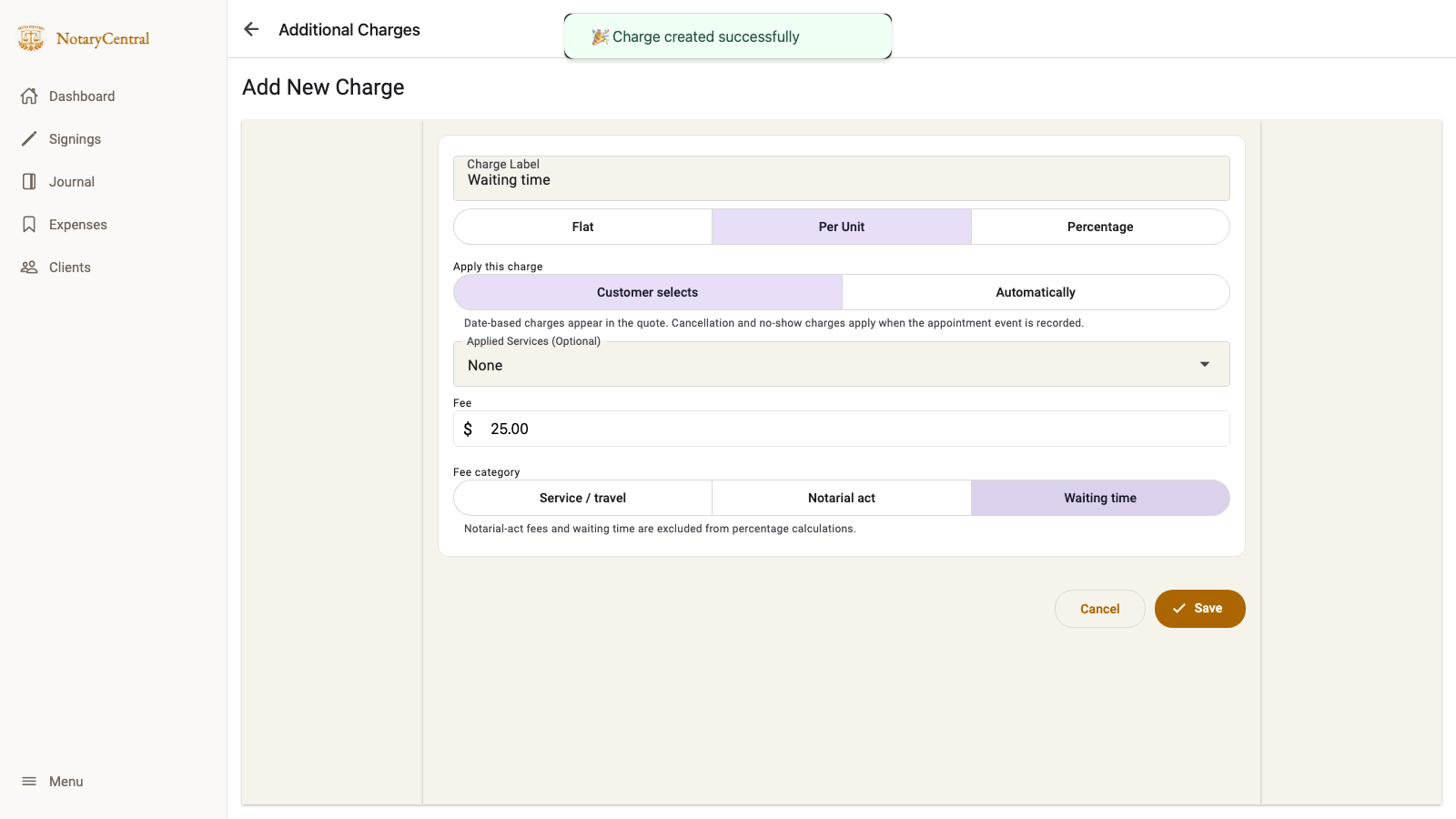
The rate is shown before policy acceptance and saved with the booking. If the rate changes while a customer is booking, the customer must reload and review it. More than one waiting rate is ambiguous and blocks automatic waiting-fee setup.
Start and stop the deferred documented wait
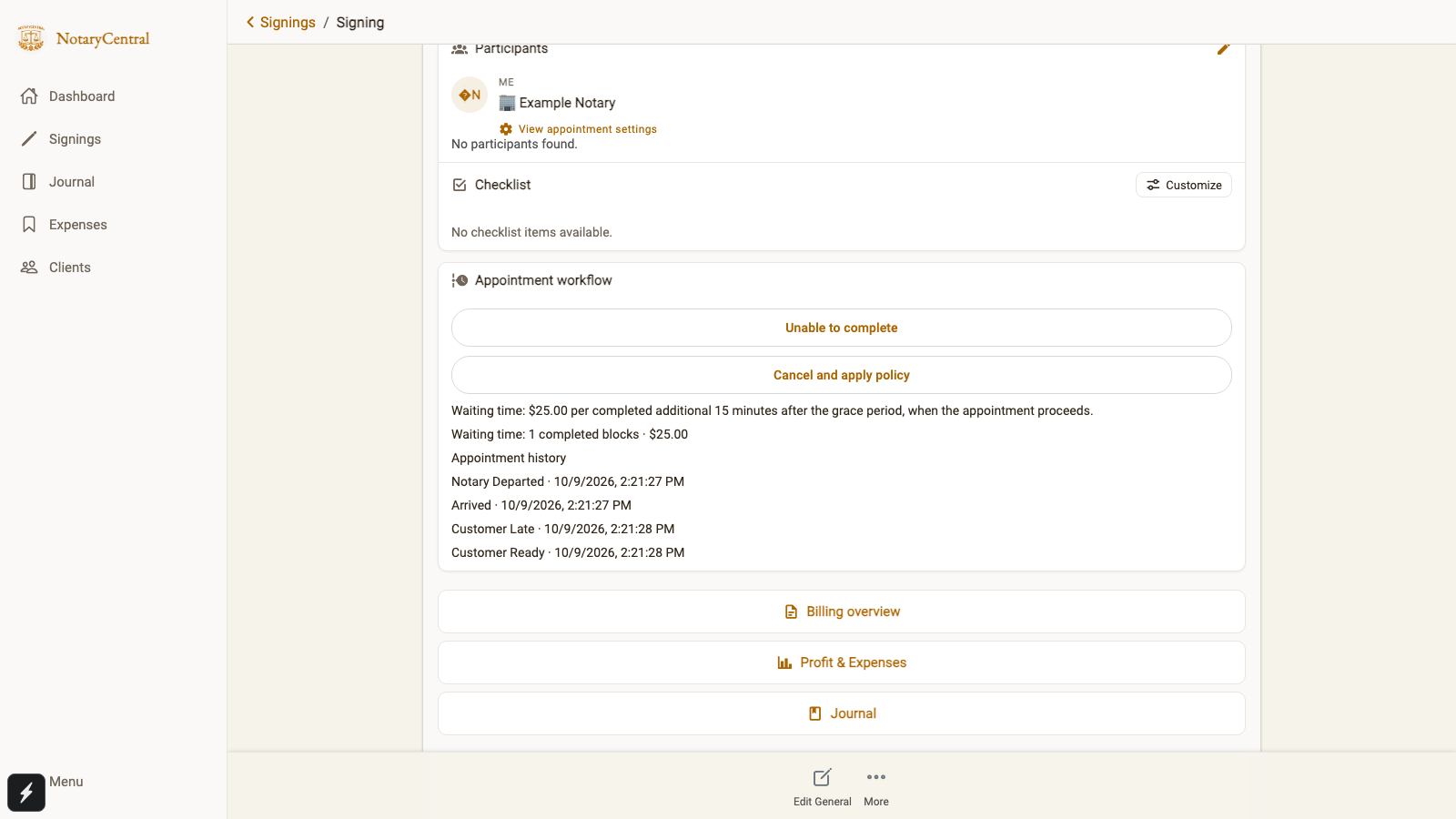
Open the appointment, record arrival, then choose Customer is late once the scheduled appointment has started. When the customer becomes ready and the appointment proceeds, choose Customer ready — appointment proceeds. This ends the documented wait and calculates the charge.
The baseline is the later of the scheduled start and actual notary arrival. With a 15-minute grace period, bill only completed 15-minute blocks after that grace period; partial blocks do not round up. Recording Customer Late documents the situation, but the calculation uses this baseline rather than the time the button was pressed.
Check the boundaries
For a 10:00 AM appointment with on-time arrival and a $25 per-unit rate:
| Customer ready | Completed billable blocks | Waiting fee |
|---|---|---|
| 10:15 AM | 0 | $0 |
| 10:29:59 AM | 0 | $0 |
| 10:30 AM | 1 | $25 |
| 10:45 AM | 2 | $50 |
If arrival is 10:10 AM, shift these readiness times ten minutes later. No background timer automatically bills a card or decides whether the customer is a no-show.
Keep waiting separate from a no-show
If the customer is absent after the deadline, explicitly confirm a no-show instead of recording readiness. No-show assessments exclude waiting time. Once readiness is recorded, the appointment proceeds and the no-show action is no longer available.
Automatic waiting assessment requires an accepted Waiting Time policy and one saved rate. Missing terms, missing pricing, an unfinished custom travel quote, or changed invoice lines require manual review. Waiting-time amounts are excluded from percentage charge calculations.
See Appointment Workflow for no-show and unable-to-complete outcomes, and Booking Policies and Charge Rules for the full setup sequence.