
Maintain policies in one place and apply them to the services that need them. Customers review the applicable policies during booking and must accept them before scheduling.
Create and assign a policy
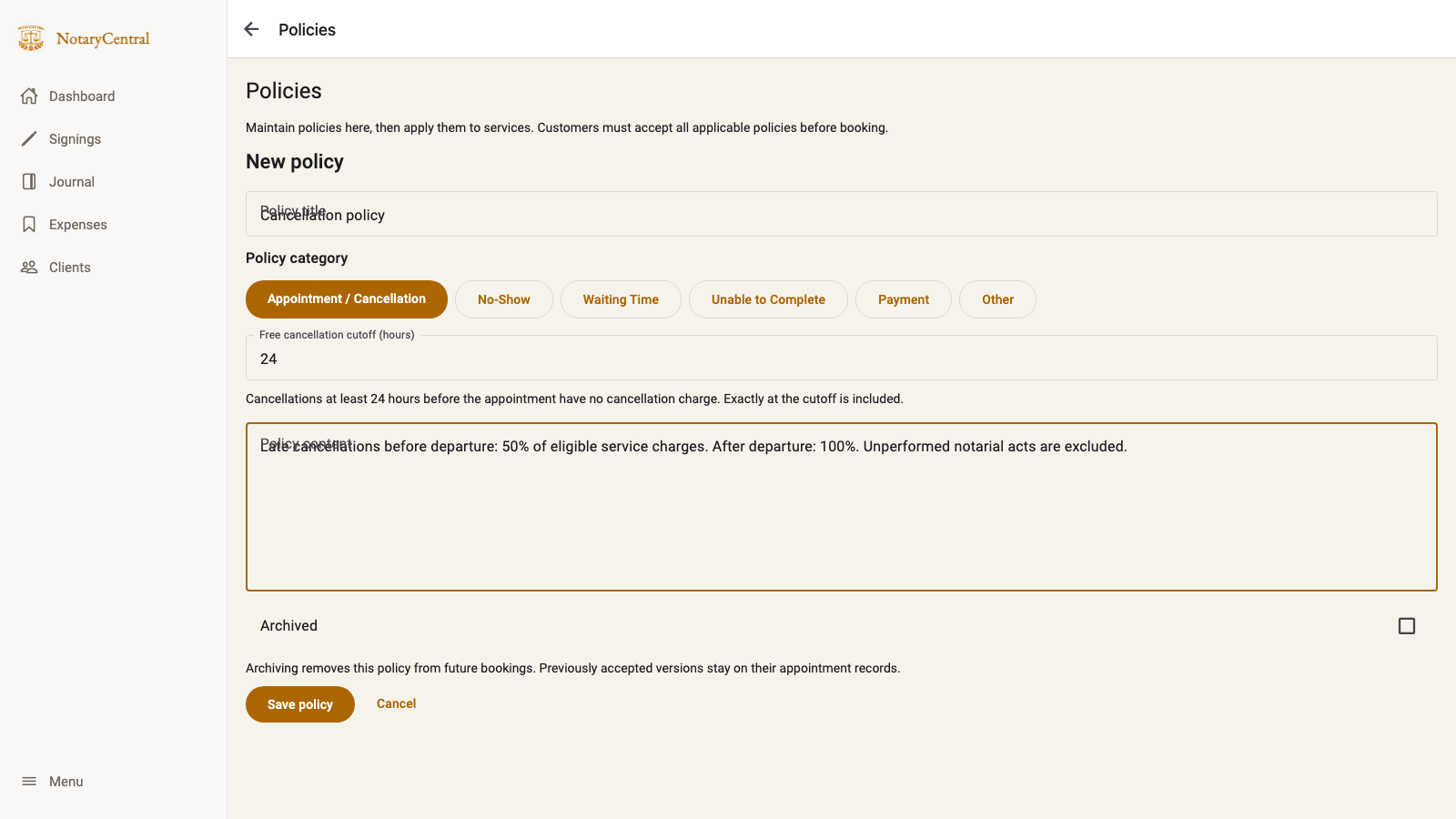
- Open Policies from your booking-form settings and select Add policy.
- Enter a Policy title, select its category, and write the Policy content.
- For Appointment / Cancellation, set Free cancellation cutoff (hours). For No-Show, set No-show grace period (minutes). The defaults are 24 hours and 15 minutes; you can change them to whole-number values from 1–8760 hours for cancellation and 1–1440 minutes for no-show grace.
- Select Save policy.
- Open External Services, edit the service, select its applicable policies, and save.
Categories include Appointment / Cancellation, No-Show, Waiting Time, Unable to Complete, Payment, and Other. Use Payment or Other for disclosures that do not define an automatic appointment-event fee.
Understand the timing boundaries
A 24-hour cutoff makes cancellation free at least 24 hours before the scheduled start, including exactly 24 hours. Less than 24 hours falls within the late-cancellation window. The free cutoff is checked before departure-based cancellation pricing.
A 15-minute no-show grace period does not declare a no-show automatically. The notary must record arrival and explicitly confirm the outcome after the applicable deadline. If the notary arrives late, the workflow gives the customer the full grace period from that later arrival. See Appointment Workflow.
Policy wording and charge settings must agree. Writing “50%” in a policy does not set up the fee: create and assign the corresponding percentage charge.
What customers see
Applicable policies are displayed in full in the Details step after the booking review. The unchecked I have reviewed and agree to the applicable appointment policies checkbox sits beside the final scheduling action. Submission is blocked until it is checked. Customers do not see internal policy version numbers.
Changing the selected service clears consent so the customer must review the new service's policies. If policies or saved rates change while someone is booking, they must reload and review the current terms.
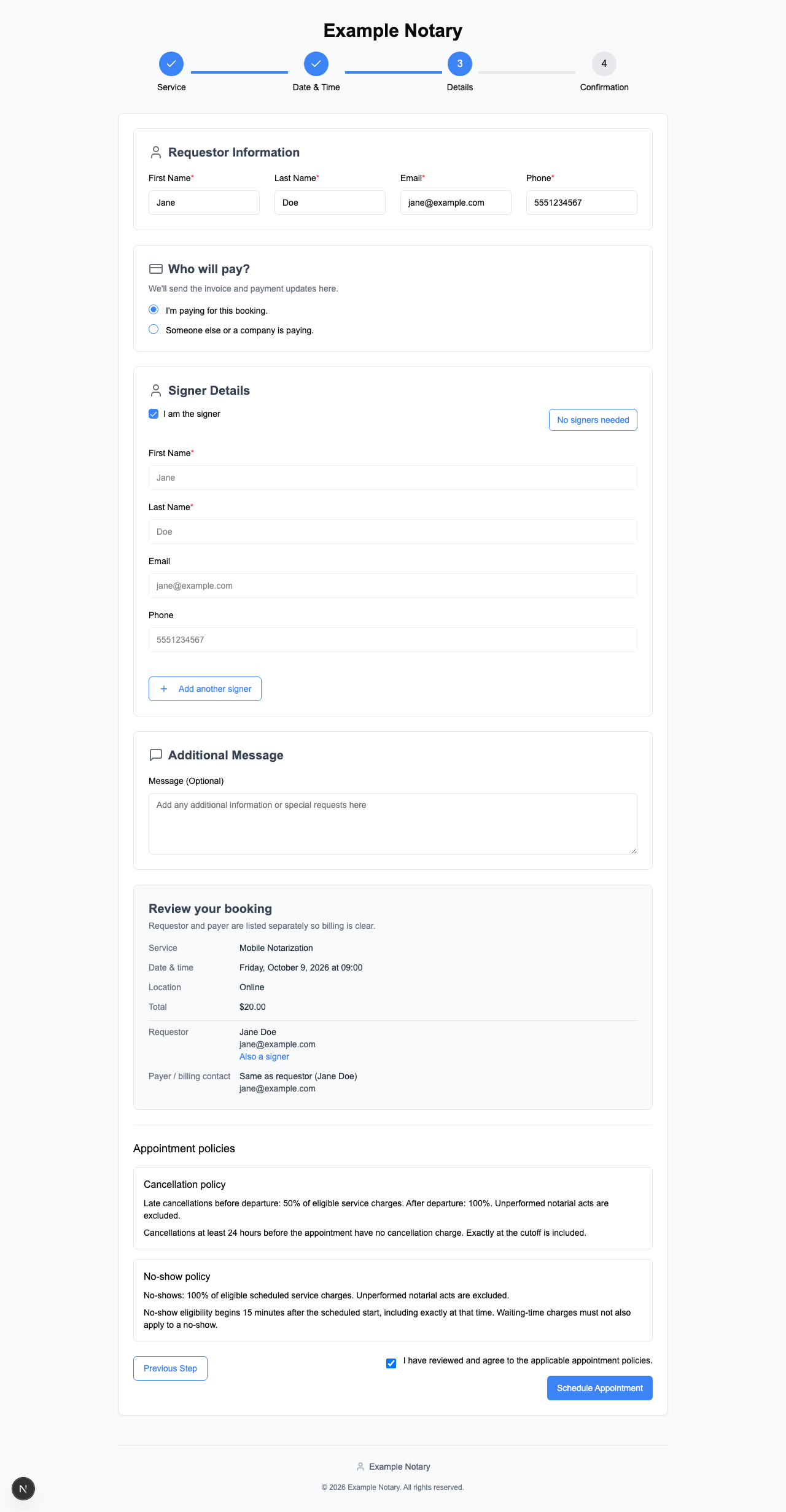
A required Choice question with Yes/No options is not a substitute for this agreement: a required answer alone does not require the answer to be Yes.
Review acceptance and update policies
Open the appointment in Signings. Policy acceptance shows the accepted wording, acceptance time, version, and applicable timing boundaries. Versions are visible here for the notary's record, even though they are hidden in the public booking form.
Editing a reusable policy updates future bookings. Previously accepted wording remains with the appointment. Archiving removes the policy from future bookings while preserving prior acceptance records.
A service with no policies has no agreement checkbox. For a complete setup sequence, return to Booking Policies and Charge Rules.