
Choose to email a receipt automatically when saved payments fully cover an appointment's invoice. Partial payments wait until the final payment is recorded, and later edits do not repeatedly email the customer.
Part of Payments and Receipts.
Automatic emails attach receipt.pdf, using the same receipt template, saved receipt edits, branding, and field visibility as the receipt preview and printed document. See Choose which business details appear before enabling automatic sending.
Turn on automatic receipts
Automatic receipt emails are off by default.
- Open Invoice settings.
- Select Automatically email a receipt when recorded payments cover the invoice.
- Choose Save.
- Check the appointment's payor and email addresses before saving a final payment.
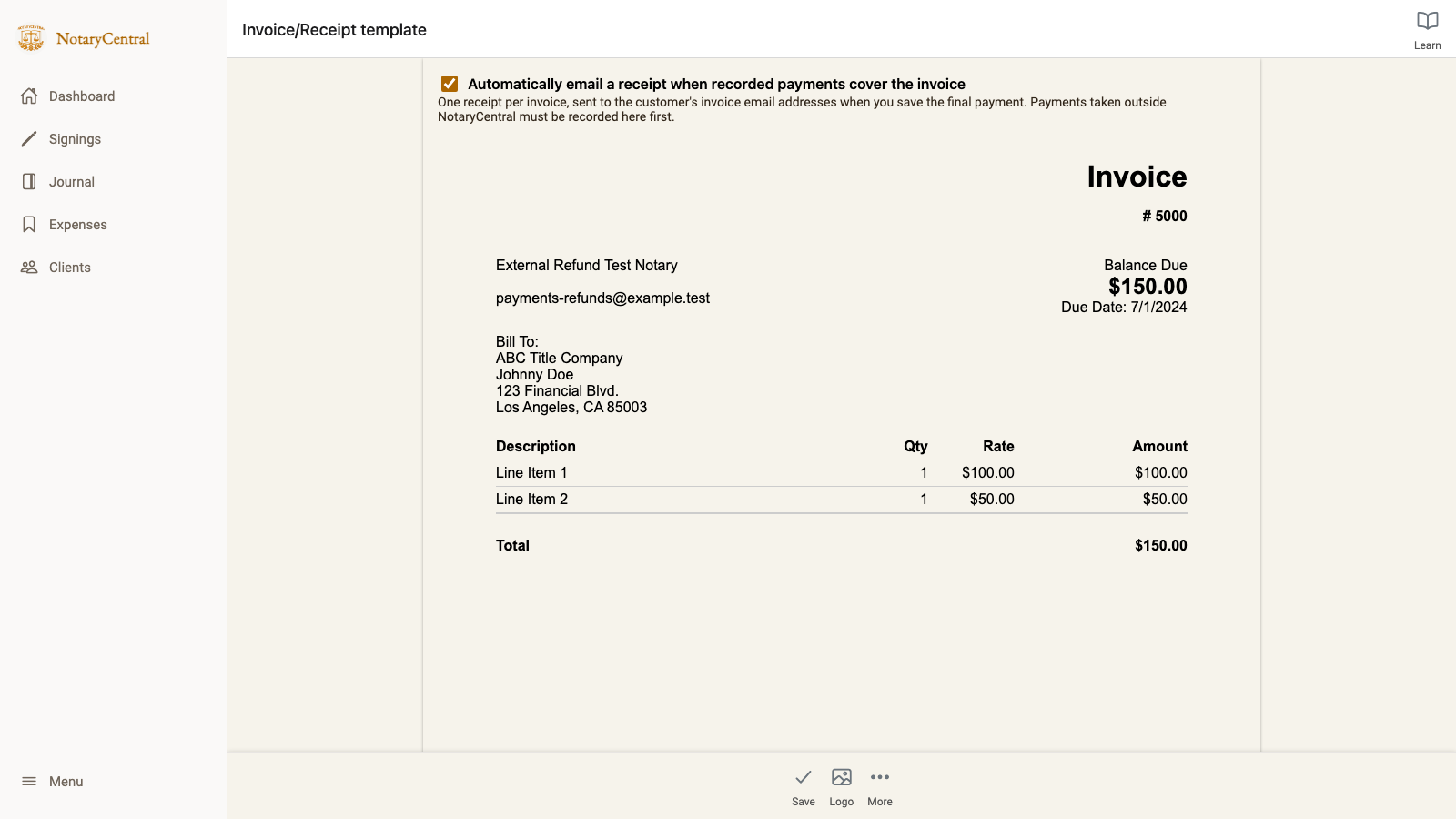
Look for the checked Automatically email a receipt when recorded payments cover the invoice option. Screenshots use fictional test data.
Leave the setting off if you prefer to control when each receipt is sent. Appointments with a saved payment or refund can still use the manual receipt action, even when a balance remains due.
Turning the setting on does not itself send receipts for every previously paid invoice. The automatic trigger is saving payment records that cover the invoice. If a receipt was already sent or attempted through the Payments receipt controls or automatic workflow for that invoice, use the manual send or resend controls after checking its status.
Record an external payment to trigger the receipt
For a Chase POS payment, first complete the transaction through Chase. Then open the appointment's Payments screen, record the approved payment, and choose Save.
If automatic receipts are enabled and the saved payments cover the invoice, NotaryCentral queues one receipt email. Approval through Chase alone does not trigger it: Chase transactions must be recorded in NotaryCentral. This option does not monitor your Chase account or charge the customer's card.
For the payer, date, method, processor, and transaction reference fields, follow Carry Saved Payment Details into Receipts.
Example: a $122 invoice paid in two installments
| Action | Total recorded payments | Balance due | Automatic receipt |
|---|---|---|---|
| Save the first $50 payment | $50.00 | $72.00 | None yet |
| Save the final $72 payment | $122.00 | $0.00 | One receipt is queued |
| Correct a transaction reference and save again | $122.00 | $0.00 | No additional automatic receipt |
One full $122 payment also qualifies. A paid-in-full receipt requires a positive invoice total; a zero-dollar invoice does not trigger this workflow.
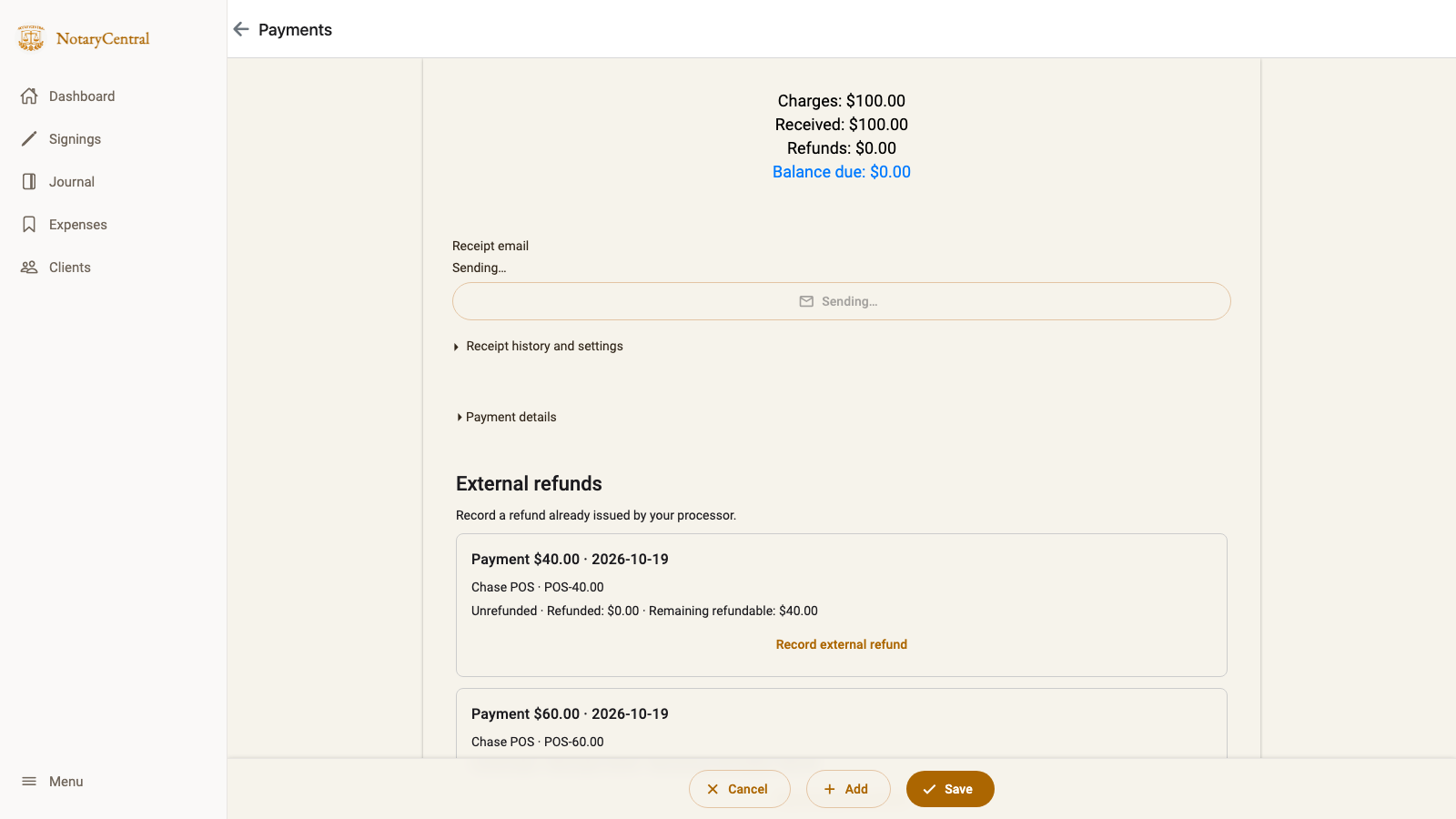
Here, the final installment brings Received to $100 and Balance due to $0. Sending… shows that the receipt is already in progress.
Check the recipient and email content
Use one invoice payor for the appointment. The receipt uses that customer's invoice email addresses when available, with saved customer or payor email details as fallbacks. Expand Receipt history and settings to review Next recipient and the addresses used for earlier attempts. The workflow does not send a receipt to every signer simply because they are on the appointment.
The automatic email is prepared from the saved invoice and payment records. It includes the invoice reference, charges, recorded payment amounts and dates, payer and processor details when supplied, net payments retained, and the paid-in-full balance. Recorded refunds are included when applicable.
Saved receipt-editor changes also appear in the PDF attached by automatic and Payments sends. To review and customize that document, use Generate Receipt, as described in Carry Saved Payment Details into Receipts.
To review the recipients and message before emailing that PDF, use the separate Send Receipt composer. Its editable To/Cc fields and reusable email template are distinct from automatic receipt delivery.
Follow the delivery status
Look under Receipt email, below the summary on Payments. The current status stays visible; expand Receipt history and settings for earlier attempts, recipients, and the automatic receipt setting.
This status includes receipts sent from the Send Receipt composer, even when automatic receipts are off. It remains available after reopening or reloading Payments.
| Status | Next action |
|---|---|
| Not sent | Choose Send receipt once a payment or refund is saved. |
| Sending… | Wait for the existing request to finish; sending is disabled. |
| Sent with a time | Choose Send again if another copy is needed. |
| Updated receipt ready | Choose Send updated receipt to email the changed record. |
| Couldn’t send receipt | No successful current receipt is recorded. Read the guidance, resolve the issue, and use Retry. If delivery is uncertain, check history first. |
| Earlier receipt sent | The earlier message’s document version cannot be verified. Review the current receipt before sending. |
| Receipt canceled | Expand the details to review why it was canceled before sending manually. |
Sent means the email service accepted the send, rather than confirmed inbox delivery. Use appointment Email history for individual messages and available delivery details. Printing or sharing through another app does not count as an email send. Older composer emails may appear only in Email history.
If the status cannot be loaded, choose Refresh receipt status. A receipt email problem does not remove a successfully saved payment.
Send another copy deliberately
- Save any payment edits. A saved payment or refund is required; the remaining balance does not prevent a manual receipt send.
- Review the current status in Receipt email and expand Receipt history and settings if needed.
- Choose Send receipt, Send again, or Send updated receipt, depending on the saved record.
- Check the recipient shown in the confirmation, then confirm the send. If the address changes before sending, refresh and confirm the new address.
Manual sending uses the saved payments and current invoice email addresses. It remains available when the automatic setting is off. Correcting payment details, reopening the appointment, or saving the same paid balance again does not create another automatic receipt. A prior send or attempt through the Payments receipt controls also prevents a later automatic receipt for that invoice. Sending through the separate composer does not turn off automatic receipts; leave the automatic setting off when you want to control each send yourself.
Temporary delivery retries reuse the existing receipt request to help avoid duplicate emails. If delivery is uncertain, check email history and the displayed guidance before requesting another copy. Contact support when the status identifies unavailable email delivery or an unresolved delivery issue.
Send an updated receipt after a refund
Automatic receipts still wait for saved net payments to cover a positive invoice total. Recording a refund does not automatically email an updated receipt.
Manual receipts document the saved payment and refund record, even when a balance remains due or all charges have been waived. After a refund, choose Send updated receipt on Payments, or use View updated receipt to review the document and open its email composer. Both paths allow the updated record to be sent.
The receipt shows Partially refunded or Fully refunded, original payments, recorded refunds, net retained, and the current balance. A refund does not itself waive the charges: returning $35 from a $122 payment with $122 still in charges leaves $87 retained and $35 due. Recording a matching $35 charge credit leaves $0 due instead.
When saved payments, refunds, receipt edits, or visible branding change after a successful send, Receipt email shows Updated receipt ready. A failed resend preserves Sent if the current document was already emailed; a failed update preserves Updated receipt ready. Use Retry and expand the history for attempt details. Earlier sends remain under Receipt history and settings. After the current version is sent successfully, the status becomes Sent and the Payments action becomes Send again. If the record changes while you are composing, reopen the receipt to review the latest details before sending.
If the receipt changes while an earlier version is being sent, completing that send does not mark the new version as sent. Updated receipt ready remains until the current document is emailed successfully. See the receipt status examples.
For the charge treatment and refund confirmation workflow, see Recording Full and Partial Refunds.
Return to Payments and Receipts for the guide index.