
Use Send Receipt on web or mobile to email a receipt directly through NotaryCentral. Review the PDF attachment, choose the recipients, and customize the message before sending. The email is linked to the appointment's history.
Part of Payments and Receipts.
Open Send Receipt
You can start from either of these places:
- Appointment email menu: Open the appointment's email options and choose Send Receipt, alongside Confirm appointment, Invoice, and Other.
- Receipt editor: Open Generate Receipt from Billing Overview, review the receipt, and choose Send Receipt. Changes made in the receipt editor are saved before the email composer opens.
The composer shows Attachment: receipt.pdf and a receipt preview. The PDF is generated for you; there is no need to download it and find a separate attachment control under Other.
Review the recipients
The To field defaults to the appointment's payor email addresses when available. You can remove a default recipient, add a different address, or add Cc recipients.
For an address you type manually, confirm the entry so it appears as a recipient chip before sending. On web, press Enter. At least one To recipient is required; a Cc address alone is not enough.
If the payor has no saved email, enter the intended recipient yourself or update the payor's customer record. NotaryCentral does not automatically substitute a different signer's email for a missing payor address. Review the selected recipients before sending.
Check the receipt PDF
The composer includes Paid by, Date paid, Payment method, Processor, and Transaction/reference #, together with the receipt preview. Check those fields, the charges, payment history, and balance before sending.
For example, a $122 payment made with a debit card through Chase POS can show the payer, payment date, Debit Card, Chase POS, and the approved Chase transaction reference on the attached receipt.
The attachment is generated from the receipt values shown in the composer. The email's Subject and Body are separate from those PDF fields. For how payment information supplies the defaults, see Carry Saved Payment Details into Receipts.
The PDF uses the same saved business-field visibility settings as the standalone preview and printed receipt. To hide the full physical address, turn off both Address and Address Line 2 in Show/Hide Fields. See Choose which business details appear for steps and examples. These controls affect the document; email recipients, sending address, subject, body, and signature are separate.
Customize the email and reusable template
The composer starts with the Receipt email template. Edit Subject and Body for this customer, or use Templates to choose another message.
Choose Preview to review the email message with its placeholders filled. Use Back to receipt to return to the composer, where you can continue editing and check the PDF preview.
To reuse your wording for future receipt emails:
- Edit the subject and body.
- Choose Save template change.
- If the template is system-generated, confirm the message explaining that your changes will be saved as a user-generated copy.
- Check for Template saved successfully.
Saving the template preserves its wording for later use; it does not send the current email. For a one-time message, edit the subject and body without saving a template change.
Send through your account's email setup
Choose Send Receipt after reviewing the recipients, subject, body, and PDF. Both a subject and an email body are required.
Delivery follows your account's email setup. A connected Gmail account is used when available. NotaryCentral's email service can provide fallback delivery using your business name and saved reply-to email details. The actual sending address depends on that setup; review the From entry in appointment email history. For Gmail setup, see Connect Google to NotaryCentral.
After a successful send, the app shows Receipt email sent and returns to the appointment's email options.
See the receipt send on Payments
After sending through the receipt composer, open the appointment's Payments screen. Look for Receipt email, directly below the payment summary. This section includes receipts emailed from the composer as well as receipts sent through the Payments controls or automatic receipt workflow.
With automatic receipts off, the first successful composer send changes Not sent to Sent with a time and a Send again action on Payments. Expand Receipt history and settings to see the recipient used for that message and the next recipient for a Payments send. Reopening or reloading Payments keeps the saved status.
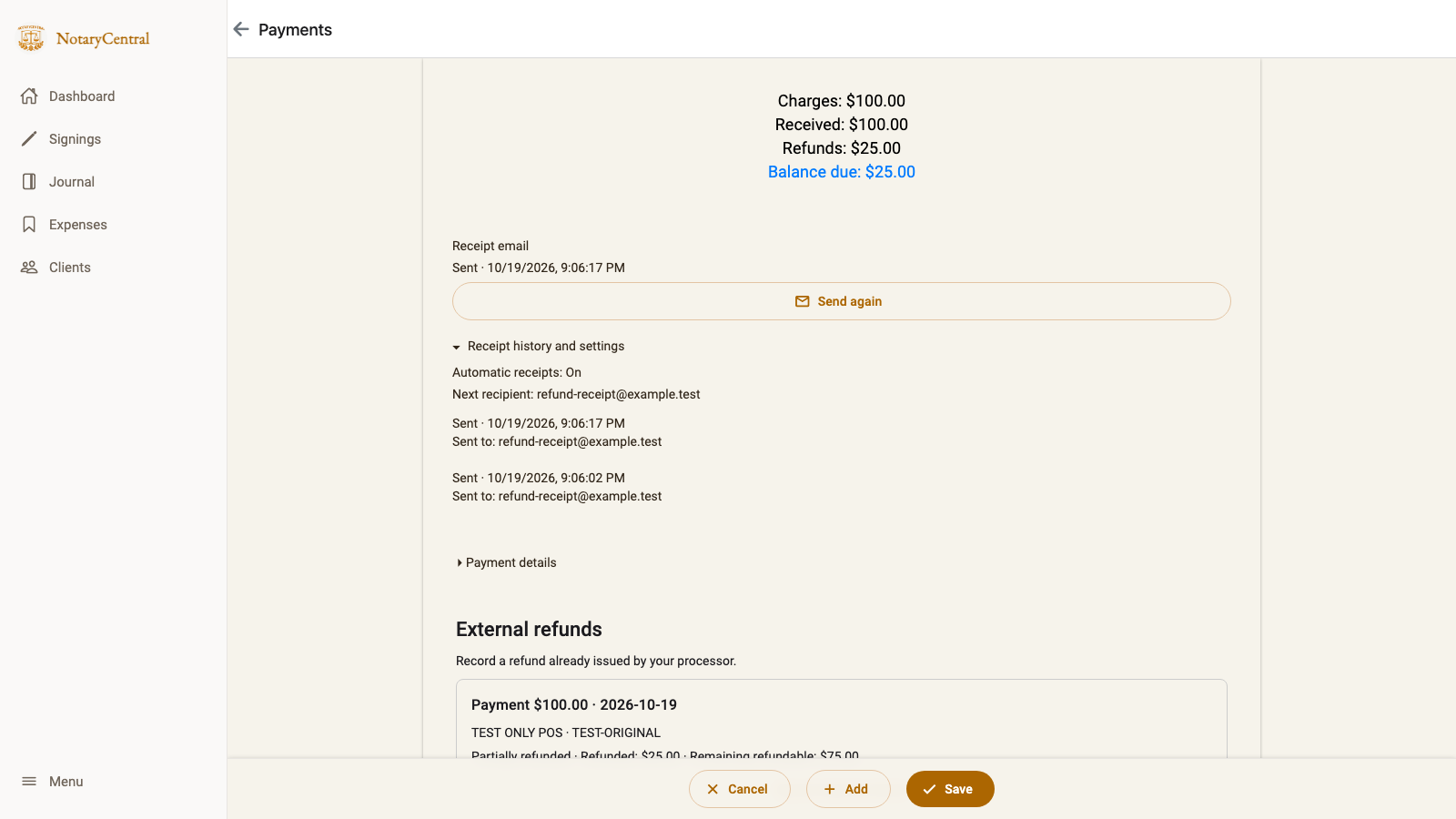
Look under Receipt history and settings: Sent to identifies each earlier send, while Next recipient identifies the address for a Payments send. This example uses fictional test data.
When payments, refunds, saved receipt edits, or visible branding change after a successful send, Payments shows Updated receipt ready. Choose Send updated receipt to email the current document. Changing only recipients or email wording does not mark the receipt document as updated.
A failed resend keeps the earlier successful Sent status when that same document was already emailed; Retry remains available. An unsent update keeps Updated receipt ready if its send fails. Expand Receipt history and settings for the latest attempt and earlier send times. Earlier receipt sent means an older message has no verifiable document version.
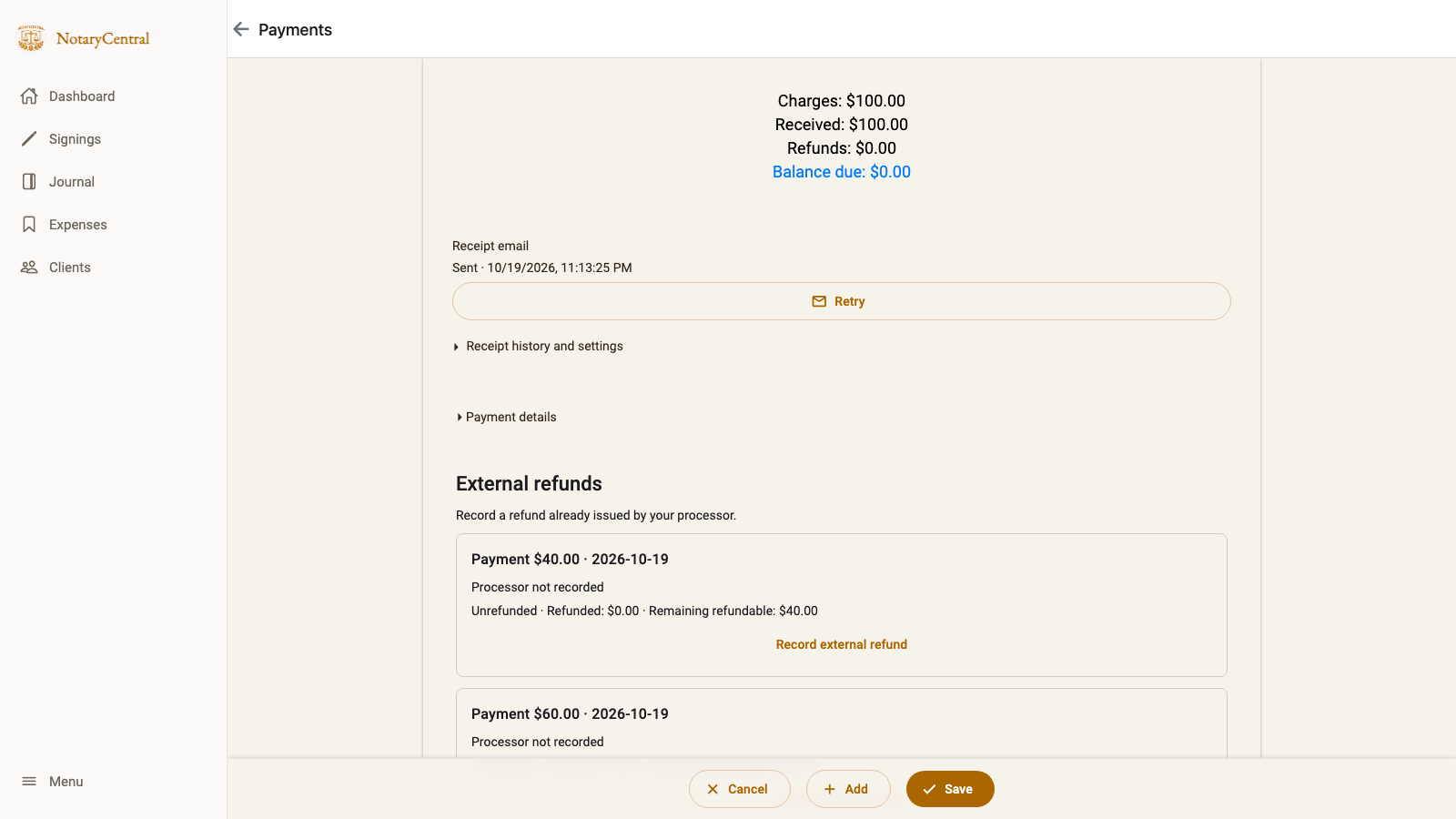
Look under Receipt email: Sent records the successful delivery of the current document; Retry applies to the later failed attempt. This example uses fictional test data.
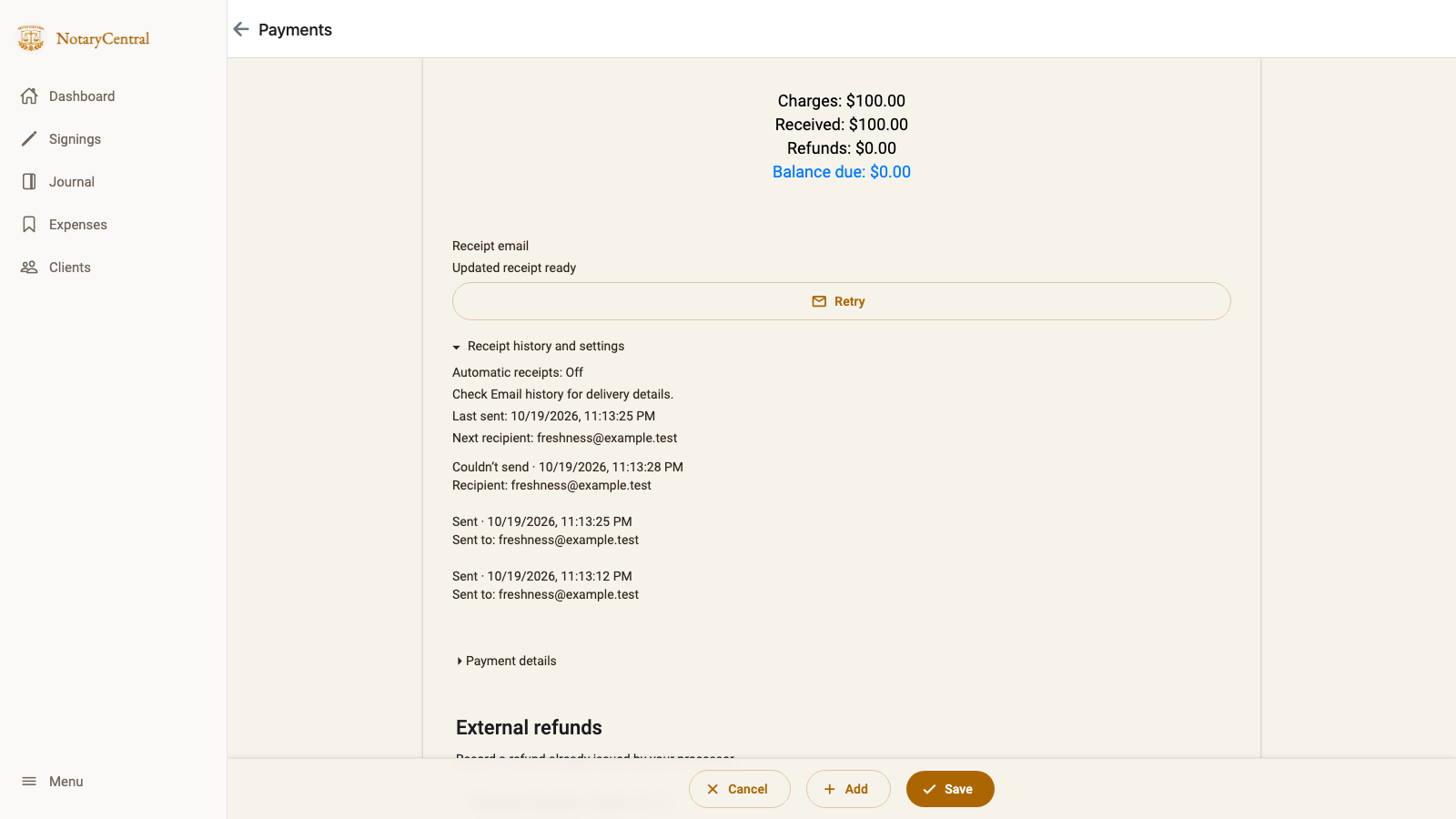
Here, Updated receipt ready means the current document has not been emailed successfully. Expand Receipt history and settings to see Last sent and the separate failed attempt.
If the receipt changes while an email is being sent, that email can still complete with the earlier document. Payments keeps Updated receipt ready until the current version is sent successfully. Review the updated receipt before sending another copy.
Sent means the email service accepted the send; use appointment Email history for individual messages and available delivery details. Opening, previewing, printing, or sharing a receipt through another app does not mark it as emailed. Older composer emails may appear only in Email history.
Check appointment email history
The appointment's Email history section shows the recorded message subject, status, recipient, sender, and time. Use Refresh history to load the latest entries. Delivery details or an error explanation are shown when available.
Sending through NotaryCentral keeps this record with the appointment. The separate Share receipt action opens your device's sharing flow, where you choose another app to handle the document.
If a send fails, the composer keeps your draft and displays the problem. Check the email setup, recipients, and any connection issue before trying again. If the outcome is uncertain, review email history before resending so the customer does not receive an unnecessary second copy.
Choose the receipt workflow you need
| Your goal | Workflow |
|---|---|
| Review recipients and message, then email a PDF attachment | Send Receipt in the receipt editor or appointment email menu |
| Print a receipt or share it through another app | Print receipt on web or Share receipt on mobile |
| Email one receipt automatically when the final saved payment covers the invoice | Automatic receipt emails |
| Document money returned through Chase or another processor | Recording Full and Partial Refunds |
The Payments actions Send receipt, Send again, and Send updated receipt attach a receipt PDF using the same document template, saved receipt edits, and visibility settings. Their confirmation shows the intended recipient before sending. If that address changes, refresh and confirm it again. Use the Send Receipt composer described here when you want to review To/Cc, customize the message, and send a generated receipt PDF.
Return to Payments and Receipts for the guide index.