
Create a code such as THANKYOU10 for 10% off an appointment, and let customers enter a separate referral-card ID such as GND-001. The discount appears on the invoice; the referral ID helps you find and thank the customer who made the referral.
Before you start
Set up your services and booking link using Getting started with booking forms. Then open Booking workspace → Pricing & payments → Promo codes and referrals, or open Promo codes and referrals directly.
If the option is missing from your account, contact support to check availability before sharing a code with customers.
Use the two fields for different purposes:
| Field | Example | Purpose |
|---|---|---|
| Promo code | THANKYOU10 | Applies a saved percentage discount to the whole invoice. |
| Referral ID | GND-001 | Records which referral card or referring customer brought in the booking. |
A referral ID does not apply a discount. Customers can enter either field, both, or neither. These booking referral IDs are separate from the account setting for who referred you to NotaryCentral.
Create THANKYOU10
- In Pricing & payments → Promo codes and referrals, select New promo code.
- Enter THANKYOU10 in Code.
- Enter 10 in Percentage.
- Leave Active checked.
- Review Whole invoice · No expiration · Unlimited uses, then select Save promo code.
- Select Edit THANKYOU10 to check the saved settings. Select Cancel if you do not need to change anything.
Codes belong to your business. Spaces at the ends and differences in capitalization are ignored: thankyou10 matches THANKYOU10. Use up to 40 letters, numbers, hyphens, or underscores, starting with a letter or number. A percentage must be greater than zero and no more than 100, with up to two decimal places.
Codes currently have no expiration or usage limit. Deactivate one when you want to stop new applications.
What the discount covers
Promo codes apply to the whole invoice, including notarial acts, travel, and applicable service surcharges. Original charges stay itemized, with the percentage discount shown as a separate deduction.
For example:
| Invoice item | Amount |
|---|---|
| Notarial acts | $40.00 |
| Travel | $50.00 |
| Service surcharge | $10.00 |
| THANKYOU10 (10%) | −$10.00 |
| Total due | $90.00 |
Only one selected discount applies. A promo code replaces an existing discount when you explicitly choose to replace it; it does not add a second percentage deduction. If you want to choose a percentage and scope separately for one appointment, use the manual friends-and-family or courtesy controls.
Have a customer use the code online
- Share your business's booking link and the code THANKYOU10.
- The customer chooses a service, date, and time, then completes their details.
- In Promo code (optional), they enter THANKYOU10 and select Apply. The applied code and savings appear below the field. Use Remove promo code to remove it.
- If they received a referral card, they also enter its ID in Referral ID (optional).
- Select Review booking to reach Confirm your booking. Check the participants, discount, total and policies, then use the scheduling or payment button shown for that service. Use Edit participants & documents to make corrections without losing entries.
The confirmation shows the code and the separate referral ID. Invalid or inactive codes must be corrected or removed before proceeding. If prices or code terms change before submission, review the updated quote before trying again.
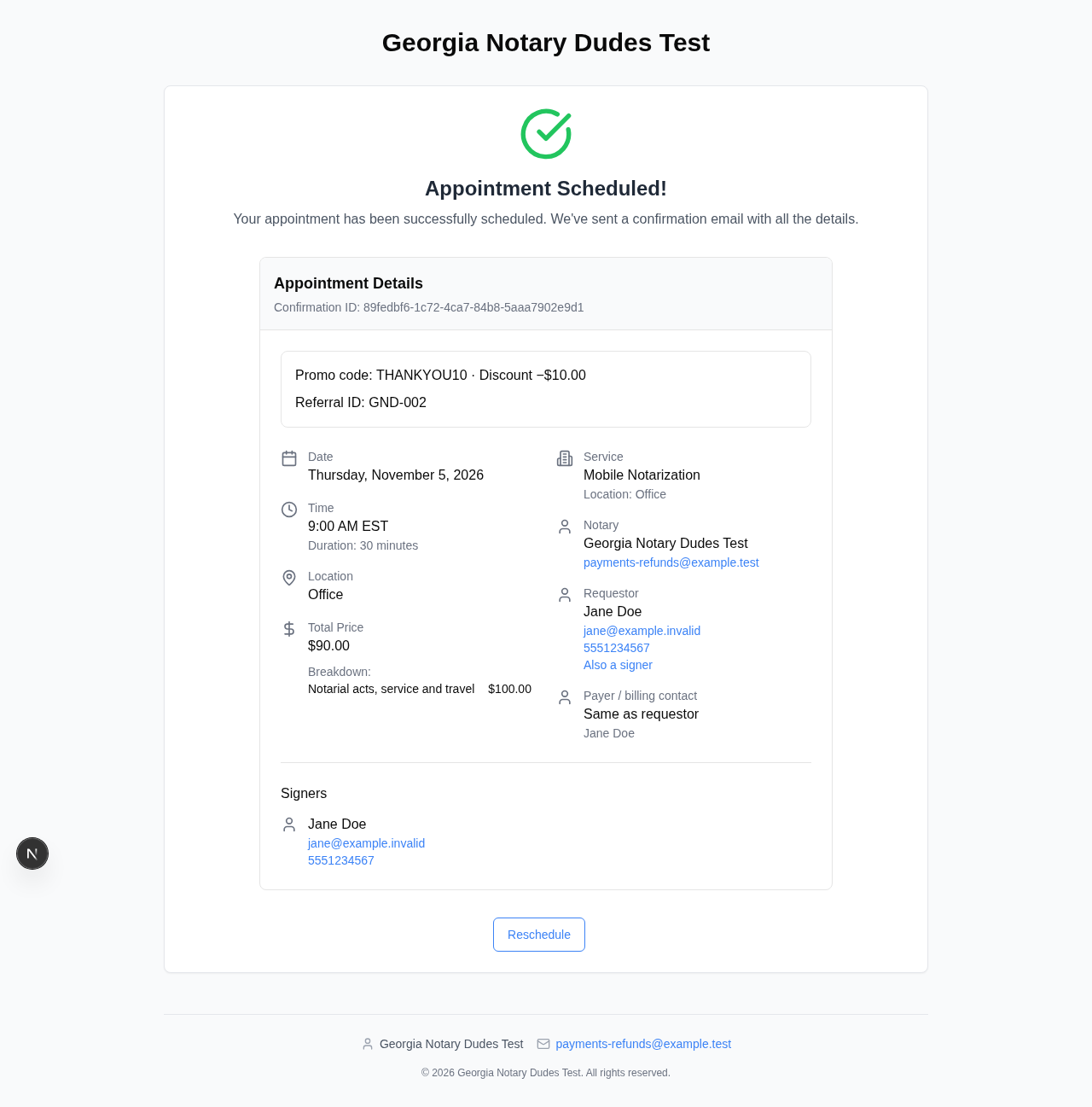
These screenshots use sample data from successful browser tests against the app and backend. No live payment was processed. The example confirmation uses GND-002; enter the ID printed on the actual customer's card.
Apply a code to a manual booking
When creating an appointment with billing controls visible, enter the code under Promo code and select Apply promo code. Enter Referral ID separately, check the applied percentage, and save the appointment.
You can also apply it after creating an appointment:
- Open the appointment in Signings and choose Edit Invoice.
- Enter THANKYOU10 in Promo code and select Apply promo code.
- If another discount is selected, confirm Replace discount before applying the code. Use the same explicit replacement choice when changing or removing a saved promo discount.
- Enter or update Referral ID if needed.
- Review the original charges, separate deduction, and TOTAL DUE, then select Save.
Reopen Edit Invoice to confirm the code and referral ID were saved. Reopening and saving does not compound the discount.
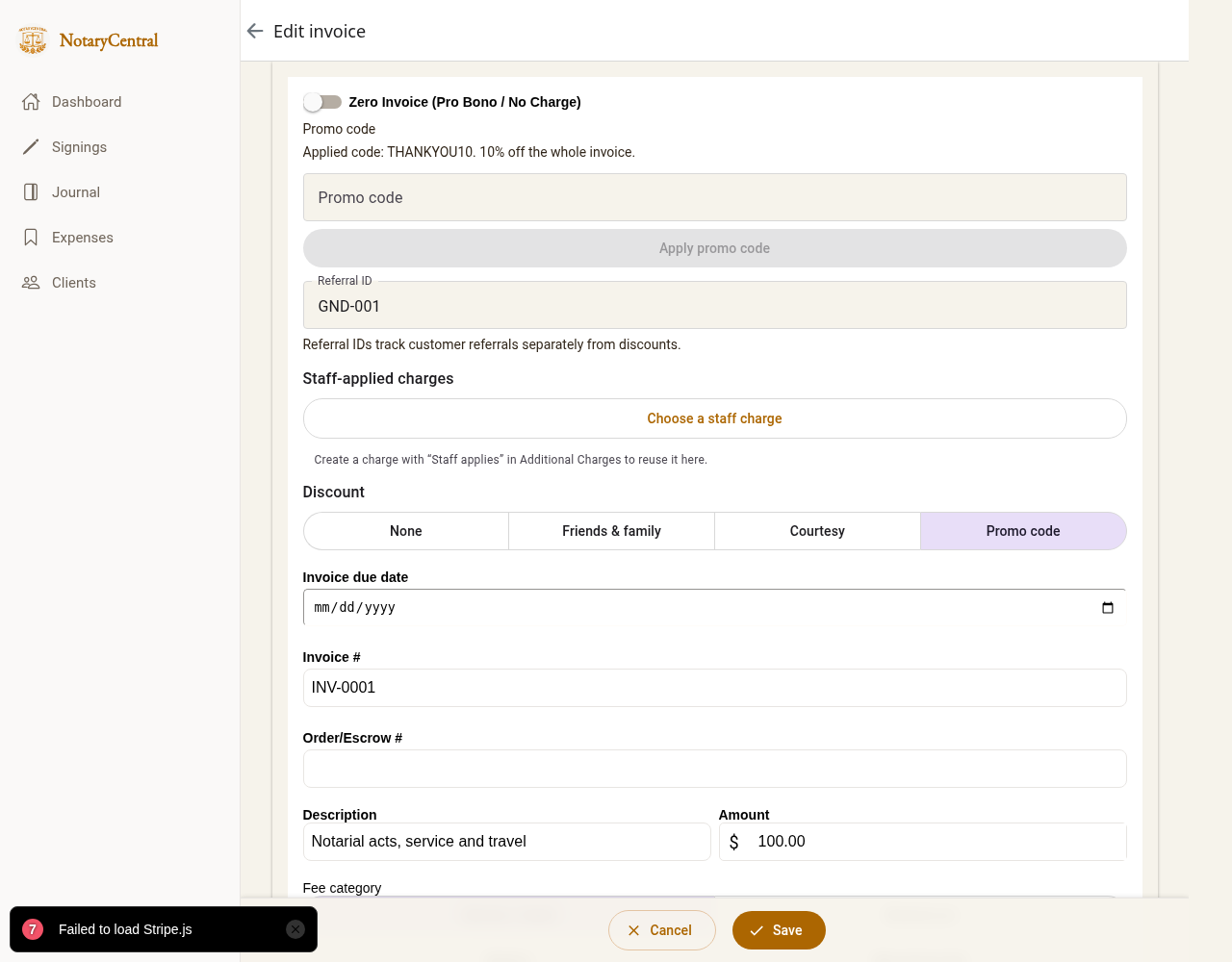
If the code changes between applying it and saving, apply it again to review its current terms. Changing or replacing a promo on a paid appointment or one awaiting payment requires payment review. An invoice adjustment does not automatically collect payment or issue a refund.
Set up your referral-card IDs
- Choose a different ID for each referring customer, such as GND-001, GND-002, and GND-003.
- Keep a private list mapping each ID to the original customer you want to thank.
- Print the appropriate ID on that customer's referral cards, together with your booking link and any promo code you want to offer.
- Ask new customers to enter the card's ID during booking, or have staff save it in Edit Invoice → Referral ID.
IDs use the same 40-character format as codes and are saved in uppercase. NotaryCentral records the ID with the appointment. Keep the customer mapping separately; IDs are not automatically issued or linked to customer profiles, and they do not generate rewards or thank-you messages.
Find referrals and export them
Return to Promo codes and referrals → Customer referral report.
- Enter an ID in Search Referral ID, such as GND-001, or leave it blank to list bookings with any referral ID.
- Optionally enter an Appointment status and a date range.
- Open the Referral report tab and select Search referrals. Check the count by ID and each appointment's gross amount, discount, and invoice total. Open appointment takes you to its details.
- Select Export referral CSV to download the matching results using the current filters.
Search matches the complete ID, ignoring capitalization. Use the date pickers or This month preset. Dates filter appointment dates in your business timezone, shown above the filters. From date is inclusive; Before date is exclusive. For example, use 2026-11-01 and 2026-12-01 for November appointments.
Changing filters does not change the displayed results until you select Search referrals again. Export referral CSV always uses the filters from the last successful search, shown above the results.
The CSV includes appointment ID, appointment date with UTC offset, status, referral ID, promo code, gross amount, discount, and invoice total. Invoice totals are amounts billed, not amounts collected. Reports display up to 1,000 rows; narrow the filters if an export would exceed that limit.
Check your setup before sharing cards
Use a test service set to collect payment later, then make a sample booking with THANKYOU10 and a referral ID. Submitting still creates an appointment, but this check does not take a payment. Confirm that the invoice shows the expected deduction and that the referral appears in the report and CSV. Remove or clearly label your test appointment afterward.
To stop a code, select its Edit button, clear Active, and select Save promo code. Existing appointments retain their saved discount terms when the code is edited or deactivated.
If an invoice already has ten charge lines, leave a line available for the discount by consolidating charges before applying it. If travel requires a custom quote, review the final travel amount and discounted invoice before requesting payment.
For related setup, see Booking policies and charge rules, manual customer discounts, and editing appointments and invoices.
Preview changes safely
The booking settings page groups controls under Booking pages, Services & delivery, Availability, Client information, Pricing & payments, and Policies. Related settings link to their existing editor. For example, customer questions and signer limits are edited per service.
Customer preview runs the customer booking form using saved settings. In the web promo editor, an unsaved code and percentage can be tried in the preview before saving. On a narrow screen, switch between Settings and Preview; your draft stays in place. Booking, payment, document uploads and messages are disabled in preview. Availability and saved pricing are read live, and preview does not reserve a time slot.
Select Save promo code to publish a draft or Cancel to discard it. Unsaved changes are labeled and require confirmation before discarding. Saved code changes affect future applications; existing appointments retain their saved terms. Native previews show saved settings; trying draft promo terms is currently available in the web preview.