
When you correct or remove a saved payment, NotaryCentral recalculates the appointment's balance and Paid status. An invoice that was previously paid returns to an unpaid state if the remaining payments no longer cover its charges.
Part of Payments and Receipts.
Review Billing Overview
Open the appointment in Signings and go to Billing Overview. Check:
- Invoice Total: the appointment's current charges.
- Payments: the total original payments recorded.
- Refunds and, when applicable, Net retained: money returned and the payments remaining after refunds.
- Balance: the amount still due.
- Paid: the badge indicating that recorded net payments cover the invoice.
For a positive invoice total, the Paid badge follows the saved payment coverage. It is recalculated after a payment edit or removal, rather than staying set because the appointment was paid at an earlier point.
For help recording payer, processor, and reference details in the first place, see Carry Saved Payment Details into Receipts.
Correct an incorrectly entered amount
Use a payment correction when the recorded amount is wrong and money was not returned to the customer.
- Open the payment editor from the Payments row in Billing Overview.
- Expand Payment details and choose Correct payment entry.
- Enter a Payment correction reason describing what was entered incorrectly.
- Change Amount on the affected payment entry. For example, change an erroneous $122 payment to 0.00 if no payment should have been recorded.
- Choose Save and wait for the save to complete.
- Back in Billing Overview, check Payments, Balance, and the Paid badge together.
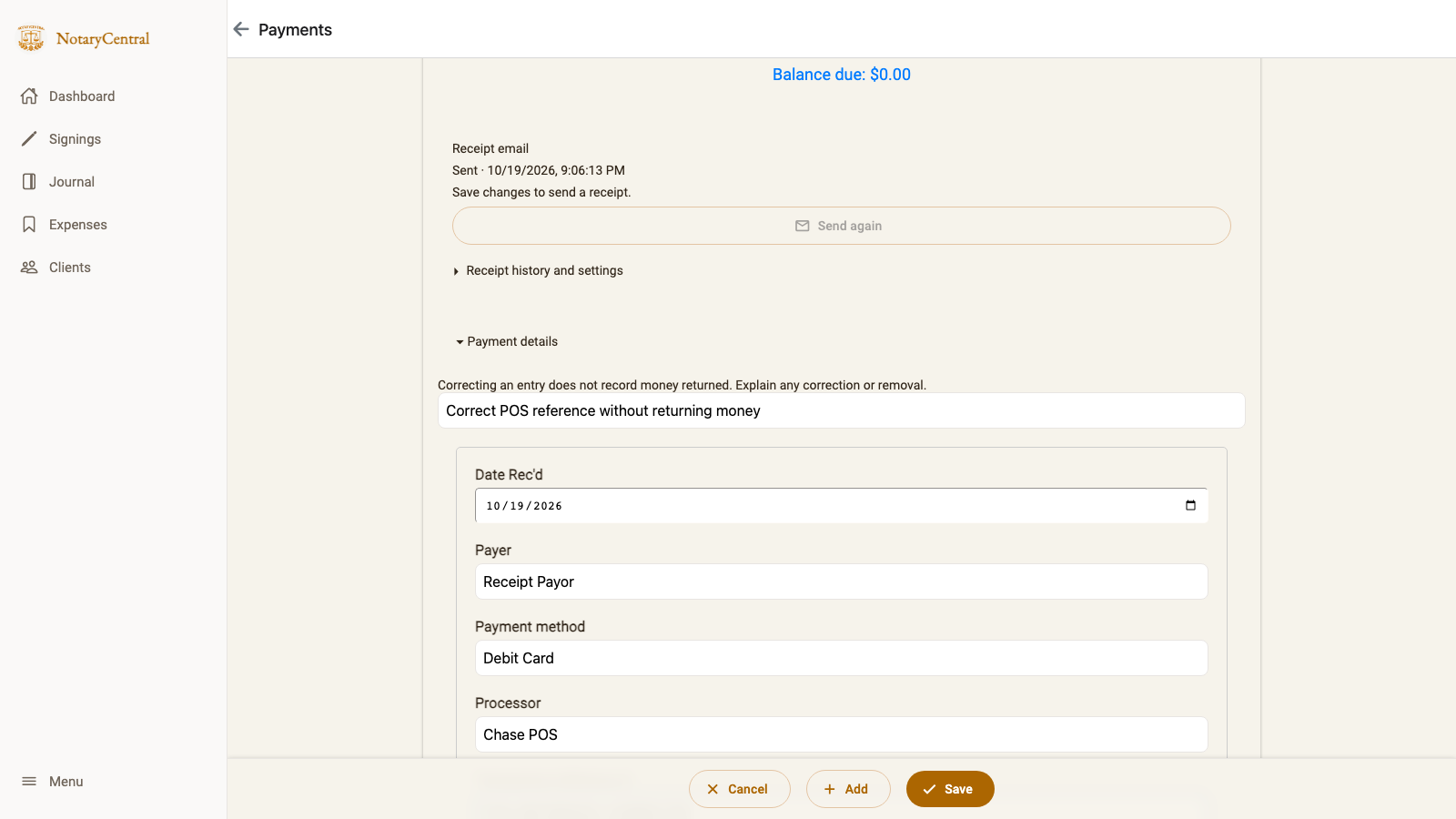
In this fictional example, Payment details is expanded and the correction reason explains the reference change. Save changes to send a receipt keeps the next receipt tied to the saved record.
The updated payment records are used when Billing Overview reopens. Reopening the appointment or refreshing the page should retain the corrected total and status.
Remove an erroneous payment entry
If the entry should not exist, open Payments, expand Payment details, choose Correct payment entry, and enter the correction reason. Choose Remove on the incorrect entry, then Save.
The removed amount stops contributing to the payment total. If the remaining payments no longer cover the invoice, the Paid badge clears and the outstanding balance increases accordingly. Expand Payment correction history under External refunds to review the reason for the change.
Example: a $122 invoice
These examples assume a $122 invoice, no refunds, and no other payment entries.
| Saved payment state | Payments shown | Balance due | Paid badge |
|---|---|---|---|
| Full $122 payment | $122.00 | $0.00 | Shown |
| Payment corrected to $0 | None | $122.00 | Cleared |
| Payment corrected to $50 | $50.00 | $72.00 | Cleared |
| Payment entry removed | None | $122.00 | Cleared |
Changing the single payment from $50 back to $122 restores full coverage and the Paid badge. In each case, the same saved state should appear after a page refresh.
Payments: None means the payment total is zero in this example. Check the payment editor and correction history to distinguish a zero-amount entry from an entry that was removed.
Record returned money as a refund
A correction changes an inaccurate record. If the customer actually paid $122 through Chase POS and you later returned $35, retain that original payment and record a separate $35 refund.
If you also waived the $35 charge, record or link the matching invoice credit. This keeps adjusted charges and net payments at $87 with no balance due. If the charge remains payable, the refund leaves $35 due and the appointment no longer qualifies as paid in full.
Follow Recording Full and Partial Refunds for those steps. Editing a payment to zero or removing it does not return money through Chase or another processor.
Check receipts after a correction
Review the corrected payment records before generating or sending another receipt. A paid-in-full receipt should agree with the current invoice balance.
For automatic receipt emails, an invoice with an unpaid balance does not qualify. A queued receipt based on an outdated payment state can be canceled before delivery; a receipt already sent remains part of the appointment's email history. See Automatically Email Receipts for Fully Paid Invoices for delivery status and manual resend guidance.
To review and email a PDF yourself, follow Send Receipt Emails with a PDF Attachment.
Return to Payments and Receipts for the guide index.