
Link your Google account to NotaryCentral to sync your calendar and send client emails from your Gmail—no app switching needed.
Why connect Google?
- Send emails from Gmail — confirmations, reminders, and invoices come from your address.
- Sync your calendar — appointments update automatically in both Google Calendar and NotaryCentral.
What permissions are needed?
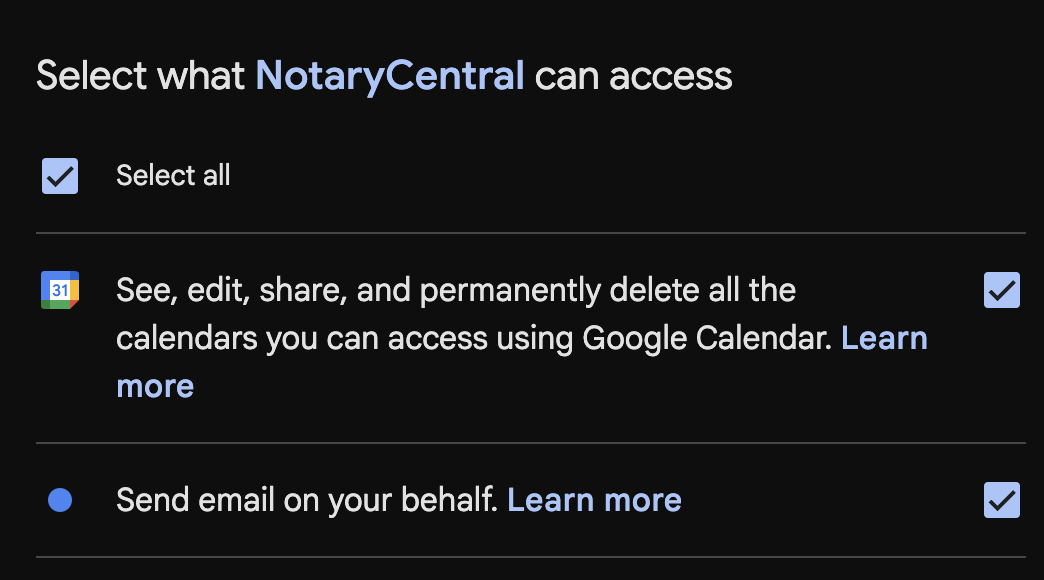
You’ll grant access to:
- Send email on your behalf — for NotaryCentral messages like confirmations and reminders.
- Manage calendars — to create, update, or sync appointment events.
NotaryCentral only touches events related to your notary work.
How to connect
Open in app: https://app.notarycentral.org/oauth-native-callback
- In NotaryCentral, go to Settings → Google Calendar & Gmail.
- Click Grant Permission.
- Sign in and review Google’s permission request.
- Click Allow.
- You’ll return to NotaryCentral with Google marked Connected.
After connecting
- Appointments sync both ways between Google Calendar and NotaryCentral.
- Emails you send from NotaryCentral come from your Gmail address.
- Client bookings automatically appear in your Google Calendar.
Disconnect anytime
Go to Settings → Google Calendar & Gmail, or remove access at your Google Account permissions page.
Security
Your Google password is never shared. NotaryCentral uses secure OAuth 2.0 and only accesses calendar and email-sending features.
Need help? Review how NotaryCentral support works or chat with the team for guided setup.