
Add questions to an individual service so customers can tell you what they need in the Details step of your booking form. Their answers are saved with the appointment for you to review.
Set up your questions
- Open External Services in NotaryCentral.
- Create a service or select Edit on an existing one.
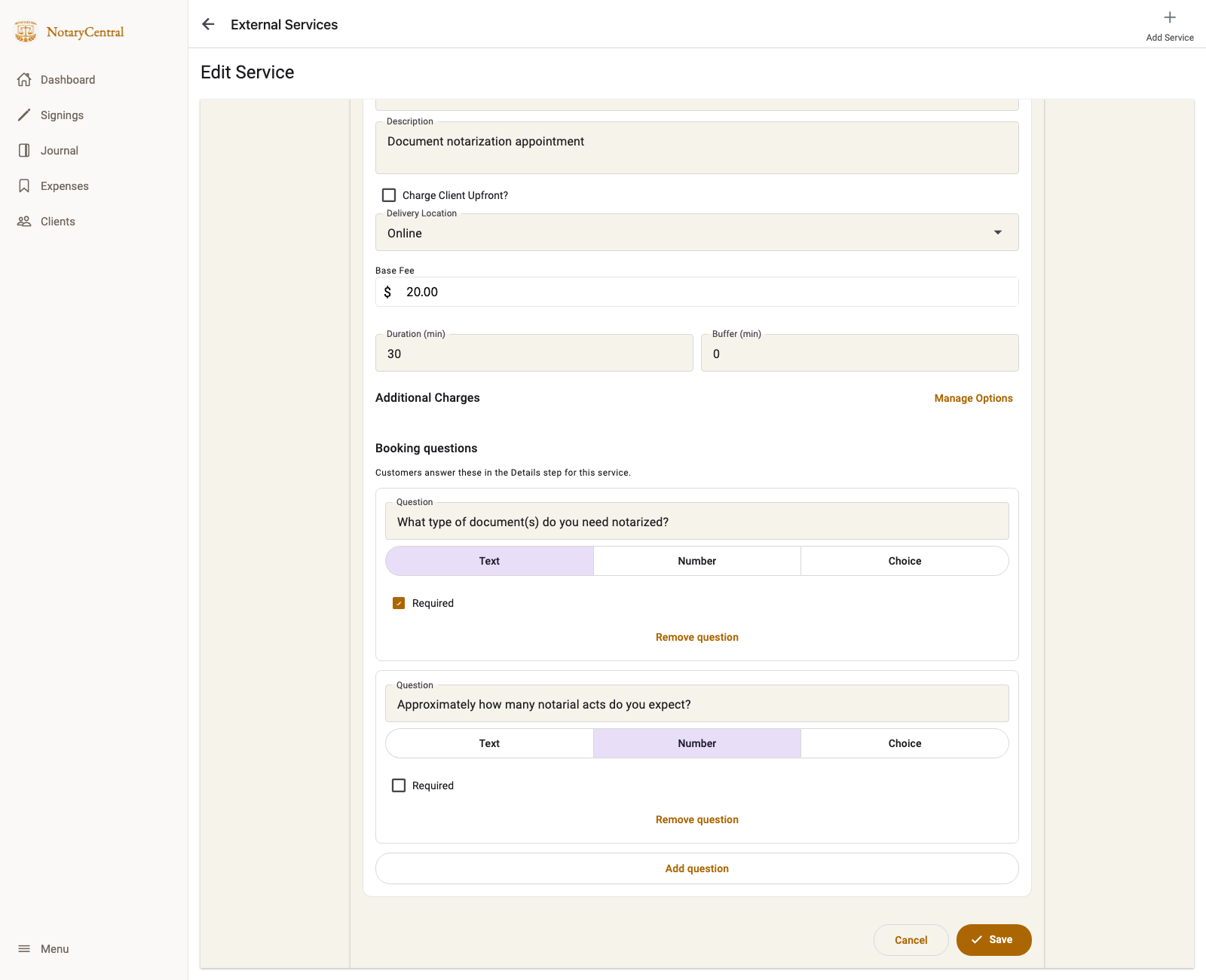
- Under Booking questions, select Add question and enter the wording customers should see.
- Choose Text for an open response, Number for a positive whole number, or Choice for a list of options. For Choice, enter the options separated by commas.
- Turn on Required if the customer must answer before submitting. Add any other questions, then select Save.
For example, ask “What type of document(s) do you need notarized?” as a required Text question, and “Approximately how many notarial acts do you expect?” as a Number question. You can use Choice for a short list such as Power of Attorney, Affidavit, Vehicle Title, or School Form.
What the customer sees
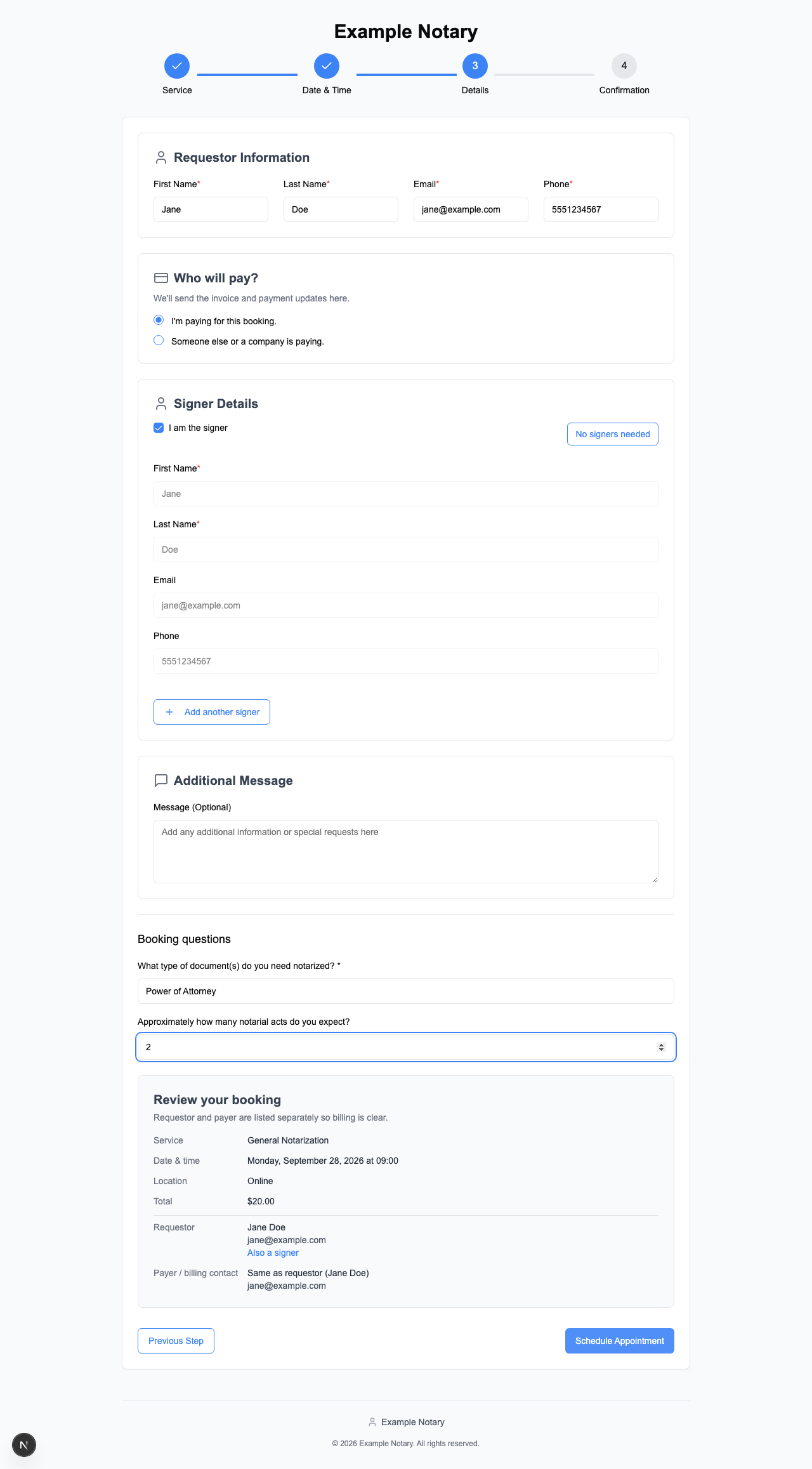
When a customer selects that service and reaches Details, the questions appear below the standard contact and signer fields. A required question must be answered before the booking can be submitted. Questions for another service do not appear.
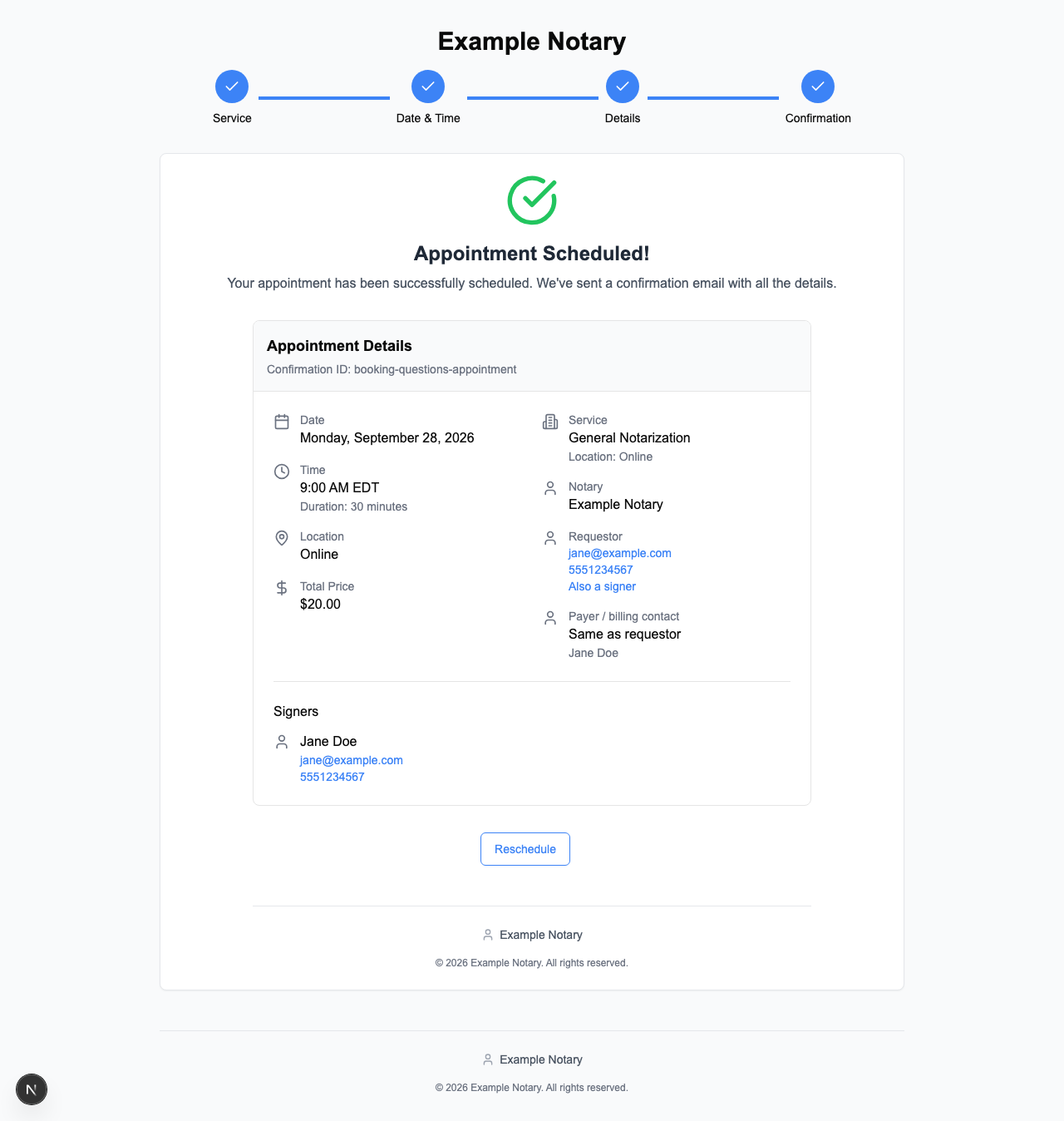
After submitting a successful booking, the customer sees the appointment confirmation. The confirmation summarizes the appointment; it does not repeat the custom answers.
Where to find the answers
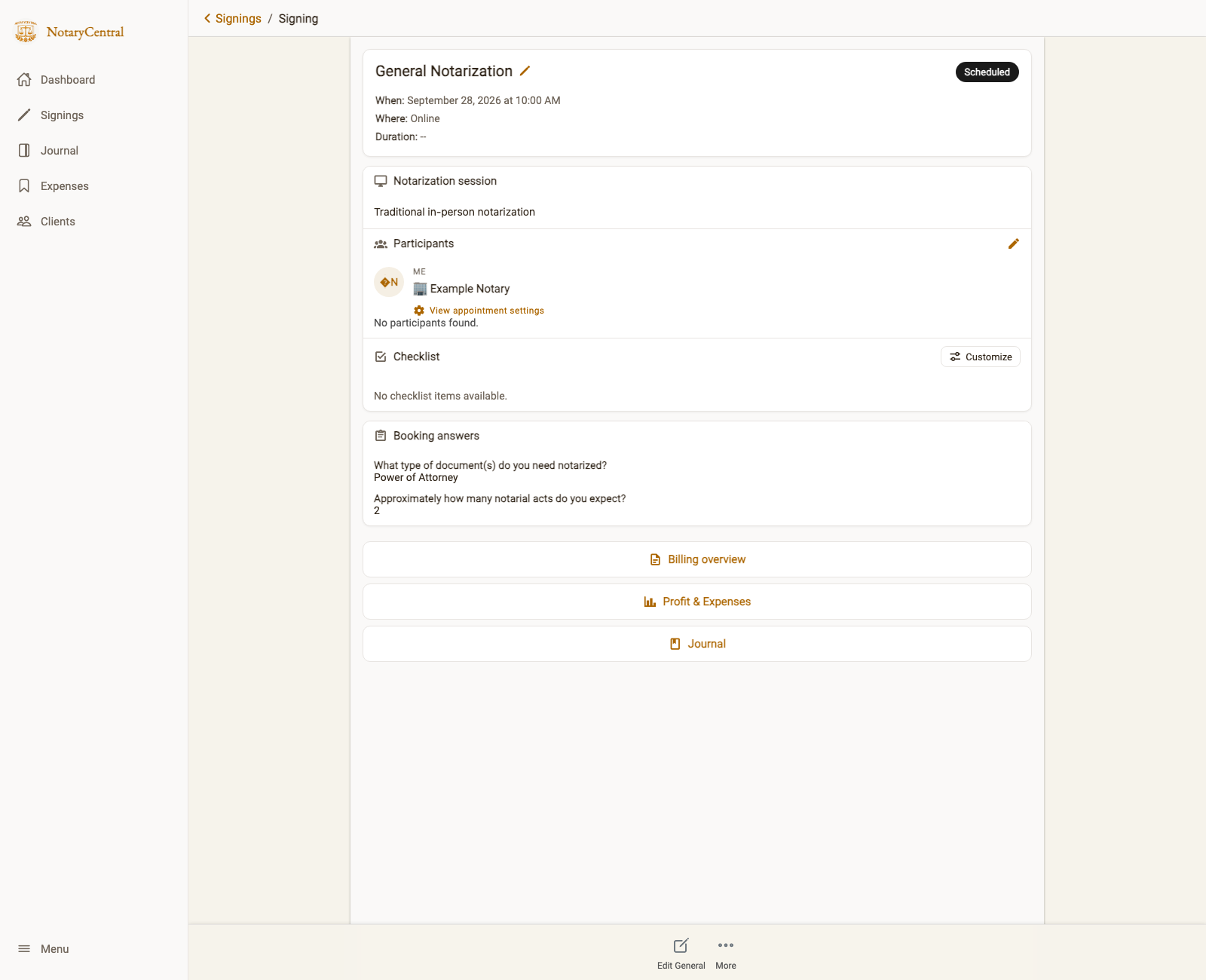
Open the appointment in Signings. The Booking answers section shows each answered question and the customer's response. The saved wording stays with that appointment, even if you later edit the service's questions.
Screenshots use sample data from the booking questions browser test. Your services, questions, and customer answers will differ.