
Keep your signing packet organized without leaving the signing room. Split one PDF into separate documents, or merge related files into one. Existing fields and signer assignments follow their pages.
Organize the packet around your appointment
- Separate documents that need different treatment. Give each split PDF its own name and choose To notarize, To sign, or To read.
- Review before creating files. Use page thumbnails and split points to see where each new PDF begins and ends.
- Bring related files together. Select two or more documents and review their order before merging them into one PDF.
For example, separate an agreement from its disclosure so each has a clear name and purpose. Or combine related forms that should share one document purpose. You can also separate reading material from documents that need signatures.
Split a PDF into separate documents
- In your signing room, open Documents. Choose Edit on the PDF, then Split document.
- Review the page previews. Select a split point after each page where a document should end. When original file ranges are available, review the suggested divisions and names.
- Name each resulting PDF and choose its purpose: To notarize, To sign, or To read.
- If needed, expand Advanced: edit page ranges. Every page must appear exactly once, in order, without gaps or overlaps.
- Review your choices, then choose Create 2 PDFs—the number changes to match your selection. The new PDFs replace the source in the active document list.
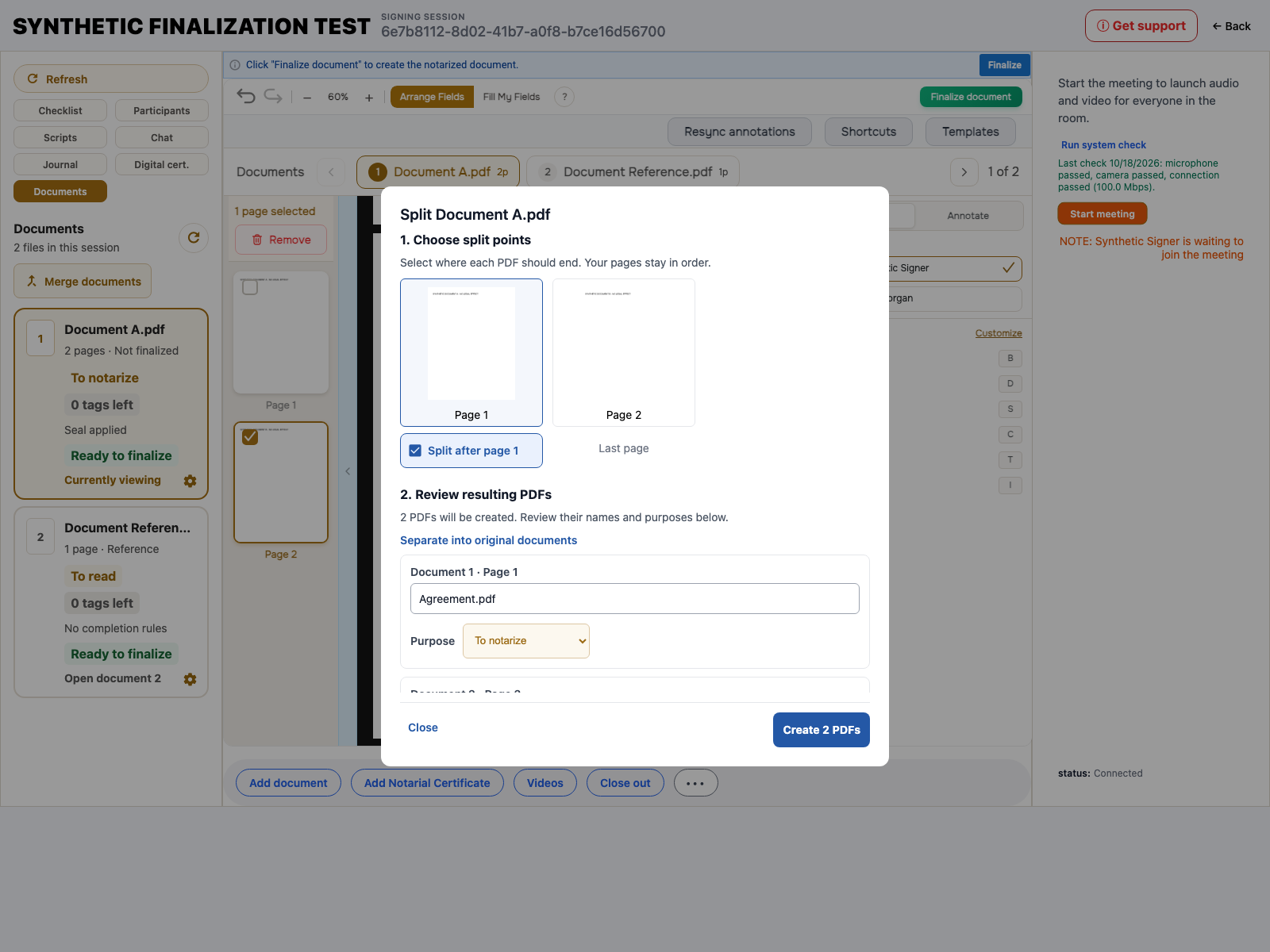
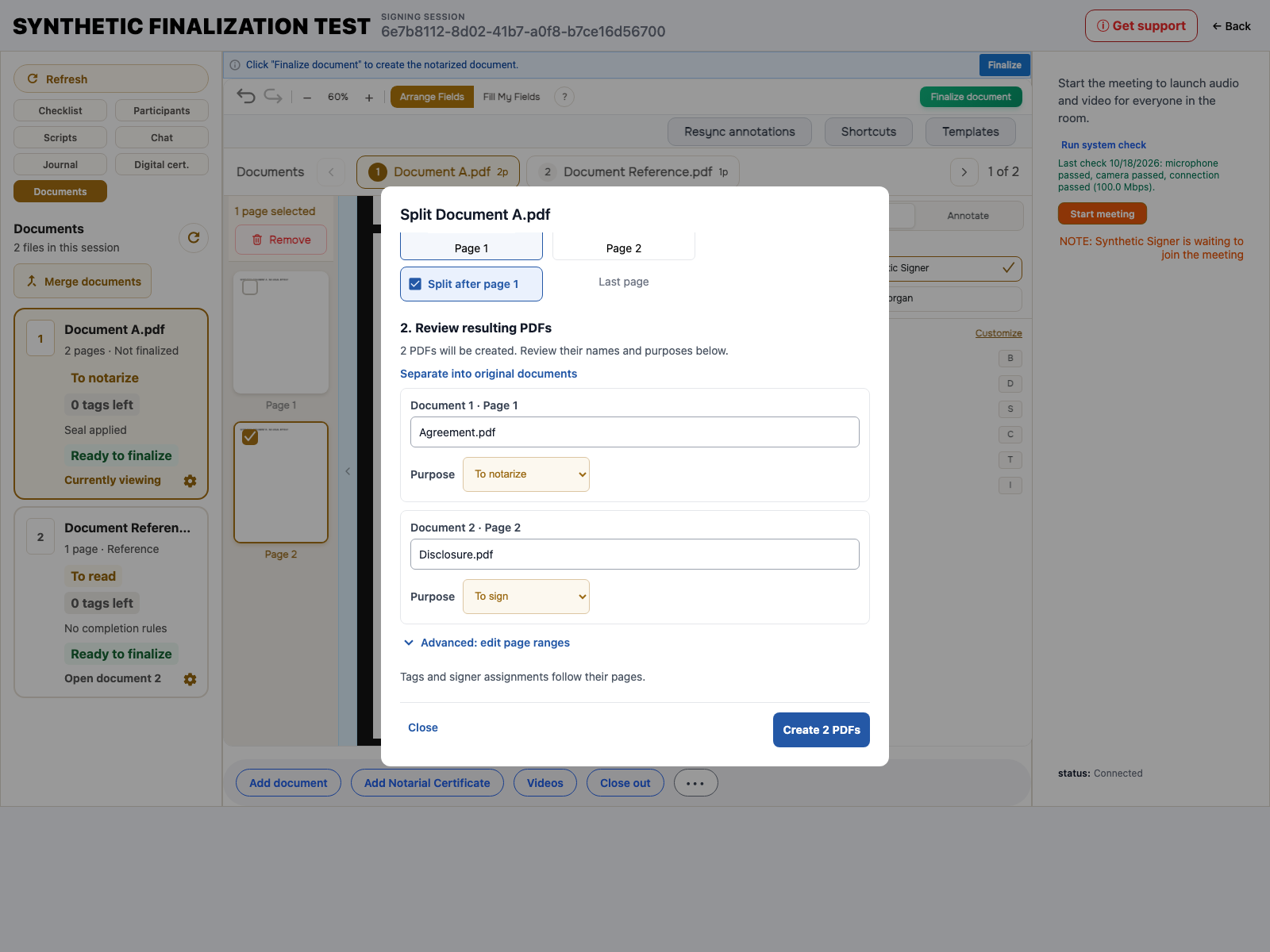
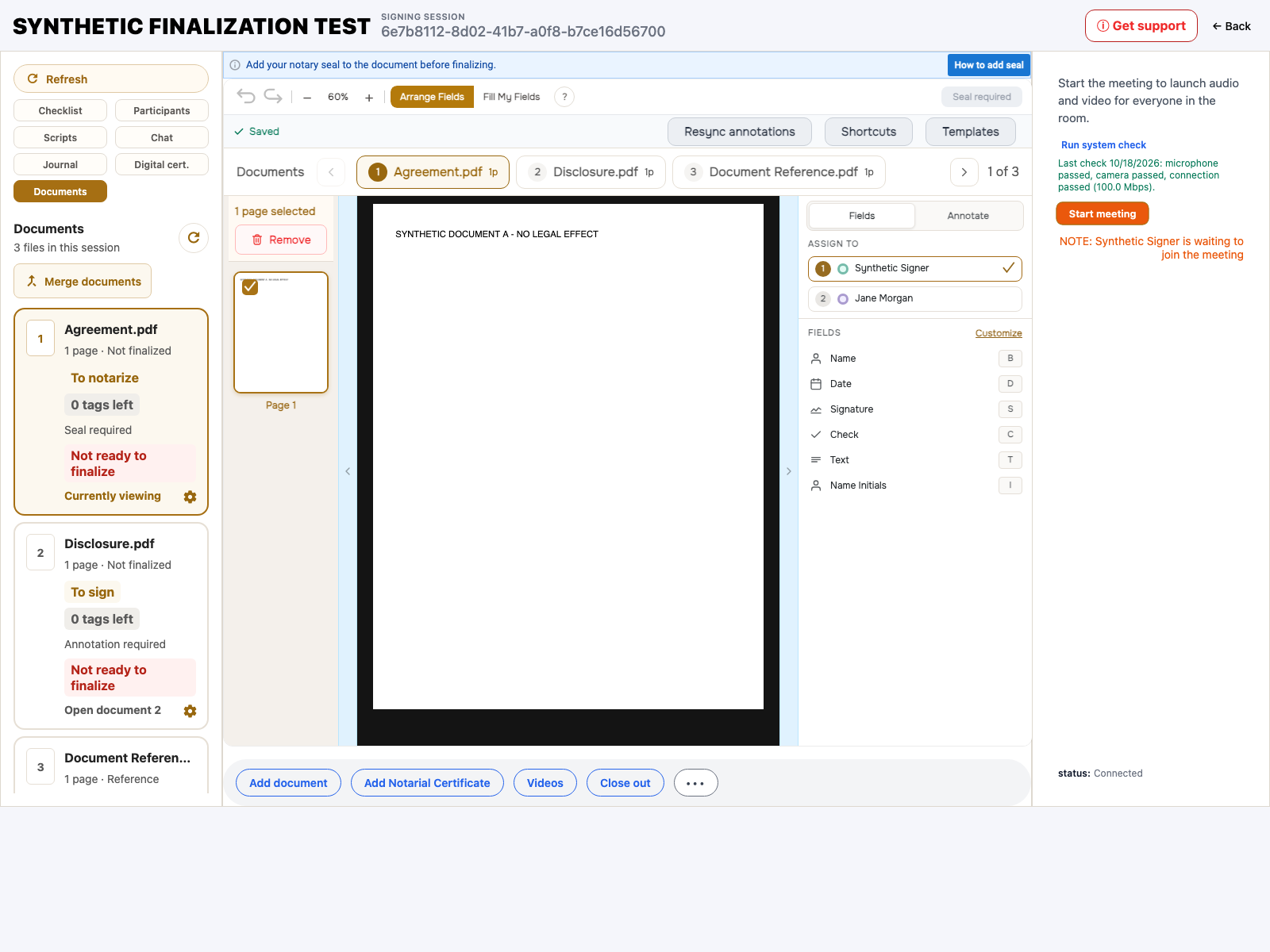
Your pages keep their order, and existing tags and signer assignments move to the matching pages in the new PDFs. A split requires at least two output documents and must keep the room within its 20-document limit. The source PDF must not exceed 50 MB.
Merge selected documents into one PDF
- In Documents, choose Merge documents to reveal the selection checkboxes.
- Select at least two documents, then choose Merge documents again to open the confirmation.
- Review the listed order. The merge uses the document list's order, not the order in which you checked the boxes.
- Enter a name and choose one purpose for the merged PDF: To notarize, To sign, or To read.
- Review the warning, then choose Merge documents to confirm. Choose Cancel merge if you need to reconsider.
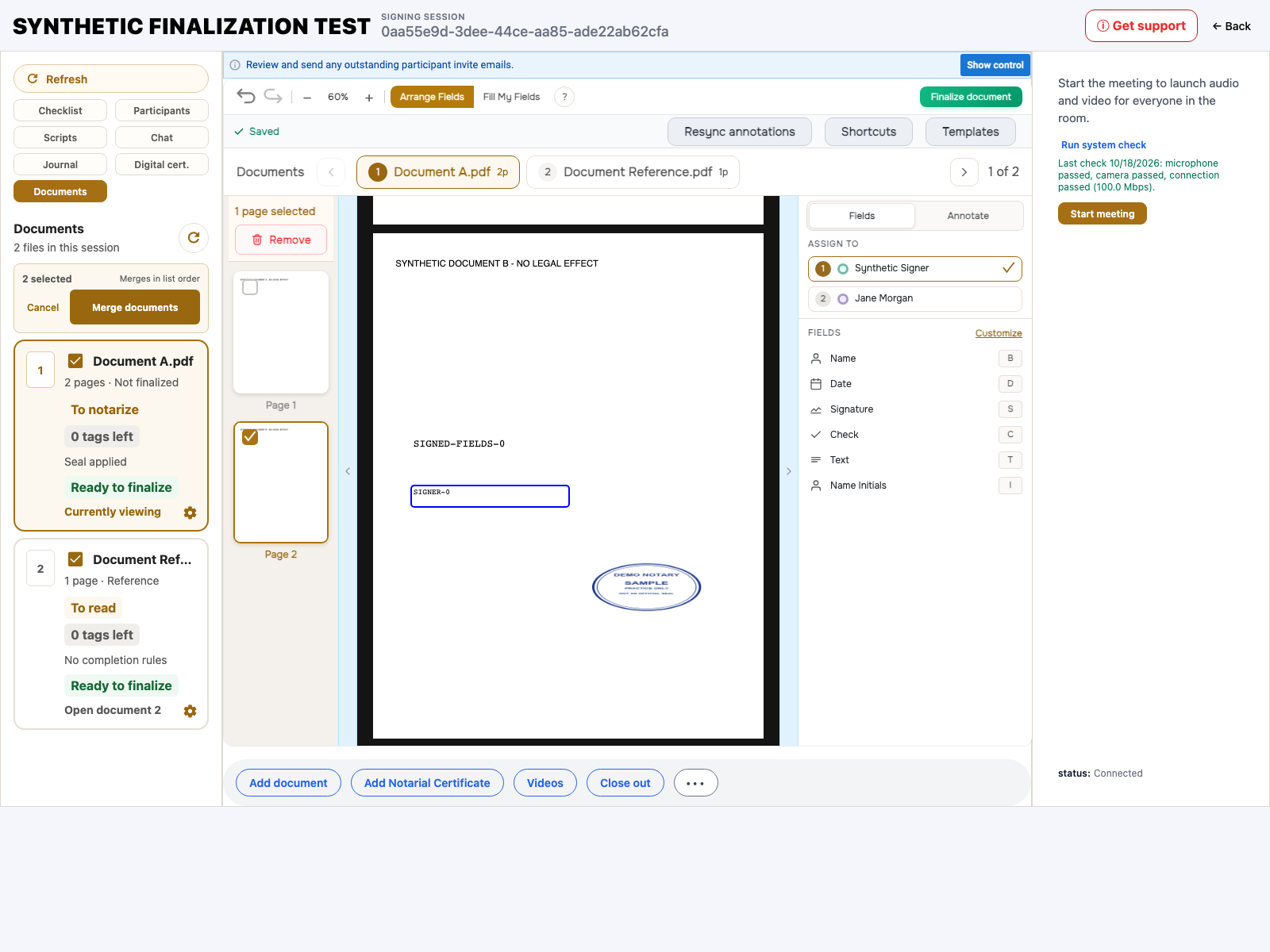
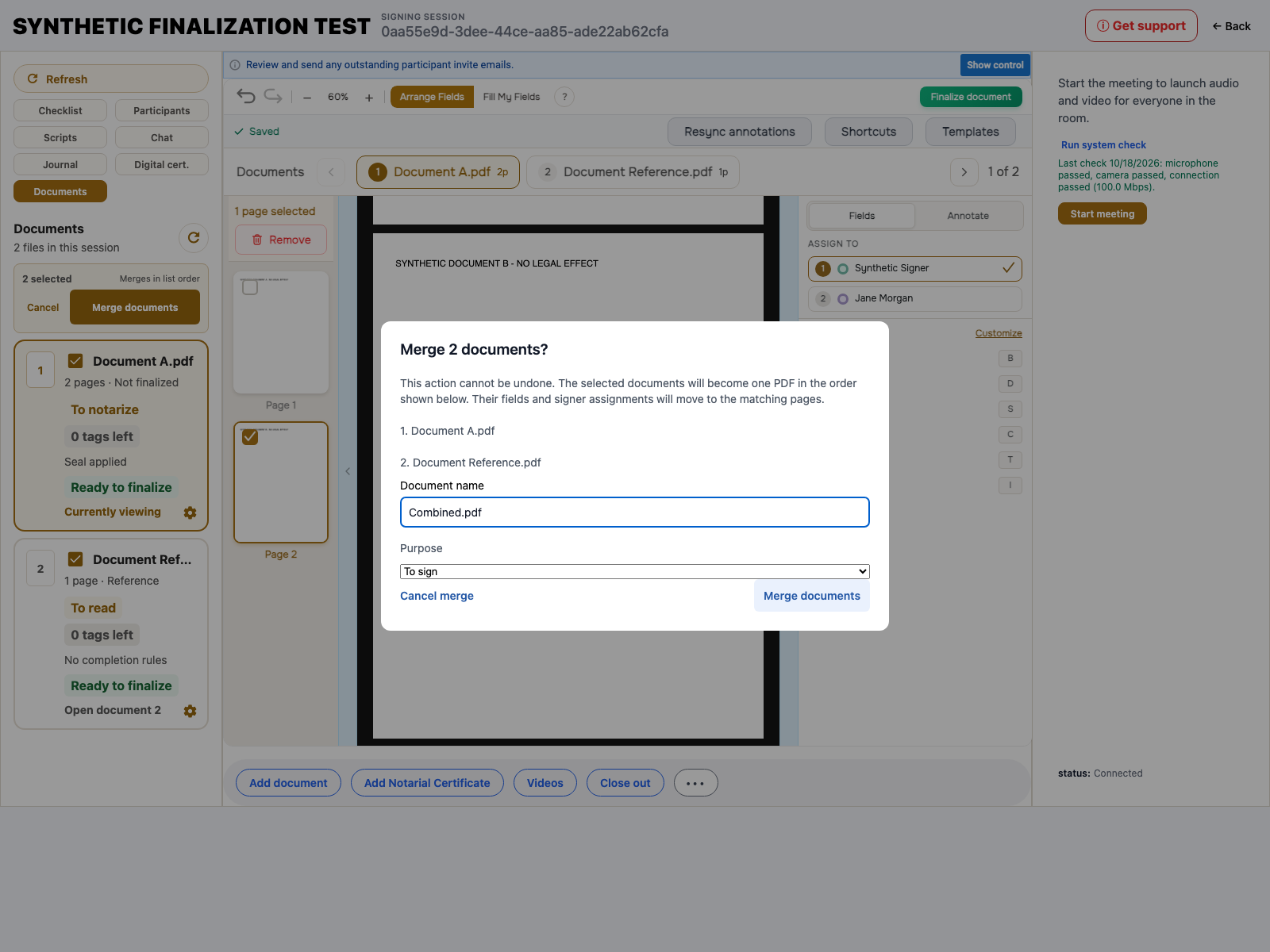
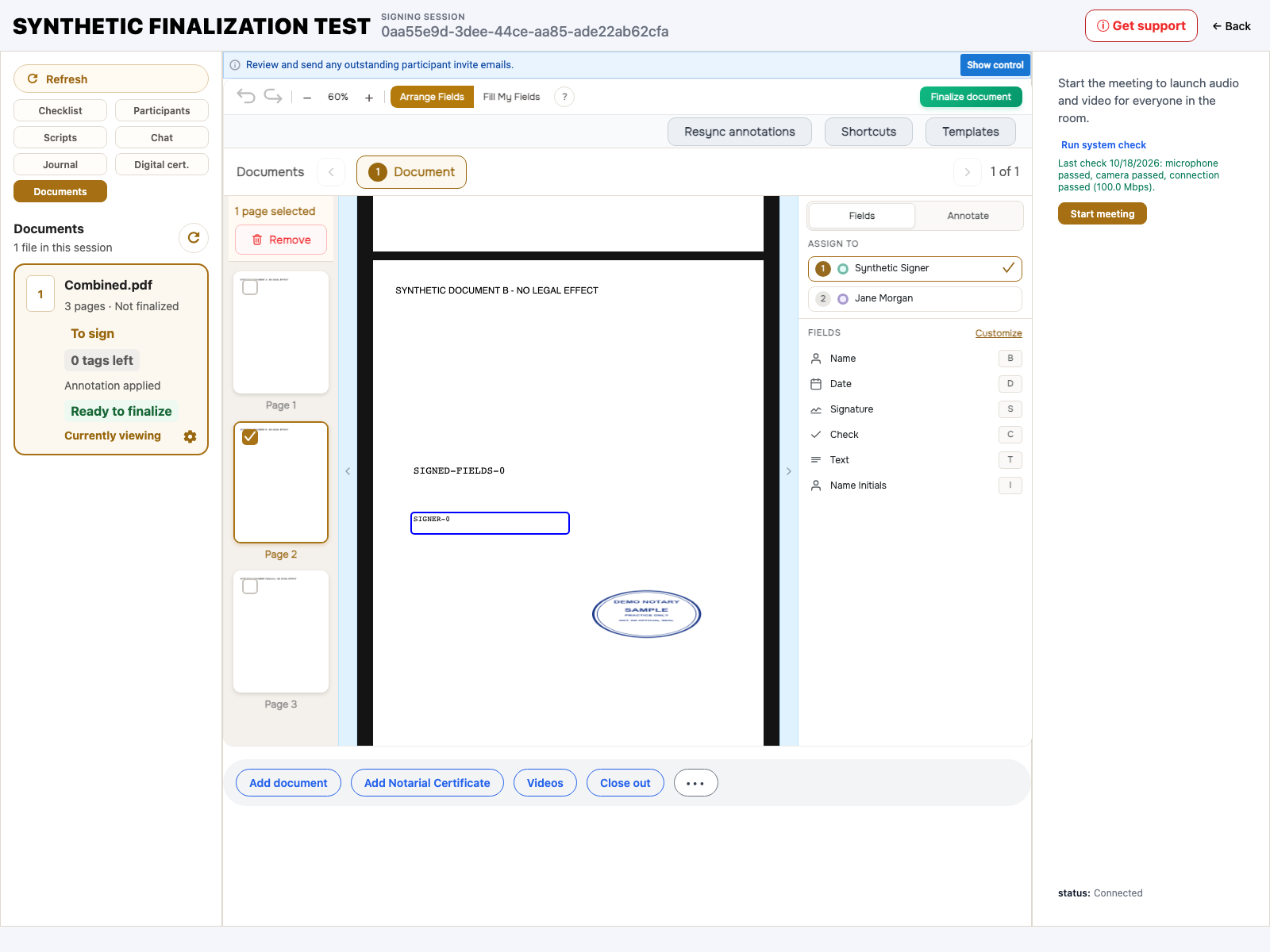
The selected files become one PDF in the active list. Their fields and signer assignments move to the corresponding pages. Selected PDFs must total no more than 50 MB.
Make changes before finalization
Split and merge are available for editable signing rooms using separate documents. They are not available for finalized documents, digitally signed PDFs, or encrypted PDFs. Historical or completed views and finalization protections also prevent these changes. Older sessions using one combined document use a different editing workflow.
Placed signing fields are different from a PDF's embedded digital signature. Fields can follow their pages; split and merge do not alter digitally signed PDFs.
Source preservation is not Undo
NotaryCentral retains the source PDF and its field records when splitting, and a retry of the same split request can recover the existing result instead of creating another set of documents. If the source has changed since the preview, refresh and review the split again.
Source retention and retry recovery do not provide an Undo split or Undo merge action. The viewer’s Undo control applies to field editing, not these document changes. Merge explicitly warns that the action cannot be undone. Review names, purposes, page divisions, and merge order before confirming.
Open Documents in your editable signing room to organize your next packet.
Screenshots use sample documents and participants. Your signing-room contents will differ.