
Use Settings → Notification Center to send appointment notifications to the inbox you monitor. Your notification email is separate from your login email and the contact email in My Business Info.
Change your notification email
- Open Settings and select the edit pencil beside Notification Center. You can also open Notification Center directly.
- In Notification email, enter one email address, such as
bookings@example.com. - Select Save.
- Reopen Notification Center to confirm the saved address. The Settings summary also shows the address used for notifications.
This address receives new appointment notifications, personal appointment reminders, and witness email alerts when email fallback is used. Entering an address does not turn on personal reminders by itself; choose their timing and enable email reminders below.
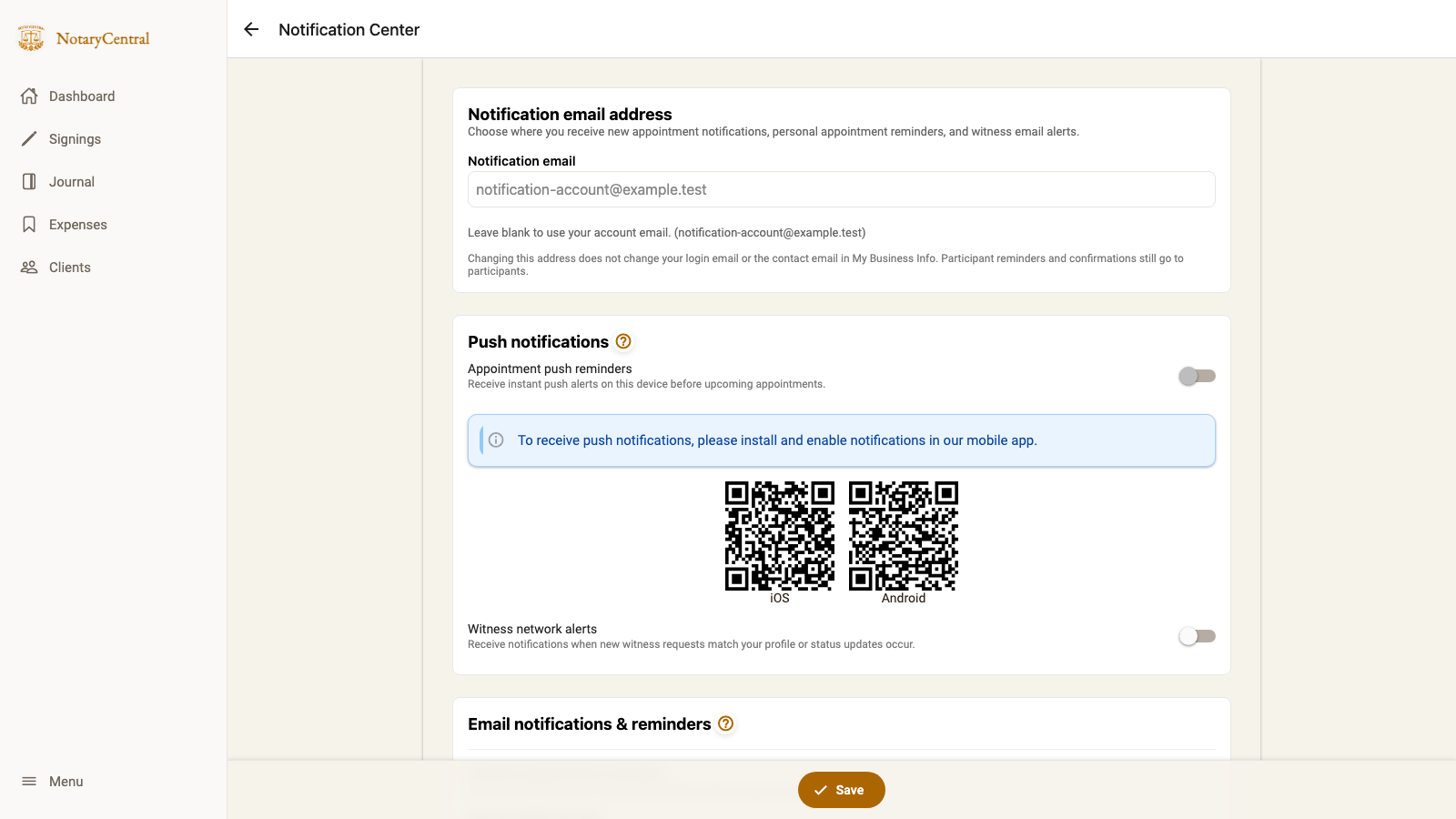
If you leave Notification email blank, notifications use your account email. To return to that default later, clear the field and select Save. The account email appears as the placeholder and in the text below the field.
Notification email, business email, and login email
| Address | What it controls | Where to update it |
|---|---|---|
| Notification email | Where you receive appointment notifications, personal reminders, and witness email fallback alerts | Notification Center |
| Business contact email | The contact address you give customers | My Business Info |
| Login email | The email associated with signing in to your account | Your account's sign-in settings |
Changing your business contact email does not redirect appointment notifications. If notifications still reach an old address after a business-email change, save the intended recipient in Notification Center. You do not need to change your login email to choose a different notification inbox.
Participant reminder and confirmation emails still go to the appointment participants. Your notification address does not replace their email addresses.
Set reminders, push alerts, and confirmations
The same page contains these controls:
| Setting | How to use it |
|---|---|
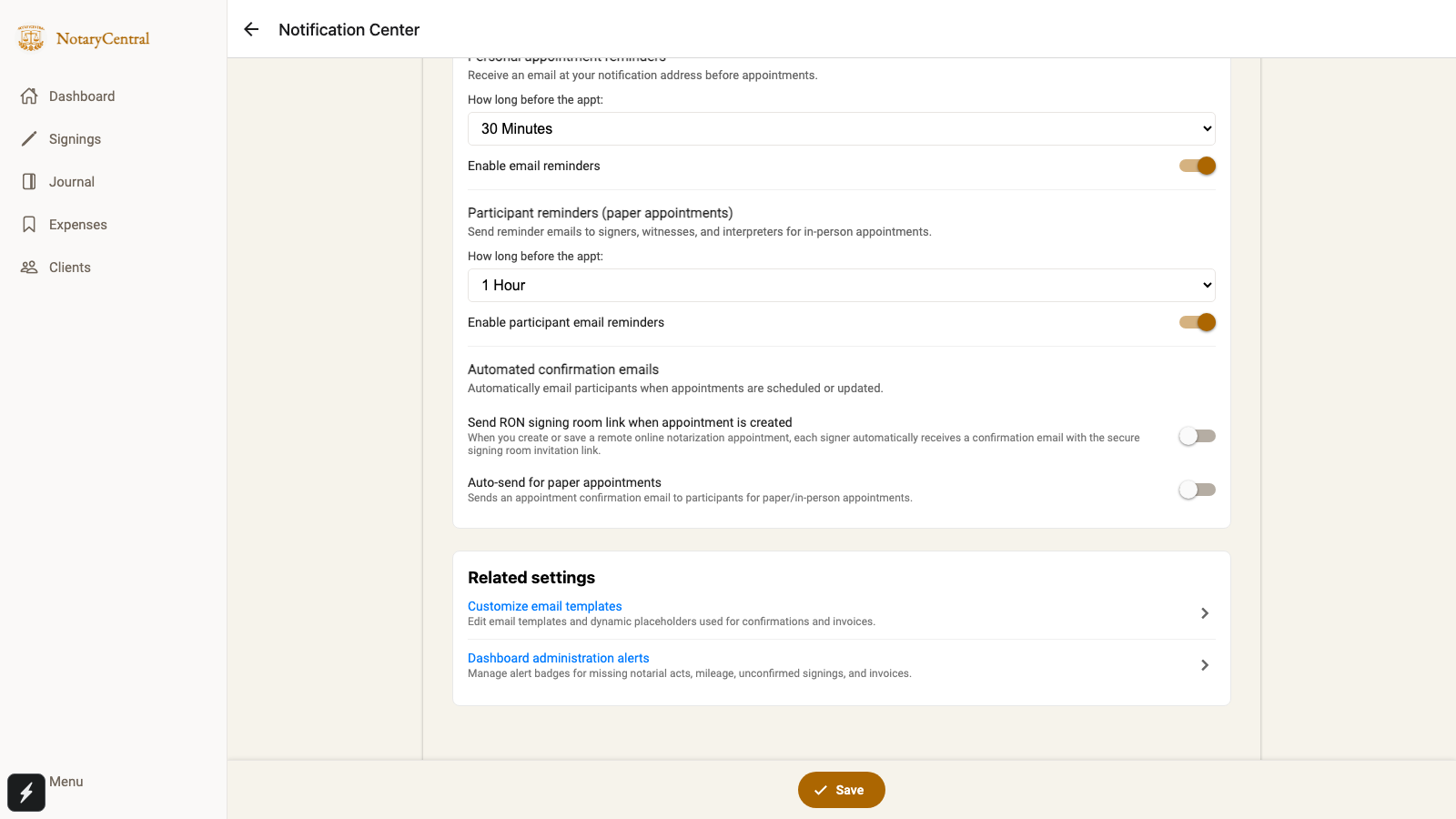
| Personal appointment reminders | Choose How long before the appt, then turn on Enable email reminders to receive reminders at your notification address. |
| Appointment push reminders | Enable these from the mobile app and grant notification permission on your device. The web page explains how to install the app; it cannot enable mobile push reminders. |
| Witness network alerts | Turn alerts on or off for witness requests and status updates. If push delivery is unavailable, email fallback uses your notification address when email reminders are enabled. |
| Participant reminders (paper appointments) | Choose a lead time and turn on Enable participant email reminders for signers, witnesses, and interpreters at in-person appointments. |
| Automated confirmation emails | Choose whether to send paper appointment confirmations automatically. RON-eligible accounts also see the option to send the RON signing room link when an appointment is created. |
Reminder timing ranges from 5 Minutes to 1 Day. Choose None to turn off that reminder sequence. Personal email and push reminders use your personal reminder timing. Turning off personal email reminders does not turn off new appointment notification emails.
Select Save after changing these settings. Under Related settings, open Customize email templates to edit message content or Dashboard administration alerts to manage badges for missing notarial acts, mileage, unconfirmed signings, and invoices.
For a shorter introduction to lead times and delivery channels, see Configuring Appointment Reminders.
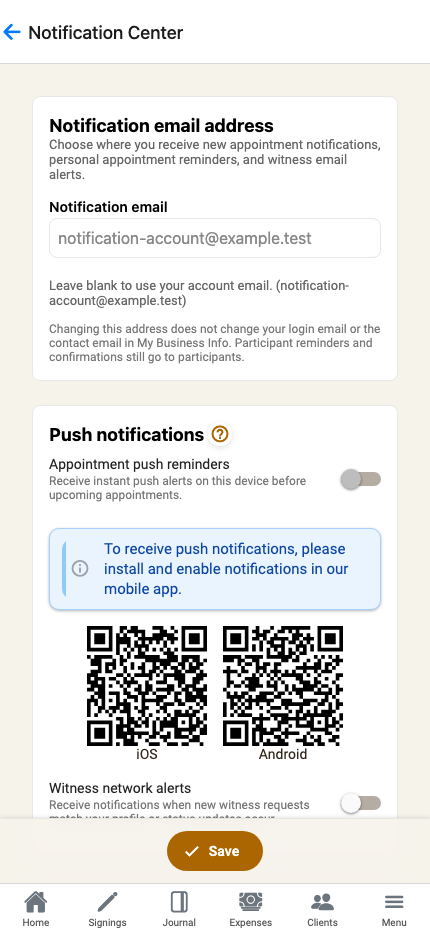
Use Notification Center on your phone
The notification email field and the existing reminder controls are available in the mobile layout too. Clearing the notification address and saving restores the account-email fallback.
If a change does not save or emails still reach the old address
- An invalid address: Correct the address when you see Enter a valid email address. Use one plain address, without a display name or a list of recipients.
- A failed save: If you see Failed to update, the change has not been saved. Retry when your connection is available, then reopen the page to check the saved value.
- The old recipient still appears: Check Notification email, not only the contact email in My Business Info. An empty field uses the account email shown below it.
- The saved address is correct: Check that inbox's spam folder and mail rules. If new appointment notifications still arrive at the old address, contact support with the appointment time and the saved notification address.
Browse Articles & Guides for more business profile and scheduling help.
Screenshots show sample account details.