
Flat travel fees add one set price to a customer's mobile booking based on driving distance. You choose the price for each 10-mile band and the farthest distance you want priced automatically. The travel/service fee stays separate from your notarial fee per act.
1. Set your starting address and prices
Make sure the business address in your profile is current. This is the starting point for the driving distance to the service address the customer enters.
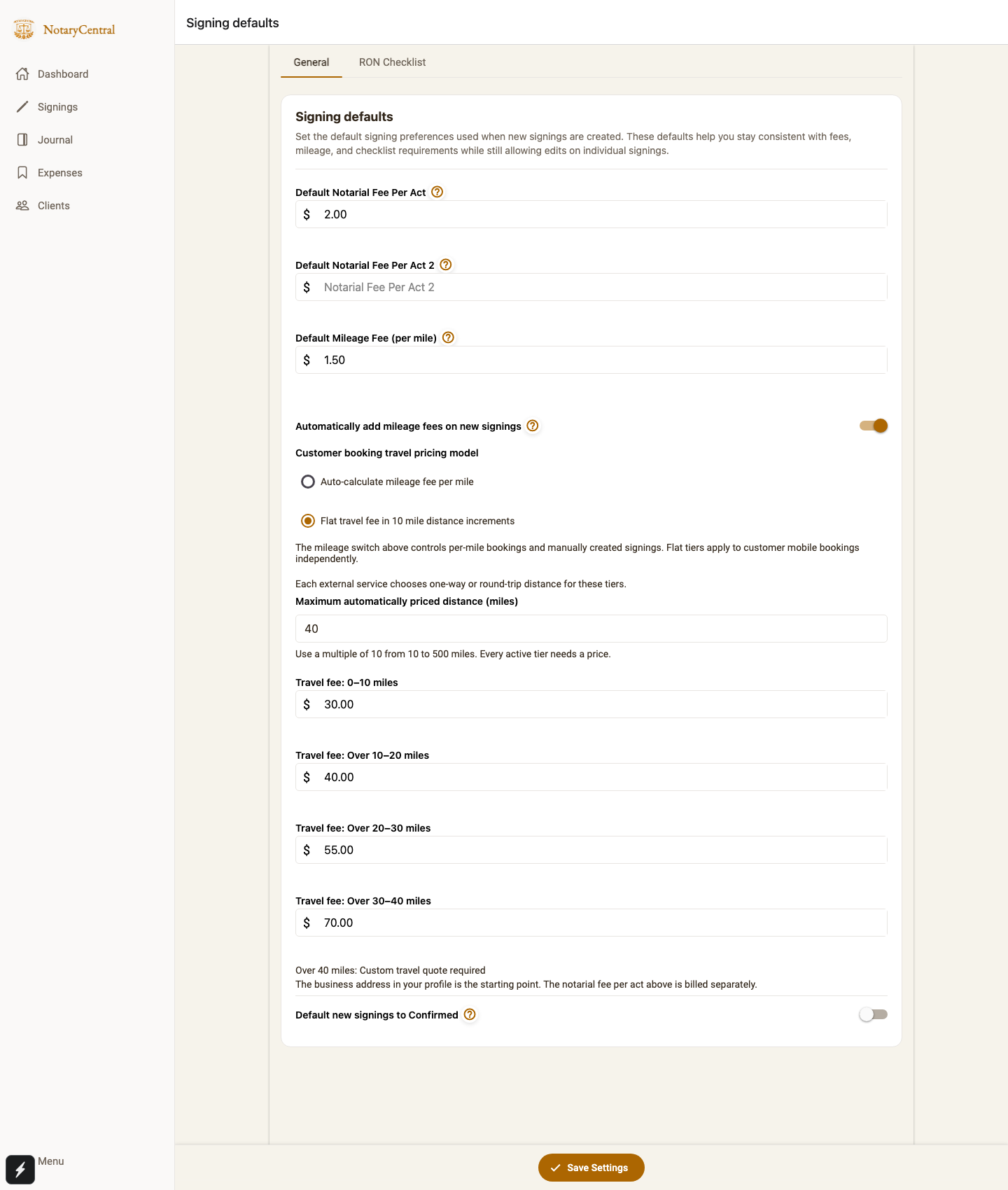
Open Signing defaults in NotaryCentral. Set your Default Notarial Fee Per Act, then under Customer booking travel pricing model select Flat travel fee in 10 mile distance increments. Enter a Maximum automatically priced distance in a multiple of 10 miles, and fill in a price for every band through that limit. Select Save Settings.
For example, a 40-mile limit could use $30 for 0–10 miles, $40 for over 10–20, $55 for over 20–30, and $70 for over 30–40. A trip of exactly 10 miles uses the first band; a trip over 40 miles needs a custom quote. These are flat prices for the selected band, not per-mile rates.
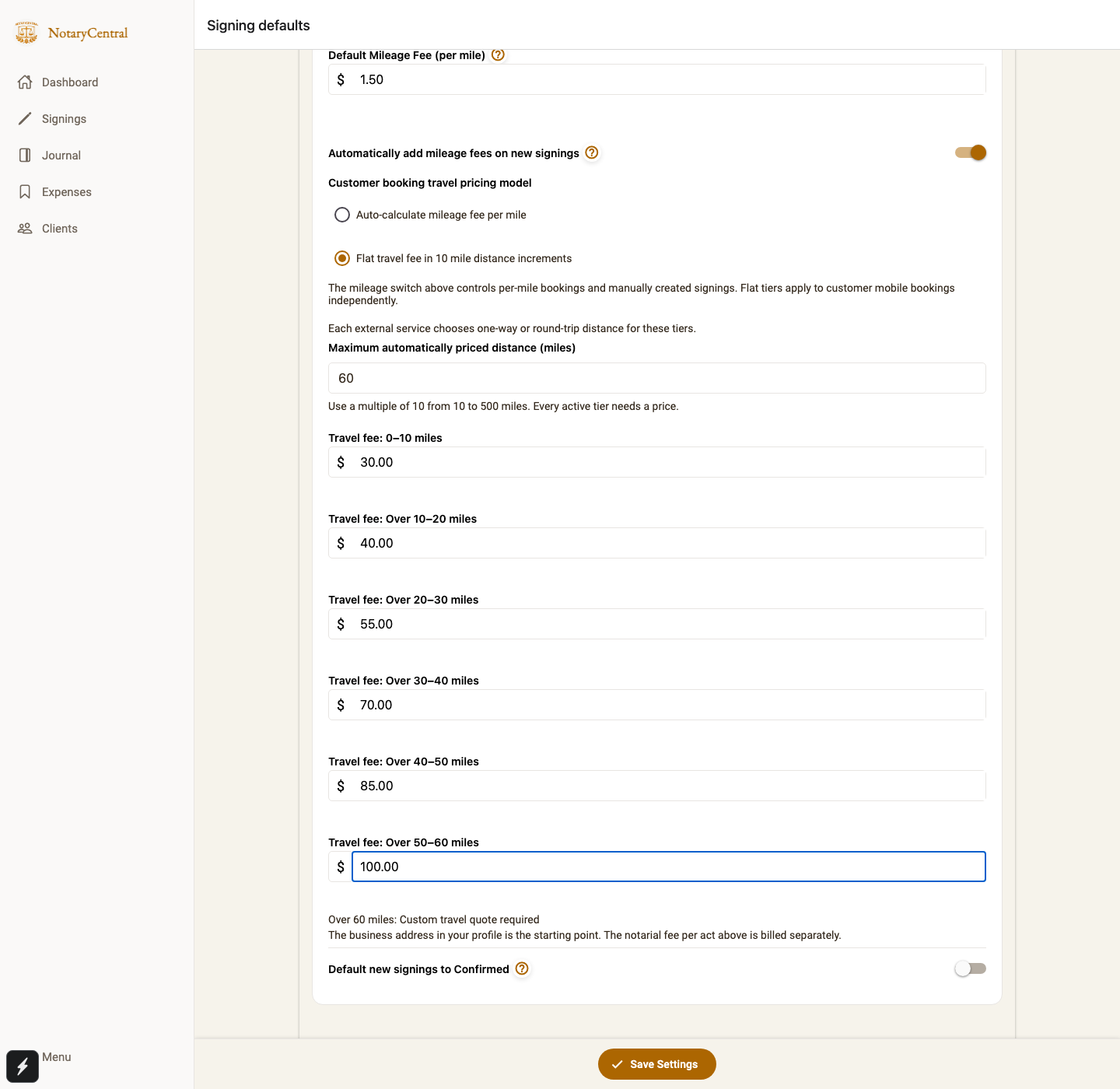
You can extend the limit later in 10-mile increments. For example, set it to 60 miles and add prices for over 40–50 and over 50–60 miles. Every active band needs a price; travel beyond your limit still requires a custom quote.
2. Choose one-way or round-trip for the service
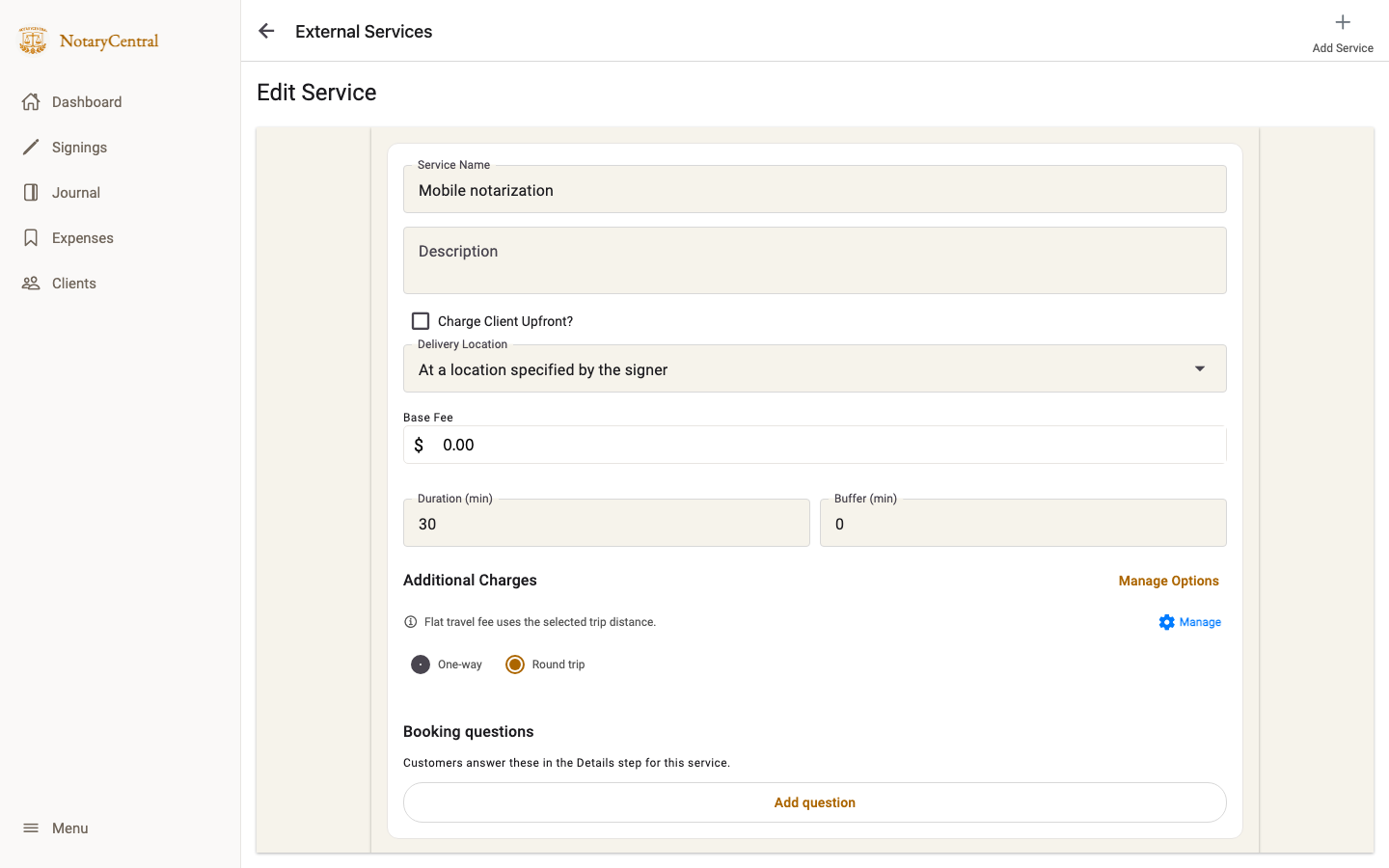
Open External Services and edit the mobile service customers book. Set Delivery Location to At a location specified by the signer. Under Additional Charges, choose One-way or Round trip, then save the service.
The booking uses the customer's service address to calculate one-way driving distance from your business address. One-way selects a tier from that distance. Round trip doubles that distance before selecting a single tier. For example, a 7-mile drive uses the $30 tier one-way or the $40 tier round-trip when those prices are configured. The selected trip distance also determines whether the request exceeds your automatic pricing limit.
What customers see
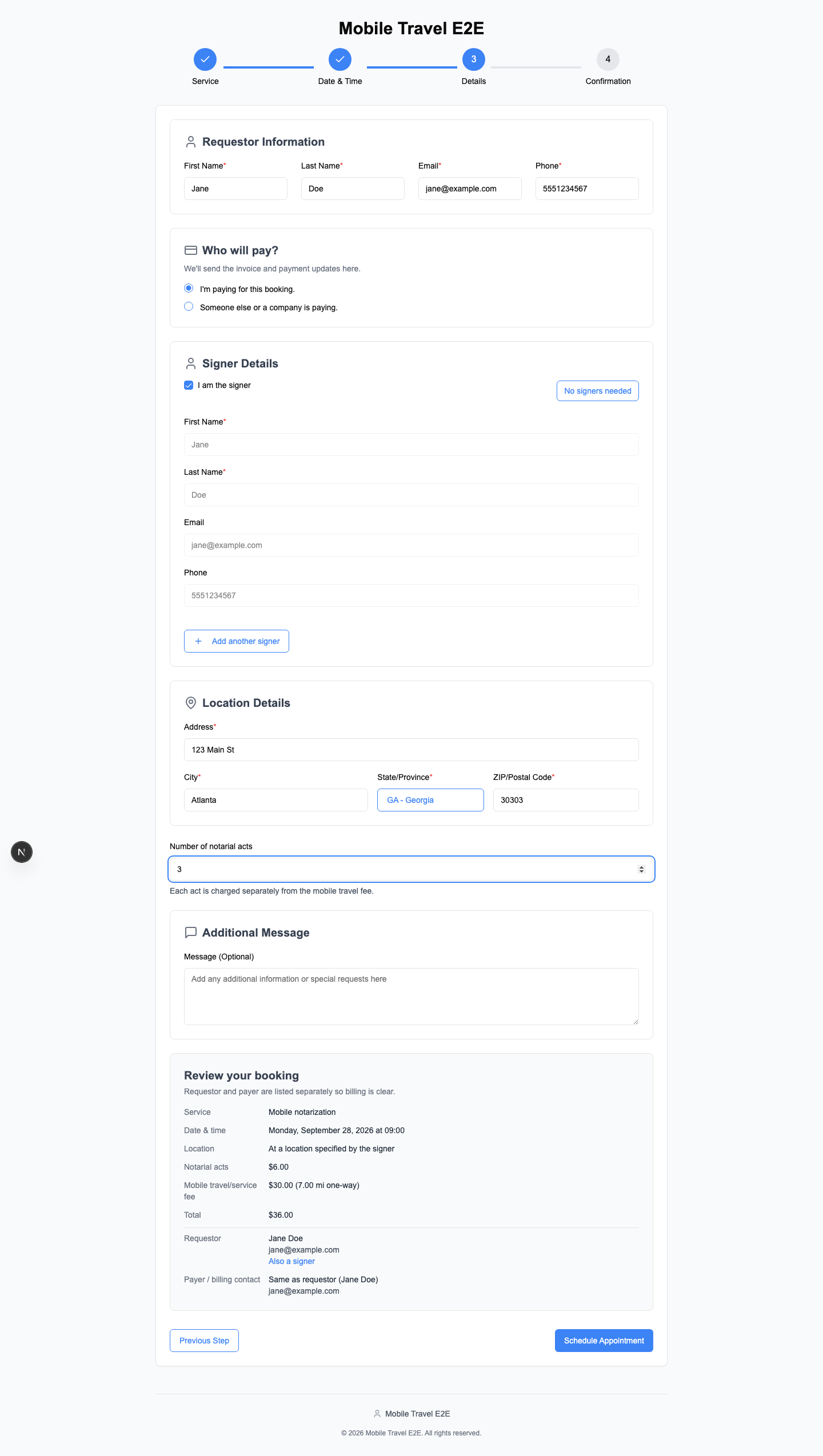
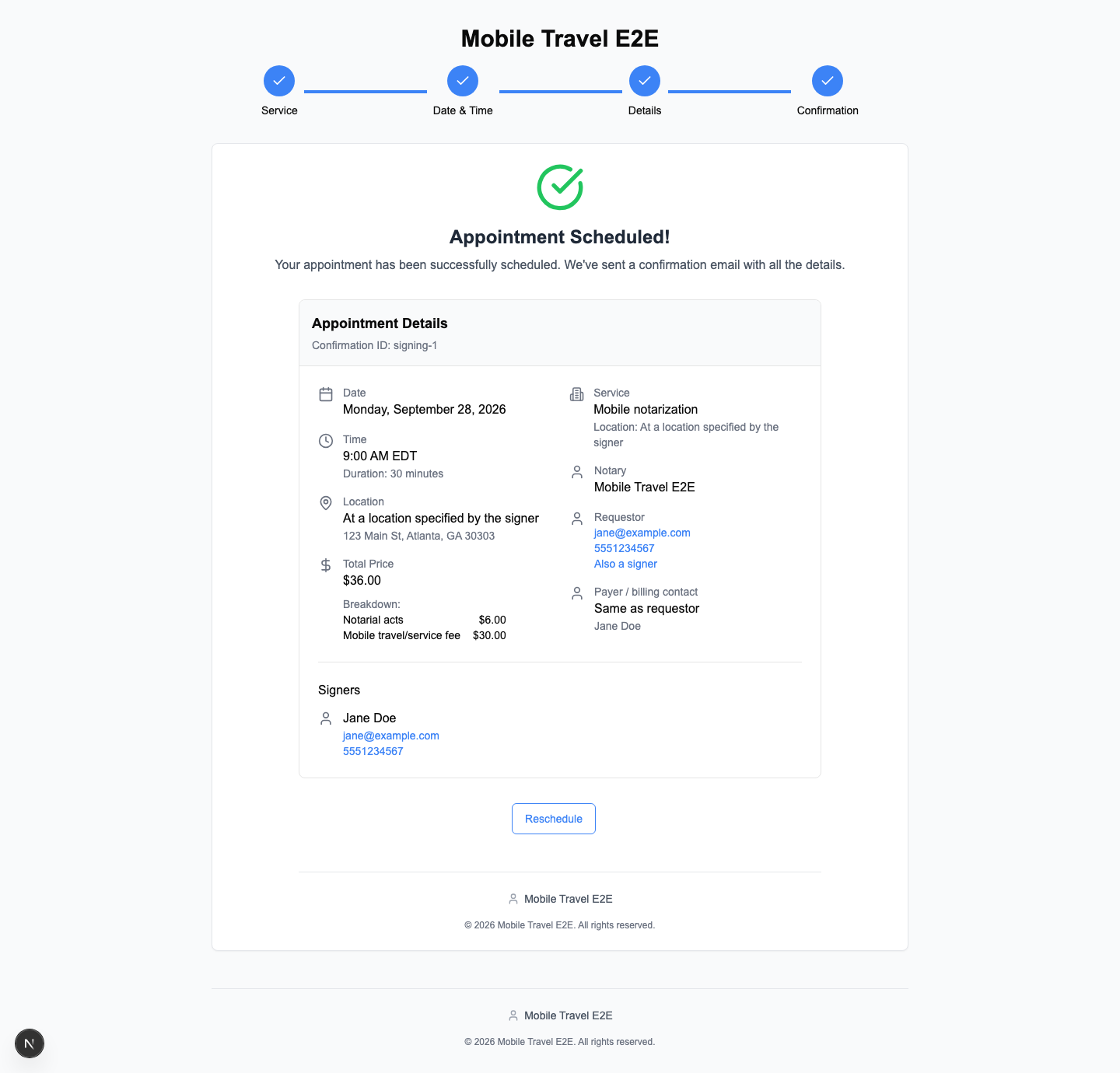
Once a customer enters the service address, Review your booking shows the mobile travel/service fee and the estimated total before they submit. The fee is included automatically; there is no travel-fee checkbox to remove it. Notarial acts appear separately. In this example, three acts at $2 each plus a $30 travel fee produce a $36 total.
After a booking within your limit, the confirmation shows the same charges rather than calling the appointment free.
What happens beyond your limit
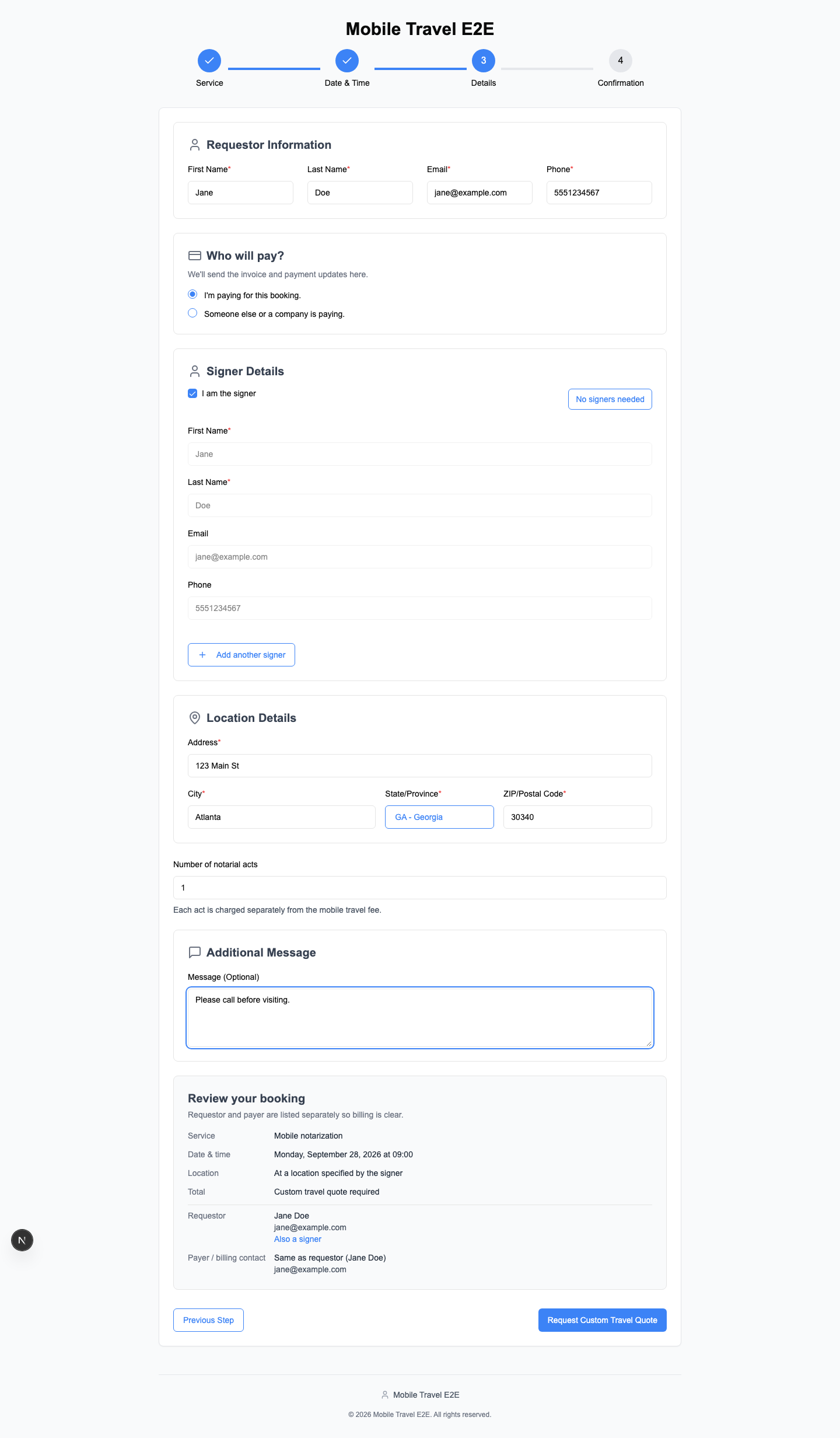
When the selected trip distance exceeds your limit, the customer sees Custom travel quote required instead of an automatic travel amount and can request a quote. No automatic travel charge is applied.
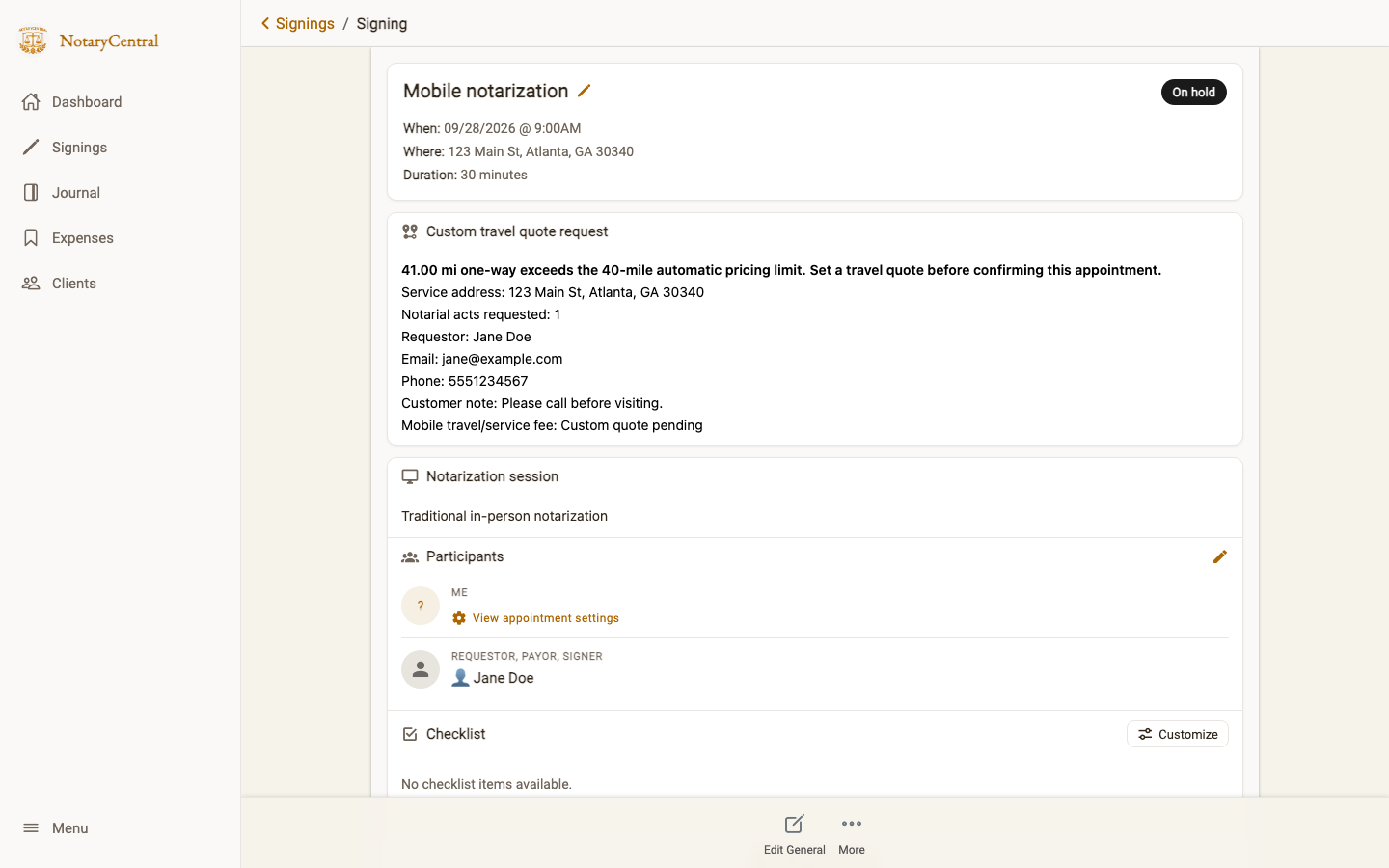
The request appears On hold on your signing page. Its custom quote section shows the calculated distance and limit, service address, requested notarial acts, customer contact details, and any message. Review those details and set a travel quote before confirming the appointment.
Screenshots show sample data from the mobile travel booking end-to-end test. Your prices, distances, and customer details will reflect your own settings and bookings.